
Levo compared · Guides
How to free up space on a Mac: six ways compared
There’s no single best way to free up space on a Mac. There are six common ways, and each is the right one for somebody. This page compares them honestly, so you can pick the one that fits how you use your Mac.
Quick verdict
- Start here, it’s free and safe: macOS Storage settings.
- Best when you know exactly what to delete: doing it by hand.
- Best polished all-in-one: CleanMyMac.
- Best free command line: Mole.
- Best judgement, for a one-off: your AI agent.
- Best when you want your agent’s judgement with a list you tick and a guard on the deleting: Levo.
Comparison table
“Not stated” means the maker’s page doesn’t mention it, not that it’s missing.
| Way | Price | Who decides what’s safe | Where you use it | Safety |
|---|---|---|---|---|
| macOS Storage settings | Free, built in | Suggestions for a few kinds of file | System Settings › General › Storage | Apple’s own recommendations |
| CleanMyMac | From about US$3.33 a month (Nov 2026) | A fixed list of what it knows | App with a menu bar companion | Not stated |
| Mole | Free | Rules built into the tool | Command line (mo); its page also mentions native Mac and Windows apps | Dry run (--dry-run) and a whitelist |
| Your AI agent alone | Your agent’s own plan | The agent, once, in that session | A chat or terminal session | None beyond what the agent decides |
| Levo | Two cleanups free, then a lifetime licence for 2 Macs | Your own AI agent, checked by Levo’s guard | Menubar app plus a Settings window | A guard re-checks every item right before it goes |
1. macOS Storage settings
Open System Settings › General › Storage. It’s free, safe and already there, and it handles the easy wins: store files in iCloud, empty the Trash automatically, review large files and delete apps. Its limit is the big bars labelled System Data or Developer, which say little about what’s inside them.
Details from Apple’s page, checked 1 November 2026.
2. By hand
Empty the Trash, clear Downloads of old installers and disk images, delete iPhone and iPad backups you no longer need, and sort Finder’s file list by size. Developers add the tools’ own clean commands, such as xcrun simctl delete unavailable for simulators, docker system prune for containers and brew cleanup for Homebrew.
- Price: free.
- Good at: full control, and no new software.
- Limit: you need to know what’s safe, and it takes time. Hidden folders such as
~/Library/Cachesare easy to get wrong.
3. CleanMyMac
By MacPaw. Its page presents CleanMyMac as an all-in-one app for cleaning, removing apps and keeping a Mac in shape, for macOS 11 and later. It’s polished and simple: one scan, one list, one button. It shows a 4.7 rating from about 3,300 reviews. It cleans what its makers have taught it about, so a tool it doesn’t know isn’t in the scan until an update adds it.
Details from CleanMyMac, checked 1 November 2026.
- Price: starting at about US$3.33 a month (Nov 2026), per its own page.
- Good at: an easy interface, a broad set of everyday cleanup and maintenance tasks, an uninstaller, and a long track record.
Pick it if: You want one polished app for everyday tidying and you don’t use a coding agent.
4. Mole
By tw93 and contributors. Mole is a free, open-source tool you run in Terminal as mo: mo clean, mo uninstall, mo optimize, mo analyze (a disk explorer in the terminal), mo status (a live health view), mo purge (build artefacts) and mo installer. Most commands take --dry-run. Its page also mentions native Mac and Windows apps.
Details from Mole, checked 1 November 2026.
- Price: free.
- Good at: speed, scripting, and doing the lot from one command line, with a preview before anything is removed.
Pick it if: You live in a terminal, want it free and open source, and are happy to read a dry run as text.
5. Your AI agent alone
Claude Code, Codex, Gemini CLI and other agents can look at your disk and delete what you agree to. They’re good at judging, because they can read a folder, work out what made it and say whether it comes back.
- Price: your own plan or API usage.
- Good at: judgement on things no fixed list knows about.
Pick it if: It’s a one-off, in a project you know, and you’ll read each command before it runs.
6. Levo: your agent judges, you tick, Levo deletes
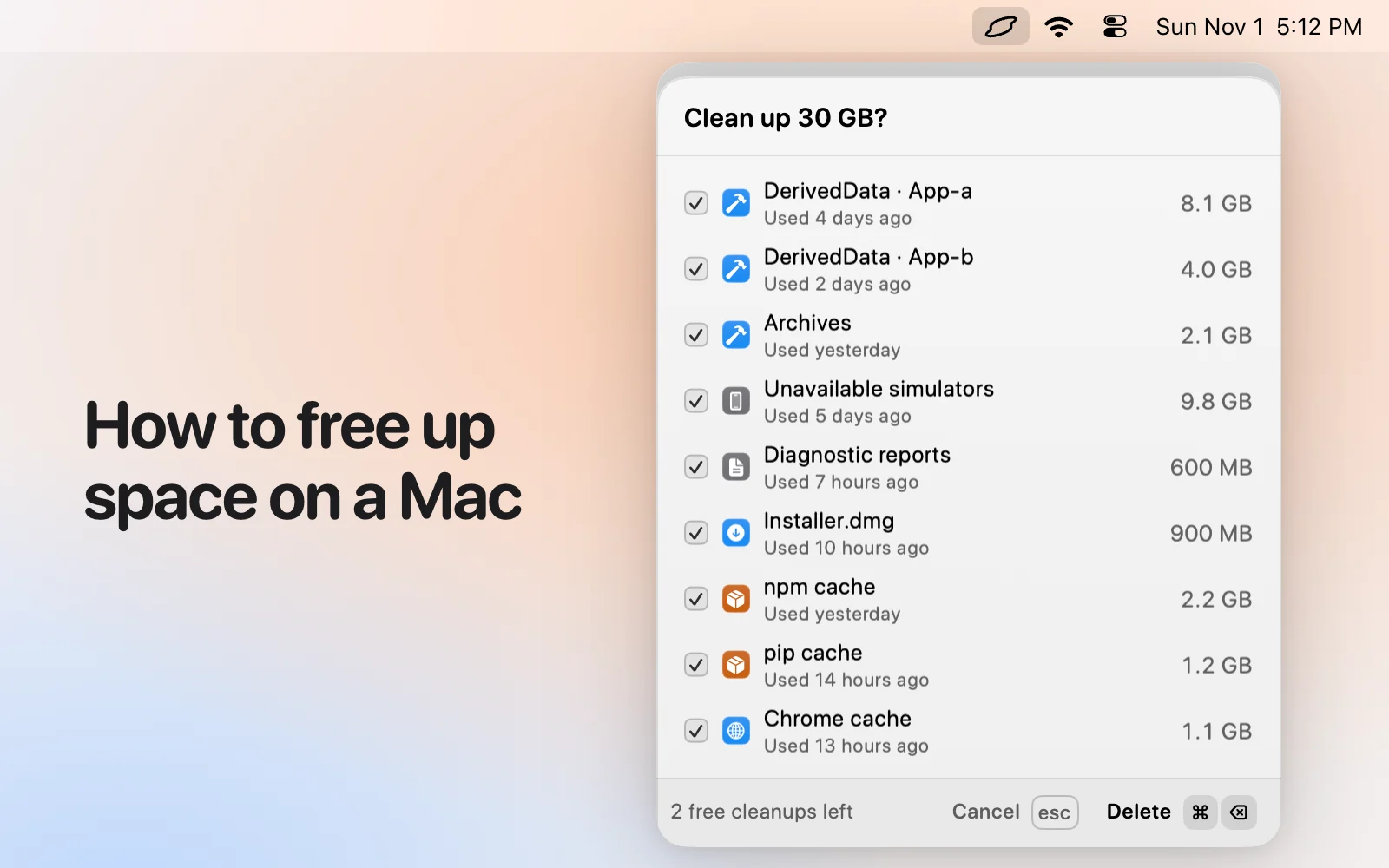
Levo is a menubar app that watches disk, memory, CPU and GPU against limits you set. When free space drops, your own AI agent has already looked and judged each item, and Levo shows a list with sizes and reasons. You tick what goes, and Levo does the deleting, with a guard checking each item right before it goes. Auto mode can keep free space above your limit on its own, if you turn it on.
- Price: free to watch and ask, two free cleanups, then a lifetime licence for 2 Macs. The price is on the Levo page.
- Needs: macOS 26 or later.
Skip it if you’re on a Mac older than macOS 26, or you want a ready-made list with no agent involved.
How we chose
- Starting point: the tools people most often name when they look for this kind of Mac app, plus what macOS and an AI agent can do on their own.
- Kept: tools that are still maintained and differ on price, where you use them, or who decides what is safe.
- Sources: each maker’s own website, checked 1 November 2026, and for Levo the app itself. No paid placements, and none of these makers reviewed this page.
Which one should you pick?
- macOS Storage settings: Always first.
- By hand: You know what’s taking the space.
- CleanMyMac: You want one easy app.
- Mole: You want it free and in Terminal.
- Your agent alone: It’s a one-off in a project you know.
- Levo: You want judgement, a list you tick, and a guard, with a warning before you run out.
Questions
What should I delete first?
The Trash, old installers in Downloads, iPhone and iPad backups you no longer need, and large files you don’t use. Developers: Xcode build data and simulators.
Is it safe to delete caches?
Generally yes: apps make them again. Close the app first, and keep what you’re working with.
Why doesn’t my free space grow after deleting?
The Trash, local snapshots and clones can hold space. See Free space looks different in Finder.
Do I need a cleaner app at all?
Not always. If the built-in suggestions are enough, stop there.
Compared on 1 November 2026, from each app's own website. We make Levo.