
Levo compared · Disk maps and monitors
GrandPerspective vs Levo
GrandPerspective draws your disk as a treemap, so the biggest files jump out. Levo shows the space as a list, says what each item is and whether it’s safe to remove, and warns you before the disk fills.
Quick verdict
- Pick Levo: you want the answer, not the map: what each item is, whether it comes back, and a guard that checks it before it’s deleted..
- Pick GrandPerspective: you want a free, light map to spot big files yourself..
Levo at a glance
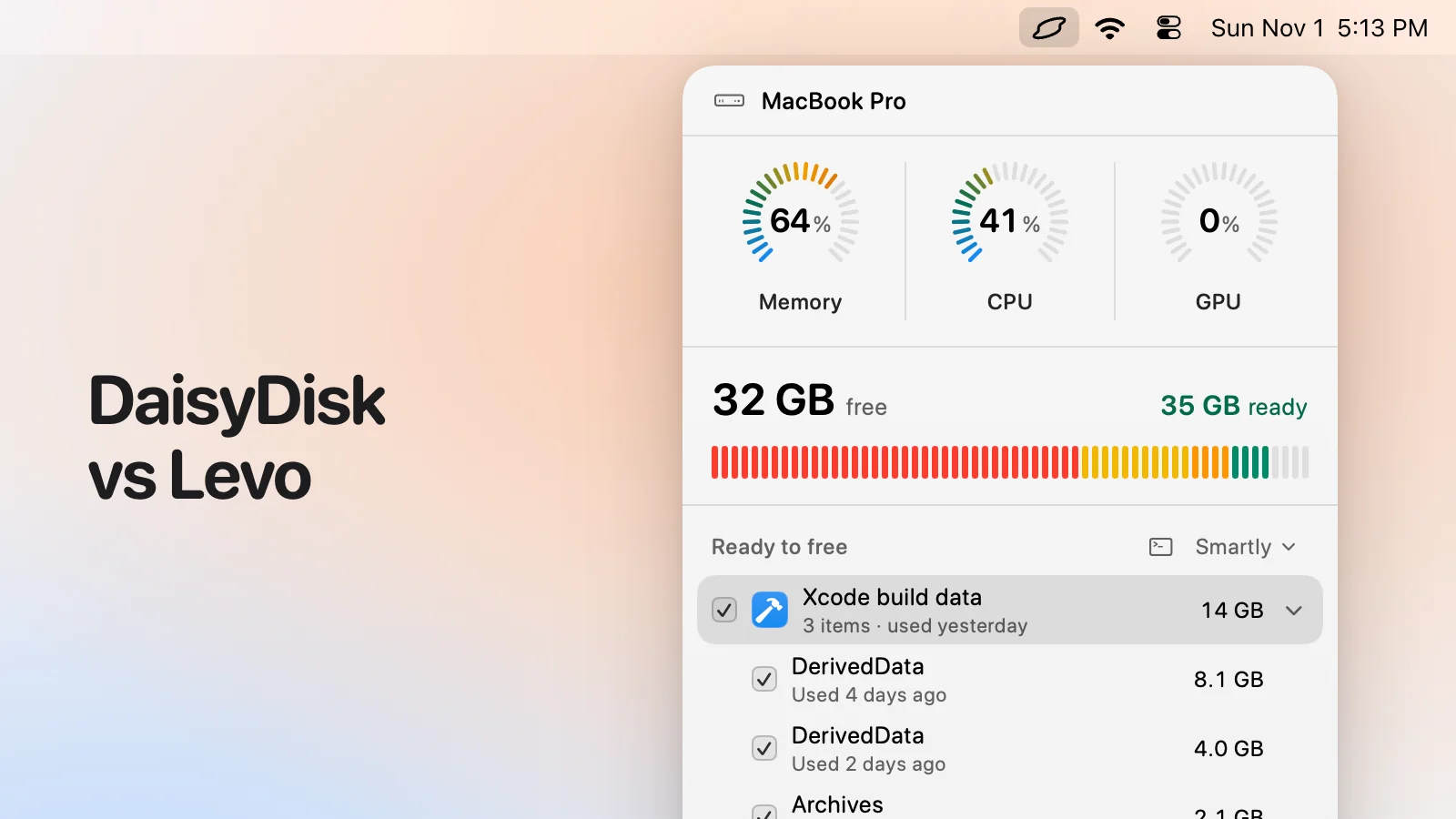
- What it is: a menubar app that watches disk, memory, CPU and GPU against limits you set. Needs macOS 26 or later.
- Who judges: your own AI agent (Claude Code, Codex and others) says what’s safe, read-only. Without an agent, Levo uses its rules for known tools.
- Who deletes: Levo does, never the agent, and it checks each item again right before it goes.
GrandPerspective at a glance
- What it is: a free treemap: each file is a rectangle sized by how big it is.
- Deleting: you pick files in the map and remove them yourself.
- Good at: spotting giant files in seconds, at no cost.
Side by side
| Levo | GrandPerspective | |
|---|---|---|
| What it’s for | Freeing space safely, and watching your Mac | Seeing where the space went |
| How it shows the disk | A list of groups and items with sizes, plus a disk bar | A treemap |
| Which parts are junk | Your agent says what each item is and whether it’s safe | Your call |
| Any folder or drive | Your home folder and drives you add | Yes, anywhere you point it |
| Alerts | At limits you set, with the list ready | No |
| Memory, CPU and GPU | Yes | No |
| Price | Two free cleanups, then a lifetime licence | Free (a paid App Store version exists) |
How each works day to day
GrandPerspective is a tool you open when you wonder where the space went. You pick a folder or drive, it scans, and you get a treemap. You hover rectangles to see names, and you select files to reveal or delete. It’s light, quick to learn and entirely under your control.
What each does not do
GrandPerspective doesn’t tell you what a rectangle is, and it won’t warn you the disk is filling. Levo doesn’t draw a map and isn’t meant for browsing arbitrary drives. It never touches Photos, Mail or Messages libraries, iCloud Drive, keychains, SSH keys or anything open or in use, and it leaves Time Machine snapshots, swap and macOS’s own files to macOS.
When to use both
If a disk is full and you don’t recognise why, open GrandPerspective once, find the huge folder, and then ask whether Levo already knows it. If it does, Levo’s reason tells you if it’s safe. If it doesn’t, you’ve found something worth investigating by hand. Used together, the map gives you the picture and Levo gives you the decision.
Who should pick which
- GrandPerspective: You want a free map and you’re happy to decide each deletion yourself.
- Levo: You want to know what the 40 GB block is without researching it, and to hear about it before the disk is full.
- Both: Use the map to explore and Levo to clean what’s known to be safe.
Questions
Is GrandPerspective free?
Yes, from its own site. A paid version is also on the Mac App Store.
Does Levo draw a map?
No. It shows a disk bar and a list. A map is the right tool for exploring, and Levo doesn’t try to be one.
Can I use both?
Yes. They don’t conflict: the map to explore, Levo to clean.
Does Levo need an AI agent?
No. It works without one, using its live index and its rules for known tools. An agent such as Claude Code or Codex makes the suggestions complete.
Who deletes the files in Levo?
Levo does, never the agent. The agent can only read, and Levo checks every item again right before deleting it.
Compared on 3 November 2026. Prices of other apps are rounded and can change; check the maker’s site.