
Levo guides · Developers: Apple
The developer’s Mac disk cleanup guide (2026)
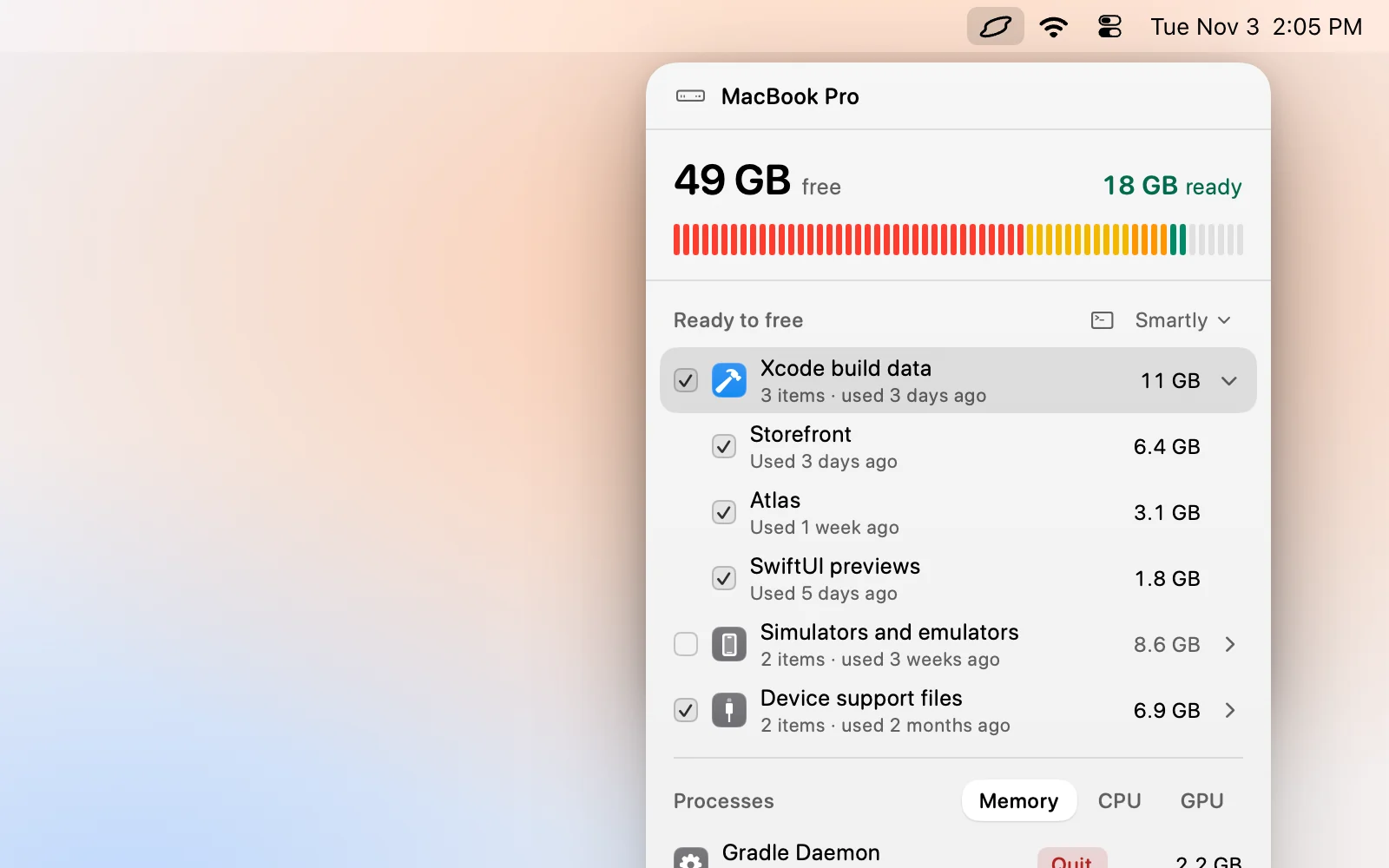
A developer’s Mac fills up from the same dozen places: Xcode’s build data and simulators, node_modules, package caches, Docker’s disk image, language toolchains and AI models. Almost all of it is made again on demand, so the job is knowing which folder is which and using the tool’s own clean command rather than rm.
| Ecosystem | Where it hides | Clean it with | Guide |
|---|---|---|---|
| Xcode build data | ~/Library/Developer/Xcode/DerivedData | Settings › Locations, or delete the folder | DerivedData |
| Simulators and runtimes | ~/Library/Developer/CoreSimulator | xcrun simctl delete unavailable | Simulators |
| Device support | ~/Library/Developer/Xcode/iOS DeviceSupport | Delete old iOS version folders | DeviceSupport |
| SwiftPM and CocoaPods | ~/Library/Caches/org.swift.swiftpm, ~/Library/Caches/CocoaPods | swift package purge-cache, pod cache clean --all | SwiftPM and CocoaPods |
| node_modules | Every JavaScript project folder | Delete the folder, then npm install | node_modules |
| npm, pnpm, Yarn, Bun | ~/.npm, the pnpm store, ~/.bun/install/cache | npm cache clean --force, pnpm store prune | JavaScript caches |
| Docker | Docker.raw in the Docker data folder | docker system prune | Docker |
| Homebrew | ~/Library/Caches/Homebrew | brew cleanup | Homebrew |
| Python | ~/Library/Caches/pip, virtualenvs, conda | pip cache purge, uv cache clean | pip, uv and conda, virtualenvs |
| Rust | target folders, ~/.cargo | cargo clean | Rust |
| Go | ~/Library/Caches/go-build, ~/go/pkg/mod | go clean -cache | Go |
| Gradle and Android | ~/.gradle/caches, ~/Library/Android/sdk | ./gradlew clean, AVD Manager | Gradle, Android emulators |
| Editors | JetBrains, VS Code and Cursor caches | Each app’s own folders | JetBrains, VS Code and Cursor |
| Test browsers | ~/Library/Caches/ms-playwright | npx playwright uninstall | Playwright and Puppeteer |
| Game engines | Unity Library, Unreal DerivedDataCache | Delete the folder, reopen the project | Unity and Unreal |
| AI models and agents | ~/.ollama, ~/.cache/huggingface, ~/.claude | Each tool’s own command | AI clutter |
How to do it yourself
Start by finding out where the space went. A disk map is the quickest way, but a few du commands answer most of it:
du -sh ~/Library/Developer ~/Library/Caches ~/.cache ~/.npm ~/.gradle ~/.cargo ~/.ollama ~/.claude 2>/dev/null
du -sh ~/Library/Containers/com.docker.docker 2>/dev/null
Then go in this order, biggest and safest first.
- Quit Xcode and clear the build data, then the simulators and old device support. On a Mac with years of Xcode this is often 50 to 150 GB. Why Xcode gets so big explains each folder.
- Prune Docker. Images and build cache are the safe part; volumes may hold a database you care about.
- Delete
node_modulesandtargetfolders from projects you haven’t opened in months. Use the package manager to bring them back later. - Run the package-manager cleaners:
brew cleanup,npm cache clean --force,pip cache purge,go clean -cache. Each cache is rebuilt on the next install, which costs time and bandwidth. - Review AI models and agent history. Models are the one thing here that may not be on the internet any more, so check them by hand.
The rule that keeps you safe: caches and build output are made from something else. Archives, databases in Docker volumes, unpushed git work, .env files and your own models are not.
A routine that works
Most developers do better with a small habit than a big purge. Once a month, size the folders in the command above and look at what grew. Xcode build data, Docker’s build cache and node_modules in abandoned branches are the usual growers; the rest barely move.
Two things are worth doing once. Point big model caches at an external drive with their environment variables (OLLAMA_MODELS, HF_HOME), and shorten how long your coding agents keep sessions. After that the growth slows down for good.
And a short list of what to leave alone, whatever a cleaner says: Xcode archives you shipped, Docker volumes with a database in them, .env and credentials files, SSH keys, and git repositories with unpushed work. None of these are caches, and none can be rebuilt from source. If you are unsure about a folder, open it, look at the dates, and ask your agent what it is before deleting anything.
How Levo does it
Levo keeps a live index of your disk and groups what it finds by kind: Xcode build data, Simulators, Package caches, Docker images, Agent worktrees and more, each with a size and a reason. The built-in rules know the folders above. Your own agent, such as Claude Code or Codex, reads the index and judges what has gone stale, but only Levo deletes.
Select › Smartly ticks what is safe at your cleanup level. Models, backups, virtual machines and anything open stay unticked for you to decide. Levo checks each item again just before it deletes, and leaves alone anything Xcode or a build is using. The details are in Levo for Xcode developers, for web developers and for Android developers.
FAQ
What takes the most space on a developer’s Mac?
Usually Xcode data first: DerivedData, simulators and their runtimes, and device support, then Docker’s disk image, node_modules folders and AI models. Size your home folder and the Library folder to see which applies to you.
Is it safe to delete developer caches?
Yes for caches and build output, because the tool makes them again from your source. Expect a slower next build or install. Don’t delete archives, Docker volumes, unpushed git work or models you can’t download again.
Should I use rm or the tool’s own command?
Use the tool’s command when there is one, such as simctl for simulators, docker prune, brew cleanup and swift package purge-cache. It knows what is in use. Plain deletion is fine for DerivedData and node_modules.
How often should I clean a developer Mac?
When free space gets low, or after a big project ends. Build data and caches grow back, so a monthly look beats a yearly purge.