
Levo guides · Memory, CPU and GPU
How to free up RAM on a Mac
To free up RAM on a Mac, quit the apps and background processes you are not using, starting with whatever Activity Monitor shows at the top of the Memory tab. A big "Memory Used" number is normal; what matters is the Memory Pressure graph, and only yellow or red means you need to act.
| Signal | Where to see it | What it means |
|---|---|---|
| Memory Pressure, green | Activity Monitor › Memory | Fine. Leave it alone. |
| Memory Pressure, yellow | Activity Monitor › Memory | macOS is compressing and swapping. Quit something idle. |
| Memory Pressure, red | Activity Monitor › Memory | Apps may stall. Quit the biggest idle one now. |
| Swap Used, growing | Activity Monitor › Memory | You are asking for more than the RAM holds. |
What "used" memory really is
macOS fills spare RAM with cached files because empty RAM is wasted RAM. That cache is handed back the moment an app asks for it. So a Mac with 14 of 16 GB "used" and a green graph is healthy. Look at the pressure graph and at Swap Used, not at the used figure.
How to free up RAM yourself
- Open Activity Monitor (⌘Space, type its name) and click the Memory tab.
- Look at the Memory Pressure graph at the bottom. If it is green, stop here.
- Click the Memory column to sort by size. The top few rows are your candidates.
- Quit what you do not need with ⌘Q in the app itself. Dragging an app out of the Dock does not quit it; a dot under its icon means it is still running.
- For a stuck app, select it in Activity Monitor and press the stop button. Choose Quit first, Force Quit only if it does not respond.
- Check Login Items in System Settings › General › Login Items & Extensions. Anything that starts at login and sits there is memory spent every day.
- Restart once in a while. It clears leaks that long-running apps build up, and it is the one "cleaner" that always works.
From Terminal you can read the numbers without opening anything:
memory_pressure
sysctl vm.swapusage
ps -Ao pid,rss,comm -m | head -n 10
The last line lists the ten biggest processes by memory (RSS is in kilobytes). There is also sudo purge, which empties the file cache. It makes the Mac slower for a moment while the cache refills, and it frees nothing an app was holding, so it is a benchmarking tool, not a fix.
Browser tabs, Electron apps (Slack, Discord, Teams, VS Code) and development servers are the usual heavy ones. A browser with 40 tabs often outweighs everything else together.
Why RAM cleaner apps rarely help
Most one-click RAM cleaners run purge or allocate a big block to push the cache out. The "free" number jumps, the Mac gets slower while it reloads what it just dropped, and a minute later you are back where you started. What helps is quitting a process that holds memory and is doing nothing. See the RAM cleaners that do this honestly for the few that quit the right things.
Read the numbers in Terminal
Activity Monitor is enough for most people, but Terminal gives exact figures you can paste into a note or a bug report. vm_stat prints page counts (a page is 16 KB on Apple silicon). The lines to watch are "Pages free", "Pages occupied by compressor" and "Pageouts", which counts how much has been pushed to disk since boot.
vm_stat
top -o mem -l 2 -n 8 | tail -n 12
ps -Ao pid,rss,etime,comm -m | head -n 10
top -o mem sorts by memory and the second sample is the live one. If a process has a huge RSS and an elapsed time of many days, restart it before anything else. Long-running browsers, chat apps and IDEs are the usual offenders.
A quick routine when the Mac feels heavy
- Check pressure first. If it is green, the slowness is probably CPU, disk or a single app, not memory.
- Quit the three largest apps you are not using right now.
- Close browser windows you will not read today. Bookmark the tabs you want to keep.
- Look for dev tools left running: simulators, Docker, local servers, language servers.
- If pressure is still yellow, restart and open only what you need.
Memory you free comes back as cache, so the "free" figure never stays high for long. Judge success by the pressure graph, not by free megabytes.
How Levo does it
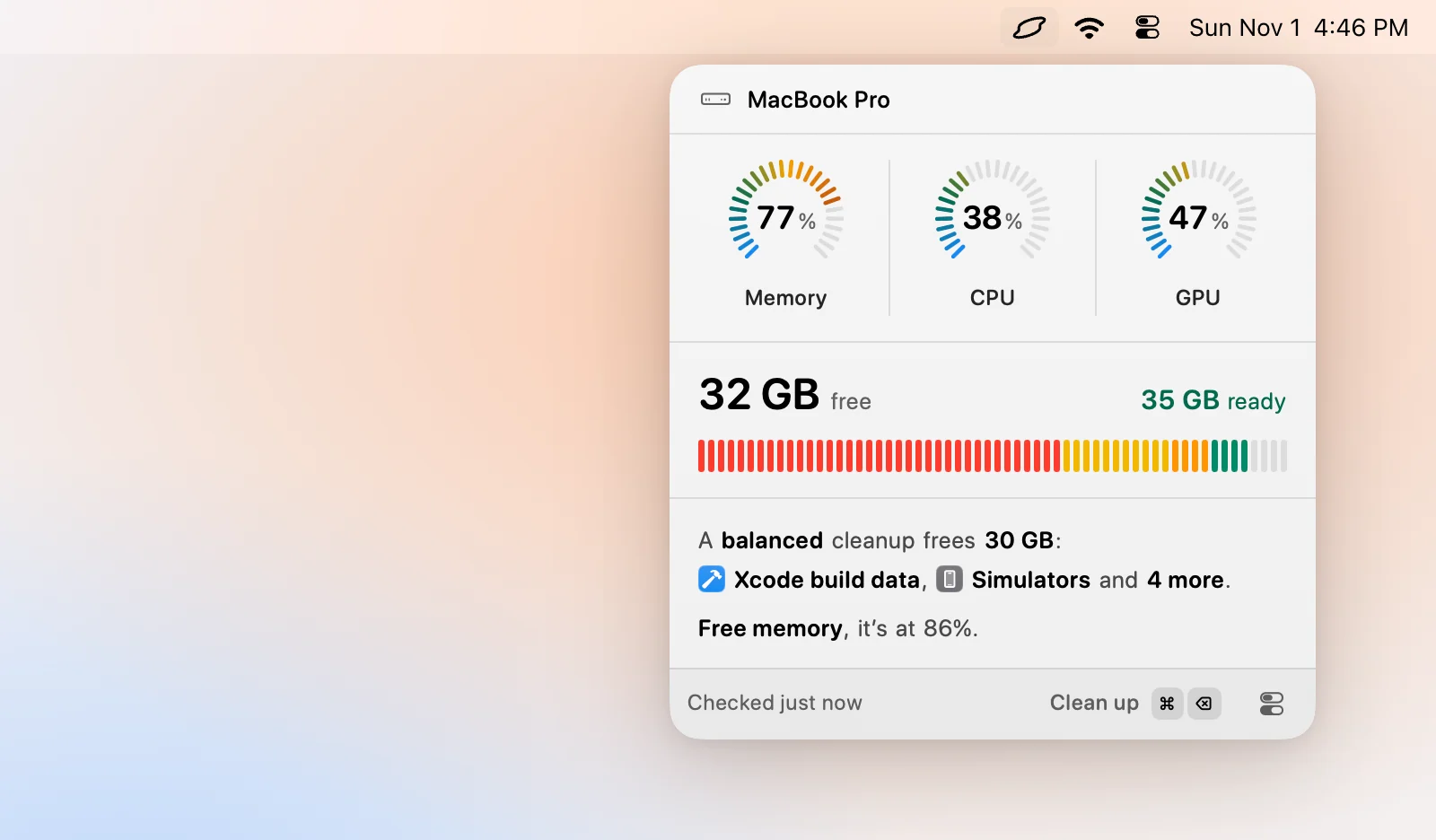
Levo sits in the menu bar and watches memory against a limit you set. Memory uses pressure, not the used figure, so it stays quiet while the cache is simply doing its job. When pressure stays high for the time you chose, it notifies you with the answer ready.
The popover's Processes list shows the busiest processes by memory, each with a plain note and your own AI agent's verdict, such as "Gradle daemon idle 3 h", and a Quit button. Click Free memory and Levo quits the ones the agent marked safe. Apps are asked to quit politely first. Levo never quits system processes such as WindowServer, Finder or Dock, and it leaves the swap file to macOS. The agent only reads; Levo does the quitting. The help article has every step. Watching is free, and so are the first two cleanups, then a lifetime licence.
FAQ
Does a Mac with 16 GB showing 15 GB used need more RAM?
Not by that number alone. macOS caches files in spare RAM and gives it back on demand. Check the Memory Pressure graph: green means you have enough, yellow or red with growing swap means you are short.
Is it safe to run sudo purge?
It is safe, but it only empties the file cache. Apps then reload what they need, so the Mac feels slower for a moment and the benefit disappears. It does not free memory held by apps.
Does closing a window free RAM?
Often not. Many apps keep running with no window open. Quit the app with Command-Q, or check Activity Monitor for what is still holding memory.
Will restarting free RAM?
Yes. A restart clears every process and every leak. It is the most reliable way to reset memory, and worth doing when pressure stays yellow after you have quit what you can.
How much RAM should be free on a Mac?
Very little, and that is fine. macOS uses spare RAM as cache. What matters is that pressure stays green and swap does not keep growing.
Which apps use the most memory on a Mac?
Browsers with many tabs, Electron apps such as Slack and Discord, virtual machines, Docker, simulators and local AI models. Sort Activity Monitor's Memory tab to see yours.