
Levo help · Memory, CPU and agents
Free memory, CPU and GPU by quitting what’s idle
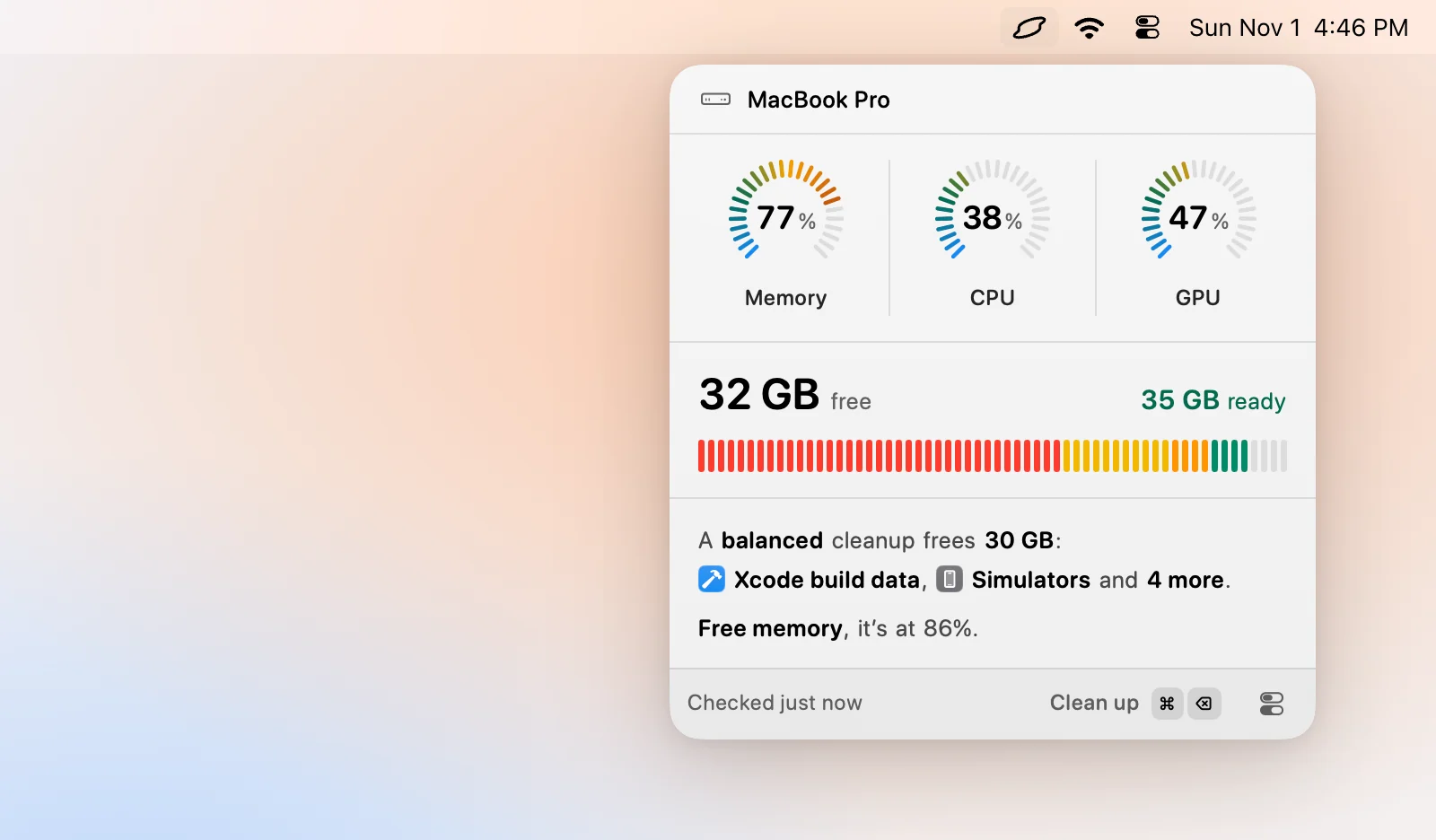
When memory, CPU or GPU runs high, your agent has already looked at what's using it. You quit what's idle, from the popover, a notification or ⌘K.
See what's using it
The popover's Processes section lists the busiest processes by memory, CPU and GPU. Each has a plain note about what it is, your agent's verdict (quit or keep, with a reason, such as "Gradle daemon idle 3 h"), and a Quit button. Click a gauge to see the processes behind it.
Free it
- One process: click Quit on its row, or select it and press ↵.
- All suggested: click Free memory (or Free CPU, Free GPU) in the summary or ⌘K. Levo quits the ones the agent marked safe.
- From an alert: the notification's Quit button quits the top suggestion.
- Force quit: if a process won't quit, ⌥⌘Q force quits it. Unsaved changes are lost, so Levo asks first.
Apps are asked to quit politely first. Other processes of yours get a polite stop signal, then a hard one after a timeout.
What Levo never quits
- System processes such as WindowServer, Finder, Dock and Control Centre.
- Other users' processes.
- Levo itself, and the agent while it's working for Levo.
- Anything you told it to keep.
Always keep a process
Select a process and press ⌘D, or choose Always keep in ⌘K. Levo never offers to quit it again. Manage the list in Settings › Protected, under Kept processes. Choose Stop keeping to undo it.
When it alerts
Set the limits in Settings › Memory, CPU and GPU. Each has a level to cross and a time it must last (For), so a short spike is ignored. Memory uses pressure: Warning, when macOS is squeezing memory, or Critical, when apps may stall.
Want to look deeper? Open Activity Monitor is in ⌘K on any process.