
Compare · Without an app
macOS Storage settings vs Levo
macOS already has a storage screen, and it's free, built in and a fine place to start. Levo is for the space it can't explain.
Quick verdict
- Use Storage settings for a quick bar of what's on your Mac, and for Apple's own safe suggestions like iCloud and the Trash.
- Use Levo for System Data and Developer, which are the biggest bars and say nothing: it names what's inside, with reasons, and cleans it with a guard.
macOS Storage settings at a glance
- Where: System Settings › General › Storage.
- What it shows: a bar of Apps, Documents, Photos, System Data and so on, and a list of apps with their sizes.
- What it suggests: store files in iCloud, empty the Trash automatically, review large files.
- Where it stops: System Data and Developer are single numbers. It doesn't say what a folder is, whether it comes back, or watch your Mac.
Levo at a glance
- What it is: a menubar app that watches disk, memory, CPU and GPU against limits you set. Needs macOS 26 or later.
- Who judges: your own AI agent (Claude Code, Codex and others) looks at what Levo found and says what's safe, read-only and in a sandbox. Without an agent, Levo uses its own rules for known tools.
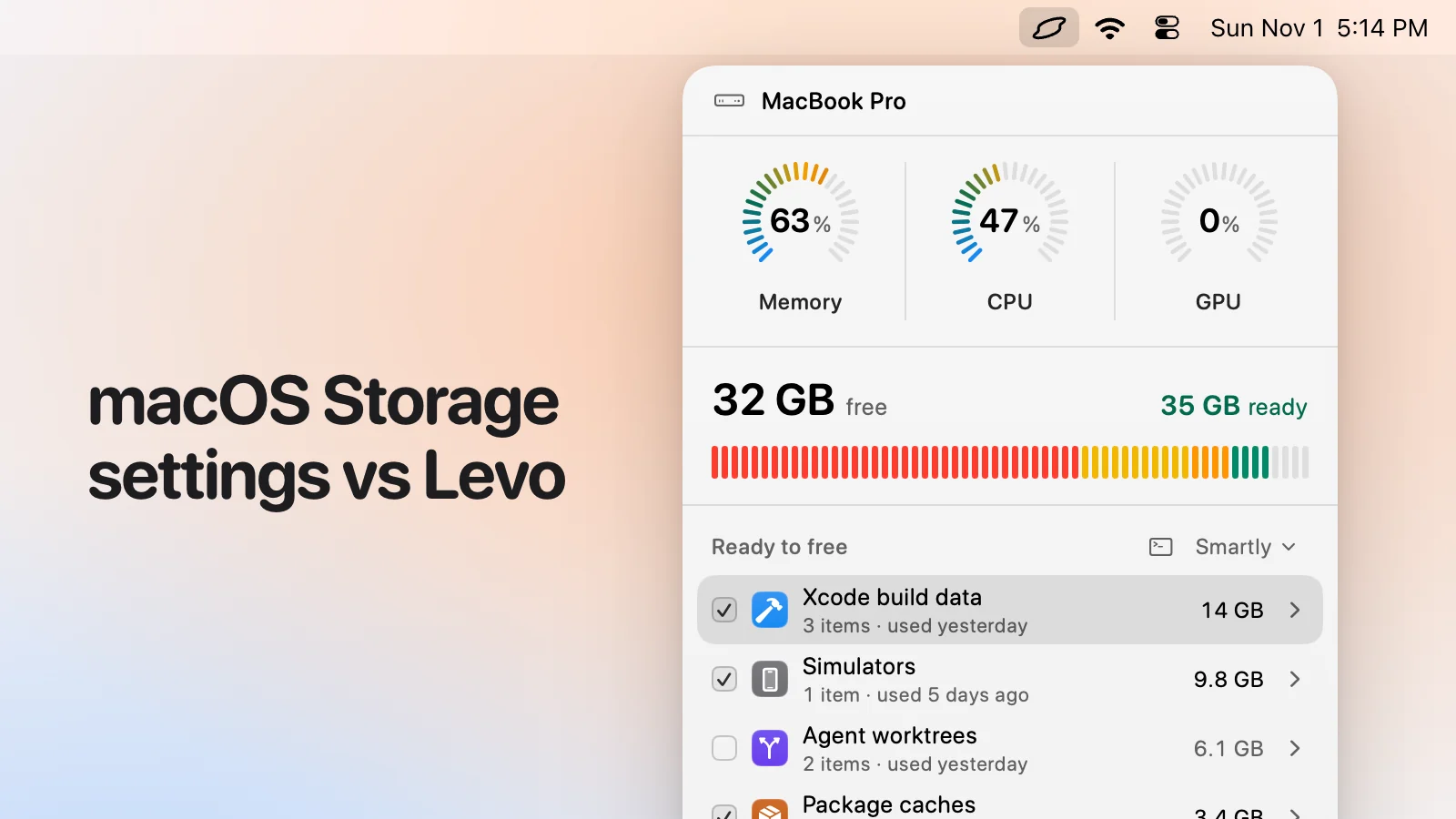
- What you see: every item with its size and the reason it's safe, grouped, with the safe ones ticked at the cleanup level you chose (Careful, Balanced or Aggressive). You tick and untick before anything goes.
- Who deletes: Levo does, never the agent, and a guard checks every item again right before it goes: open files, running apps, unsaved git work, live agent sessions, recent changes, your protected folders.
- Beyond disk: shows the processes behind memory, CPU and GPU and quits what your agent says is idle, uninstalls apps with their leftovers, and can clean on its own with Auto mode.
- Account and price: no account. Watching, suggestions and the first two cleanups are free, then a lifetime licence for 2 Macs. The price is on the Levo page.
Side-by-side
| macOS Storage settings | Levo | |
|---|---|---|
| What it is | A screen in System Settings | A menubar app that watches in the background |
| System Data and Developer | One number each | Named, sized and explained, item by item |
| Reasons | No | Yes, from your agent |
| Alerts at a limit | No | Yes, with the answer ready |
| Memory, CPU and GPU | No (use Activity Monitor) | Yes |
| Cleaning | Apple's recommendations, and deleting apps and files you pick | Rows you tick, cleanup levels and a guard |
| Uninstall apps | Delete from the list | With leftovers; put back for a day |
| Cost | Free, built in | Free tier, then a licence |
Pricing
Storage settings is part of macOS and free.
Levo's watching, suggestions and first two cleanups are free, then a lifetime licence for 2 Macs. See the Levo page.
Who should pick which
macOS Storage settings is a good fit if
- You just want to see roughly what's on your Mac.
- You want to turn on iCloud and Trash suggestions.
- You don't want to install anything.
Levo is a good fit if
- Your biggest bar is System Data or Developer.
- You want to know what the space is and whether it's safe to remove.
- You want to be told before it's full.
Questions
Why do the numbers differ from Finder?
They count in different ways. See Free space looks different in Finder.
Can I use both?
Yes. Use macOS's recommendations for iCloud and the Trash, and Levo for the rest.
Compared on 1 November 2026, from each app's own website. We make Levo.