
Levo guides · Disk space
“Your disk is almost full” on a Mac: what to do first
Start with the things that are always safe and come back by themselves: empty the Trash, clear caches, remove old installers, and delete what you downloaded and forgot. Only then look for big files. Do not delete anything inside /System or /Library, and never remove folders you don’t recognise just because they’re large.
| Step | Typical gain | Risk |
|---|---|---|
| 1. Empty the Trash | Anything from nothing to many GB | None, but it can’t be undone |
| 2. Clear caches | 1 to 20 GB | Low, apps rebuild them |
| 3. Remove old installers and downloads | 2 to 30 GB | Low, check the app is installed |
| 4. Delete old iPhone backups | 5 to 100 GB | Medium, it may be your only backup |
| 5. Find the large files | Varies | Yours to judge |
The five quickest wins
1. Empty the Trash
Files you delete stay on the disk until the Trash is emptied. Control-click the Trash in the Dock and choose Empty Trash. If a file is locked, hold ⌥ while choosing it. To empty the Trash automatically, go to Finder › Settings › Advanced and tick Remove items from the Trash after 30 days.
2. Clear caches
Caches are copies apps keep to be faster. Browsers, chat apps and design tools can each hold several gigabytes. The user caches live in ~/Library/Caches:
du -sh ~/Library/Caches/* 2>/dev/null | sort -h | tail -10Quit the app, then delete that app’s folder. See How to clear cache on a Mac for which ones are safe.
3. Remove old installers and downloads
Open Downloads in Finder, sort by Size and look for .dmg, .pkg and .zip files of apps you’ve already installed. See How to delete old installers.
4. Delete old iPhone backups
Go to System Settings › General › Storage and look for iOS Files, or open ~/Library/Application Support/MobileSync/Backup. A single backup can be 50 GB. See How to delete old iPhone backups before you remove one.
5. Find the large files
In Finder press ⌘F, choose This Mac, set the filter to File Size is greater than 1 GB and sort the results. Old screen recordings, disk images and exported videos are usual. More methods are in How to find large files on a Mac.
What never to delete
- Anything in
/System,/usror/private/var/db. macOS needs it, and the system volume is read-only anyway. - Your Photos library, Mail library or Messages folder by hand. Use each app’s own controls instead.
- Keychains in
~/Library/Keychains, and~/.ssh. - Whole
~/Library/Application Supportsubfolders of apps you still use. They hold your data, not cache. - Virtual machine disks and Docker’s disk image, unless you are sure you don’t need what is inside.
Don’t install a “one click” cleaner that deletes without showing you the list. If you can’t see what goes, you can’t tell what you lose.
If it’s still full
Check Storage settings for the category that is biggest. If it is System Data, How to clear System Data on a Mac is the next step. Time Machine’s local snapshots are the usual surprise, and macOS thins them on its own when space runs low.
How Levo does it
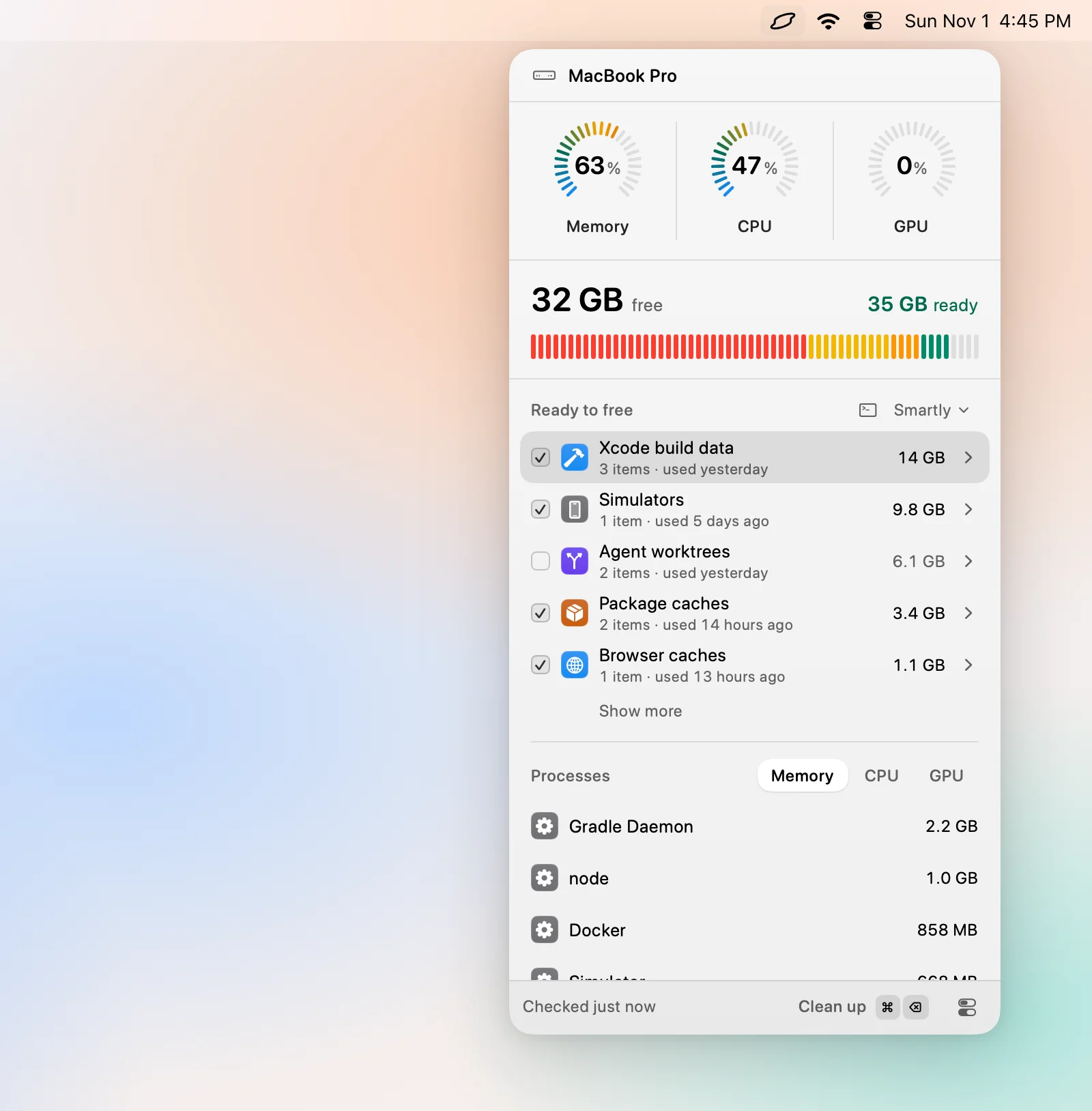
Levo watches your disk against a limit you set. When free space drops below it, you get a notification with the answer ready, instead of the system warning with nothing behind it.
Open the popover and the Ready to free list covers steps 2 to 4 in one place: browser caches, installers, backups, developer data and more, grouped by kind, each with a size, when it was last used and a reason. Your own AI agent, such as Claude Code or Codex, judges each item and can only read. Select › Smartly ticks just what is safe at your cleanup level, you untick what you want to keep, and Clean up does it. Levo checks every item again before it deletes it.
Backups, virtual machines, AI models and large files are listed but never ticked for you, and the Photos, Mail and Messages libraries are never touched. With Move to Trash on, you can put back whatever you cleaned. You get two free cleanups, then a lifetime licence.
FAQ
Why does my Mac say the disk is almost full when I have free space?
The warning can appear when free space is low once purgeable space is set aside, or when System Data and snapshots are large. Check df -h /System/Volumes/Data for the real free figure.
Is it safe to delete System Data to fix this?
Not by hand. System Data is a mix of caches, logs, snapshots and system files. Clear the parts that come back, such as caches and logs, and leave the rest to macOS.
Will emptying the Trash free space immediately?
Yes for the disk itself, but Storage settings can take a few minutes to catch up. Time Machine snapshots can also keep deleted files on the disk until macOS thins them.
How much space should I free?
Aim for at least 20 GB free, or a tenth of the disk. macOS needs room for swap and for updates, and below that a Mac slows down.