
Levo guides · Disk space
How to find large files on a Mac
The fastest built-in way is Finder: press ⌘F, choose This Mac, add the rule File Size is greater than 1 GB, and sort the results by size. For folders rather than single files, Terminal’s du works, and a disk map shows everything at once.
| Method | Finds | Catch |
|---|---|---|
| Finder search | Single files over a size | Skips Library and hidden folders by default |
| Storage settings | Big apps, documents, iOS files | No folders, and System Data is a blank |
du | Biggest folders, level by level | Terminal, and slow on huge folders |
find | Files over a size, anywhere you can read | Terminal, and a long list |
| A disk map | Everything, as blocks or a sunburst | Needs an app and Full Disk Access |
Finder search
- Open Finder and press ⌘F.
- Click This Mac under the search field, not the current folder.
- Click the + beside Save, and set the first menu to File Size, the second to is greater than, and enter 1 GB.
- Choose View › As List, then click the Size column. If it isn’t there, press ⌘J and tick Size.
Search hides system files and, by default, your Library. To include it, add a rule with Other… and tick File Invisibility, then choose Visible or invisible. Spotlight can’t see folders you haven’t given it access to, so the results may still miss some.
Storage settings
Open System Settings › General › Storage and click the ⓘ beside Documents, Applications or iOS Files. It lists the largest items, with a Delete button. It is good for old movies and forgotten apps, and useless for System Data. See How to check storage on a Mac for what the categories mean.
Terminal: du and find
To see which top-level folders in your home are largest:
du -h -d 1 ~ 2>/dev/null | sort -h | tail -15Then go one folder deeper where the number is big, for example ~/Library:
du -h -d 1 ~/Library 2>/dev/null | sort -h | tail -15To list files over 500 MB in your home folder, with sizes:
find ~ -type f -size +500M -exec ls -lh {} + 2>/dev/null | awk '{print $5, $9, $10, $11}'macOS’s du counts disk blocks, so sparse files such as virtual machine disks and Docker’s image can look larger than what they use. Check with ls -ls if a number seems wrong.
A disk map
A map draws every folder as a block sized by its contents, so one glance finds the problem. Free ones such as GrandPerspective and OmniDiskSweeper exist, and DaisyDisk is the popular paid one. They need Full Disk Access to read protected folders. The comparison is in DaisyDisk alternatives.
What usually turns up
- Screen recordings and exported videos in Movies or Desktop.
- Disk images and installers in Downloads.
- iPhone backups in
~/Library/Application Support/MobileSync. - Virtual machine disks, Docker’s disk image and simulators.
- AI models in
~/.ollama, LM Studio and the Hugging Face cache. - Game libraries, and an old Photos library you meant to delete.
A big file isn’t a spare file. Before deleting, ask what opens it, and whether you could download or rebuild it. If neither is true, move it to an external drive instead.
How Levo does it
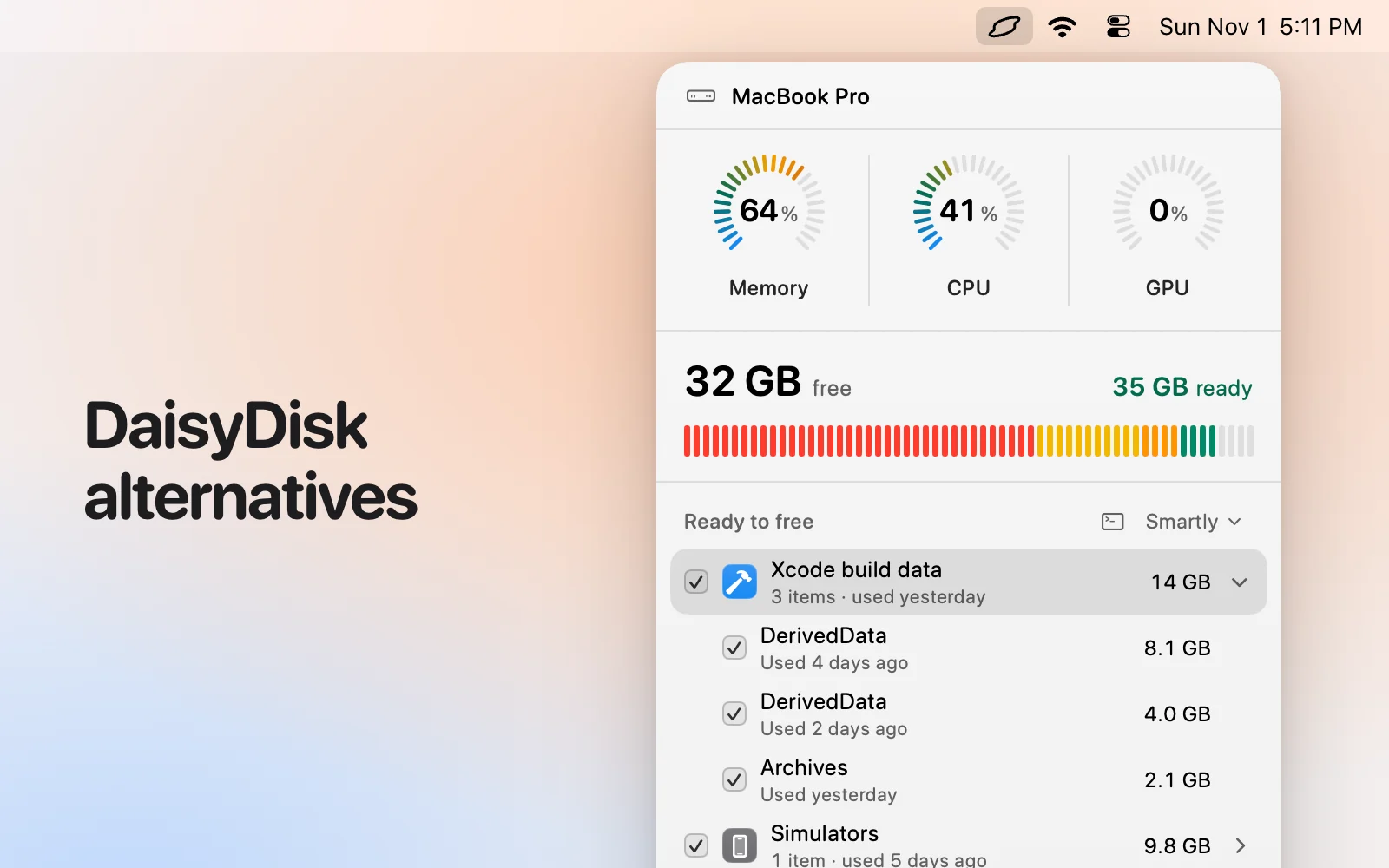
Levo already has the sizes. Its live index keeps track of your home folder, including Library and hidden folders, so large files are listed in Ready to free without you running a search. Each item shows its size and when it was last used, and the grouping tells you what it is: a disk image, a backup, a model or a virtual machine.
Large files, backups, virtual machines and models are listed but never ticked for you, because only you know whether you need them. Your own AI agent can still look at one and tell you what it is. Levo is not a disk map, so it won’t draw the whole disk, but it points at what you can act on. See Levo vs disk maps.
To clean something, tick it and choose Clean up. Levo checks it once more first, and with Move to Trash on, you can put it back.
FAQ
How do I find files over 1 GB on a Mac?
In Finder press Command-F, choose This Mac, add a File Size rule set to greater than 1 GB, and sort by the Size column. For hidden folders, use du or find in Terminal.
Why doesn’t Finder search find large files in Library?
Finder hides the Library and invisible files from search by default. Add a File Invisibility rule set to visible or invisible, or look in Terminal.
Is it safe to delete large files?
Only if you know what they are. Old downloads and exports usually are. Backups, virtual machines and models hold things you may need, so move them to an external drive if unsure.
What is the best app to find large files on a Mac?
A disk map such as GrandPerspective, OmniDiskSweeper or DaisyDisk shows everything at once. For built-in tools, Finder search and Terminal du are enough.