
Levo guides · Storage settings
Purgeable space vs System Data on a Mac
Purgeable space is data macOS can delete whenever it needs room, like caches, iCloud copies and old snapshots. It counts as available in Finder, but it isn’t free yet. System Data is a storage category, and part of it can be purgeable.
| Purgeable space | System Data | |
|---|---|---|
| What it is | A promise: macOS may remove this when needed | A label for what’s in the system and app data on disk |
| Where you see it | Finder’s Get Info on the disk, and the Available figure | System Settings › General › Storage |
| Examples | iCloud files with a cloud copy, cached data, thinned snapshots | Caches, logs, snapshots, swap, VMs, leftovers |
| Who clears it | macOS, automatically, when space runs low | You, for the part that isn’t macOS’s |
| Can you force it? | Not directly | Partly |
How macOS uses it
When an app asks for space and the disk is short, macOS removes purgeable items to make it. You never see that happen. It’s why Finder can say you have 80 GB available while Storage settings shows a bar that looks fuller: Finder adds purgeable space to the free number, and Settings shows it as a separate stripe or hides it.
The two overlap, which makes them confusing. Local Time Machine snapshots and some caches count as System Data and are also purgeable. Optimised iCloud files count as purgeable, but not as System Data. So “purgeable” is a property of an item, and “System Data” is a place where items are counted.
How to see both numbers
- In Finder, select the disk and press ⌘I. Compare Available with Capacity. In Get Info for the disk, Available includes purgeable space.
- In Terminal, read the volume without purgeable space:
df -h /System/Volumes/Data- Print APFS’s own count of free space in the container:
diskutil info / | grep -E "Free Space|Capacity"The gap between Finder’s Available and df’s Avail is roughly the purgeable amount.
- To see local snapshots, one source of it:
tmutil listlocalsnapshots /You can’t press a button to purge space, and you shouldn’t try to fill the disk to trigger it. That slows the Mac and leaves less room for swap. If you need space now, delete real files: see the quickest safe wins.
Some installers don’t count purgeable space: they check raw free space, like df, and refuse to start. When that happens, thinning snapshots as in Time Machine snapshots in System Data turns the promise into real free space.
How Levo does it
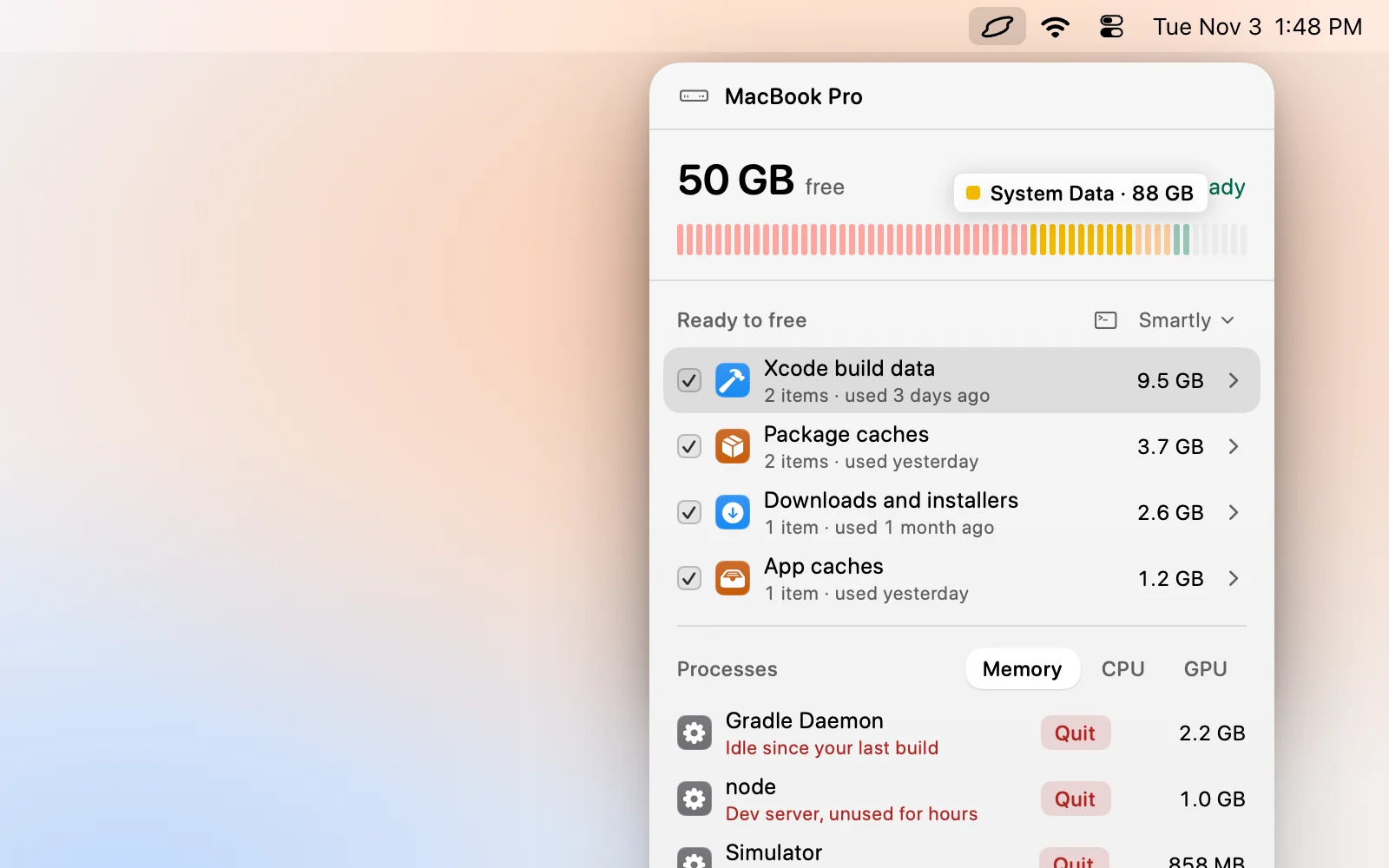
Levo counts purgeable space as free, the same way Finder does, so its disk meter agrees with Finder’s Available rather than with Storage settings’ bar. It won’t scare you with a full-looking disk when macOS can reclaim the room on its own.
What Levo cleans is real data: caches, developer data, Docker images, simulators and agent worktrees, listed under Ready to free with a size and a reason. It leaves Time Machine’s local snapshots, the swap file and macOS’s own files to macOS, which already manages them. Free space from your cleanups is real free space, which is what an installer that checks df needs.
The reasons the numbers differ are written up in Free space looks different in Finder.
FAQ
Is purgeable space free space?
Almost. macOS will free it on demand, so Finder counts it as available. Some installers and tools check raw free space and don’t count it.
Can I clear purgeable space manually?
Not directly. macOS decides when to remove it. Deleting real files, or thinning local snapshots with tmutil, gives you free space you can see.
Is purgeable space part of System Data?
Sometimes. Snapshots and some caches are in both. Optimised iCloud files are purgeable but not in System Data.
Why does Finder show more free space than Storage settings?
Finder adds purgeable space to the available figure. Storage settings shows it as a separate part of the bar or leaves it out.