
Levo guides · System Data
System Data didn’t go down after deleting files
Deleting files doesn’t shrink System Data right away because the space is rarely free yet. The usual reasons are a full Trash, Time Machine local snapshots that still hold the old files, and Storage settings showing numbers from before you deleted anything.
| Why it didn’t drop | How to tell | Fix |
|---|---|---|
| The files are still in the Trash | The Bin icon in the Dock has paper in it | Empty the Trash |
| A local snapshot still holds them | tmutil listlocalsnapshots / lists dates | Thin or delete the snapshots, or wait |
| The files were in an app’s own bin | Photos, Mail or Notes “Recently Deleted” | Empty it inside that app |
| The number is stale | Finder and df disagree with Storage settings | Close and reopen Settings, then restart |
| You deleted the wrong kind of thing | The files were Documents or Apps, not System Data | Look at the category you actually cleared |
How to do it yourself
Start with the cheap checks, then compare Storage settings with a number that doesn’t cache.
- Empty the Trash: in Finder, press ⇧⌘⌫. If it says an item is in use, quit the app that has it open.
- Open Photos, Mail, Notes and Messages and empty their own “Recently Deleted” areas. Deleted photos stay 30 days there.
- Quit System Settings and open it again. Storage recalculates on open and can take a minute or two.
- Check what the disk really has free, which doesn’t depend on Settings:
df -h /System/Volumes/DataThe Avail column is the real free space. If it went up by about what you deleted, the delete worked and only the display is behind.
If Avail didn’t move, snapshots are the likely cause. Time Machine keeps local snapshots of the disk, and a snapshot keeps every file that existed when it was taken. Deleting a file frees nothing until the last snapshot that contained it is gone.
tmutil listlocalsnapshots /If that prints dates, ask macOS to thin them. This asks for about 20 GB back at the highest urgency (4), and macOS removes the oldest snapshots it needs to:
sudo tmutil thinlocalsnapshots / 20000000000 4Run the df command again. The full steps, including deleting one snapshot by date, are in Time Machine snapshots in System Data.
If you have an external Time Machine drive, connect it and run a backup first. Snapshots clear sooner once a backup has finished. Without the drive, they still clear on their own after about a day.
One more cause is purgeable space. macOS counts caches and some iCloud copies as available, so Finder’s free number can be higher than Storage settings’ bar suggests. That’s a different number, not a failed delete: see Purgeable space vs System Data.
How Levo does it
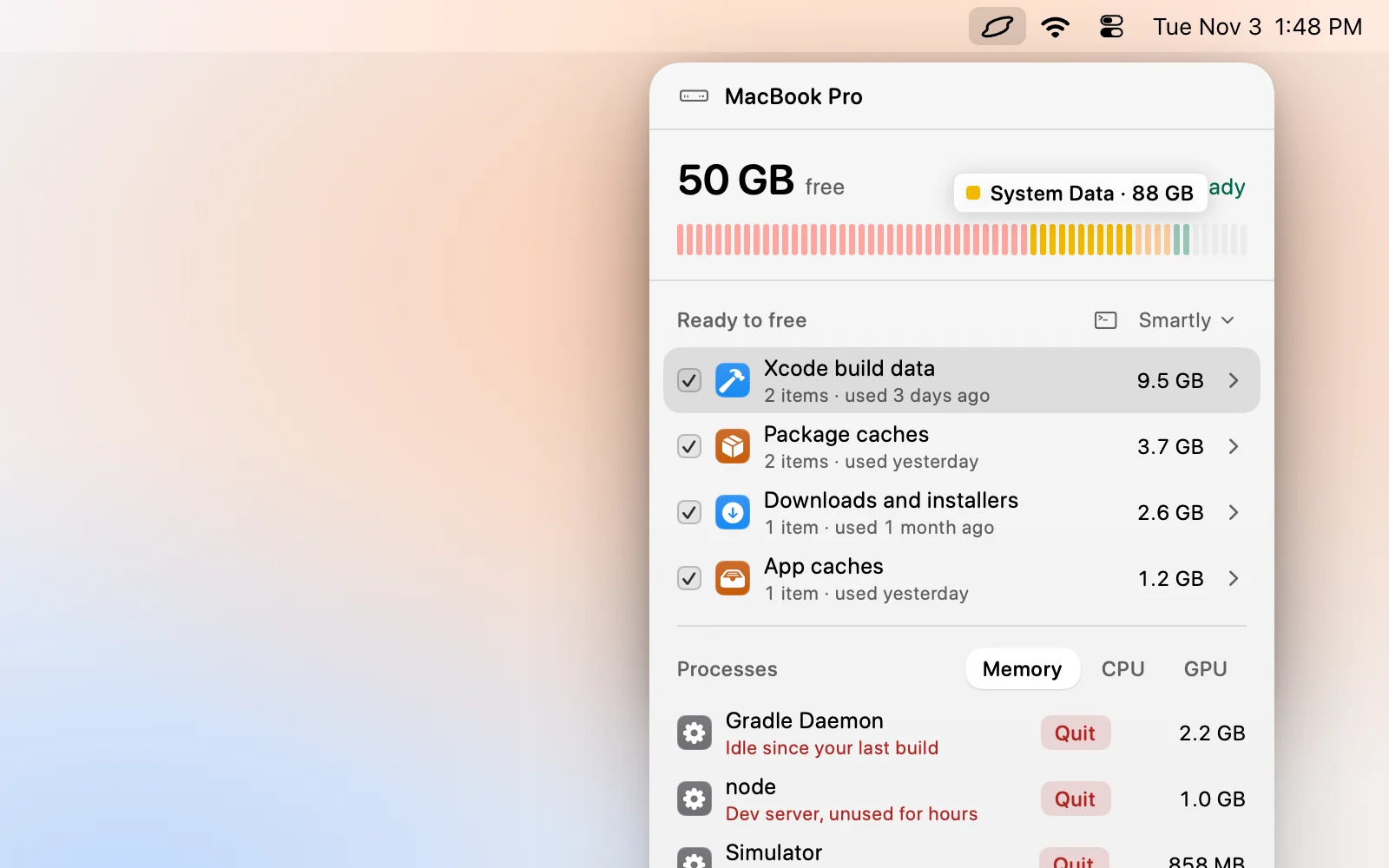
Levo keeps a live index of your disk, so what it shows updates as files change. There’s no “Calculating” wait and no cache to refresh. After you clean up in the popover, the disk meter moves straight away, and it counts purgeable space as free, the same way Finder does.
The disk bar names the parts of System Data that macOS lumps together, and the Ready to free list shows what’s in it by kind, each with a size and a reason. Levo leaves Time Machine’s local snapshots, the swap file and macOS’s own files to macOS, so if the number stays high because of snapshots, Levo says so instead of pretending the delete failed. It frees everything else on the list. With Move to Trash on, what you clean goes to the Trash, and that space only comes back when you empty it. Levo has two free cleanups, then a lifetime licence.
Read What is System Data on a Mac, and how Levo clears it for the list of what Levo touches and what it never does.
FAQ
How long does System Data take to update after deleting files?
Storage settings usually catches up within a few minutes of reopening it. If the free space from df hasn’t changed, the cause isn’t a slow display: look at the Trash and local snapshots.
Why did my free space go up but System Data stay big?
Free space and System Data are different numbers. You can free space in Documents, Applications or the Trash without touching System Data at all, and System Data holds snapshots and macOS’s own files that you don’t control.
Do I need to restart my Mac?
A restart helps when Storage settings is stuck on old numbers, and it lets macOS clear temporary files and some snapshots. It isn’t needed to free the space itself.
Is it safe to delete Time Machine snapshots to get space back?
Yes. Local snapshots are extra copies kept for convenience, and your external Time Machine backup is separate. Deleting them only removes the ability to restore from those local points.