
Levo guides · Storage settings
Mac storage stuck on “Calculating”, and System Data missing
Storage settings sits on “Calculating” while macOS reads the whole disk, and it can stall for minutes after a restart, an update, or when the disk is nearly full. Wait a few minutes first, then quit System Settings and reopen it. If System Data is missing, it usually appears once the calculation finishes.
| Symptom | Likely cause | Try |
|---|---|---|
| “Calculating…” for minutes | Disk is still being read, or Spotlight is busy | Wait 5 minutes, leave the Mac on power |
| Stuck right after an update | Reindexing and photo analysis | Give it an hour, then restart |
| Bar loads, no System Data | Still calculating the last category | Reopen Settings after it settles |
| Never finishes | A stuck Settings process, or disk errors | Relaunch Settings, then run First Aid |
| Numbers differ from Finder | Different counting, including purgeable space | Use df for the real figure |
How to do it yourself
- Wait five minutes with the Mac plugged in. A disk with millions of small files, as developers have, takes longest.
- Quit System Settings with ⌘Q and open it again. Or from Terminal:
killall "System Settings"- Restart the Mac. This clears the stuck calculation and lets macOS finish any indexing from an update.
- Check the disk for errors. In Disk Utility, choose your startup volume and click First Aid. Or:
diskutil verifyVolume /- If Spotlight is the one stuck, see what it’s doing:
mdutil -s /It should say Indexing enabled. If indexing is off or corrupt, rebuild it with sudo mdutil -E /. That takes a while and uses CPU, so do it when you’re away.
- Skip Settings and ask the disk directly:
df -h /System/Volumes/Data
du -sh ~/Library ~/Downloads ~/Documents ~/Desktop ~/Applications 2>/dev/null
The first shows what you really have free. The second sizes the main places in your home folder, and it answers immediately for anything not too large.
If it’s still stuck after a restart and the disk is nearly full, free a few gigabytes first. A near-full disk makes every calculation slow. Boot into Safe Mode if Settings crashes: shut down, then hold the power button on Apple silicon until startup options appear and choose Safe Mode.
If System Data is missing
The category sometimes isn’t shown until the calculation is complete. It also moves around: on an Apple silicon Mac it sits near the end of the bar, after macOS. If you’re looking for a bigger problem, the category list in System Data, macOS and Other Volumes in Storage settings shows what you should expect to see.
How Levo does it
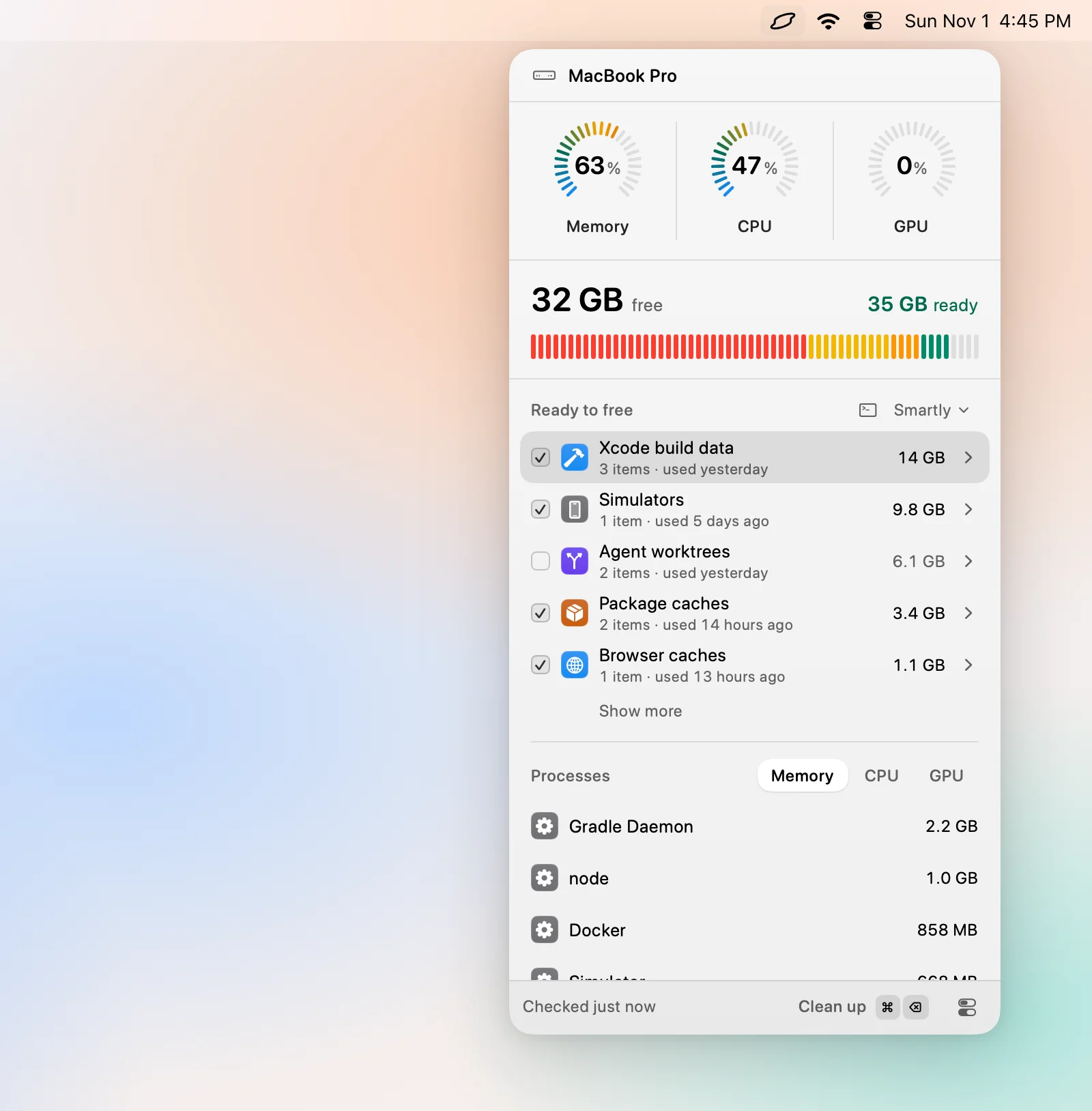
Levo doesn’t calculate on demand. It keeps a live index of your home folder, Library and hidden folders included, and updates it as files change, so the disk meter and the Ready to free list are there when you open the popover. There’s no “Calculating” wait and nothing to refresh.
It still needs a little help. Without Full Disk Access, Levo can’t look inside other apps’ containers, Mail or Messages, so some space stays unnamed. And it can’t shrink what macOS manages: Time Machine snapshots, the swap file and macOS’s own files stay with macOS, and purgeable space counts as free, as Finder counts it.
Grant access in Full Disk Access.
FAQ
How long should Storage settings take to calculate?
Usually under a minute. On a large or nearly full disk, or right after an update, it can take several minutes.
Why is System Data missing from my Storage bar?
It’s often added last, once the calculation completes. If it never appears, quit and reopen System Settings, then restart.
Does the Calculating problem mean my disk is failing?
Rarely. It’s usually indexing or a stuck process. Run First Aid in Disk Utility to rule out errors.
What’s a reliable way to see free space?
Run df -h /System/Volumes/Data in Terminal. It reads the disk directly and doesn’t depend on Storage settings.