
Levo help · Start here
Give Levo Full Disk Access
Without Full Disk Access, macOS hides some folders from Levo, and it skips them. With it, Levo sees everything it's allowed to look at.
What it changes
Without it, Levo skips Desktop, Documents, Downloads, iCloud Drive, other apps' data and other drives, and macOS never asks about them. Those are often where old installers, downloads and app leftovers sit. Giving access doesn't let Levo delete anything extra: it still follows the same rules, and your protected folders stay protected.
Turn it on
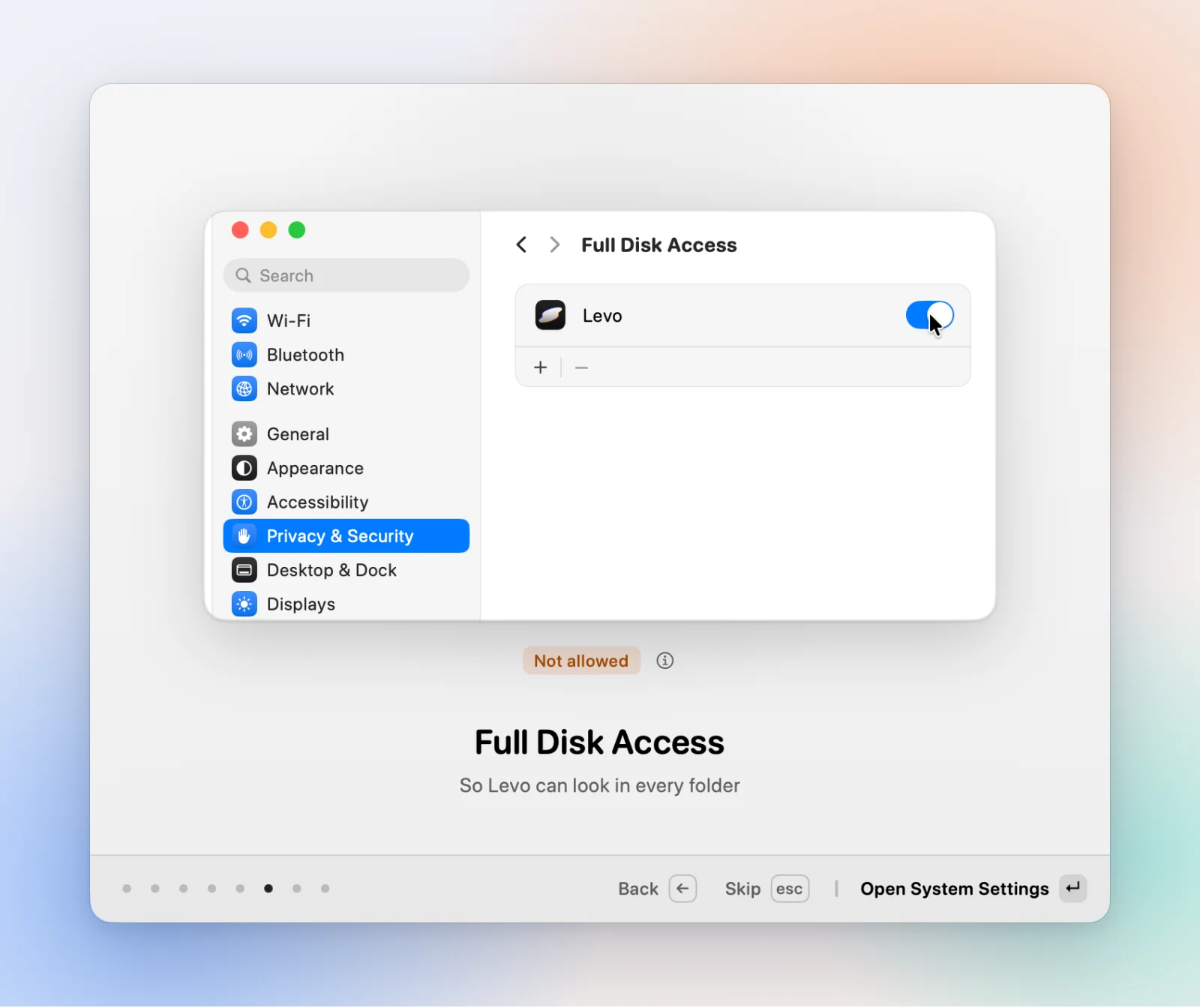
- In Levo, open Settings › Access and click Open System Settings. Or open System Settings › Privacy & Security › Full Disk Access yourself.
- If Levo isn't in the list, drag it in from Applications, or click + and choose it.
- Switch Levo on. macOS may ask for your password or Touch ID.
- Choose Quit & Reopen when macOS offers it. Levo needs a restart to see the change.
Check it worked
Settings › Access shows Allowed beside Full Disk Access. It reads Not allowed if it's off, and Not asked if you haven't been through the step yet. The popover also offers Grant access when Levo can't see enough to look for space.
Notifications live there too
The same pane shows whether macOS lets Levo send notifications. If alerts don't arrive, check that it says Allowed, and that Do Not Disturb or a Focus isn't hiding them.
You can leave it off
Levo works without it. It just skips the protected areas, and what it can't see it won't list or clean.