
Levo help · Start here
Install Levo and the first launch
Levo is a single app. Download it, drag it to Applications, open it, and answer a few questions on the first launch.
Install
- Download Levo from omggg.wtf/levo. It's a disk image, signed and notarised by Cntxt Labs.
- Open the disk image and drag Levo to your Applications folder. Updates and licence activation only work from there.
- Open Levo from Applications. Its icon appears in the menubar; it has no Dock icon unless you turn one on.
Levo needs macOS 26 or later.
The first launch
A short welcome walks you through setup. You can skip any step and do it later in Settings.
- You're in charge. Levo explains that it deletes only what you choose. Tick the box to accept that Levo isn't responsible for what you choose to delete, then continue.
- Full Disk Access. Recommended, so Levo can see every folder. See Give Levo Full Disk Access.
- Your agent. Levo looks for agents on your Mac and lets you pick one. No agent? It still works; see Levo without an agent.
- Open at login. Adds Levo as a login item so it watches from the moment you log in.
- Notifications. macOS asks whether Levo may send alerts. Say yes if you want to hear about a full disk or a busy Mac.
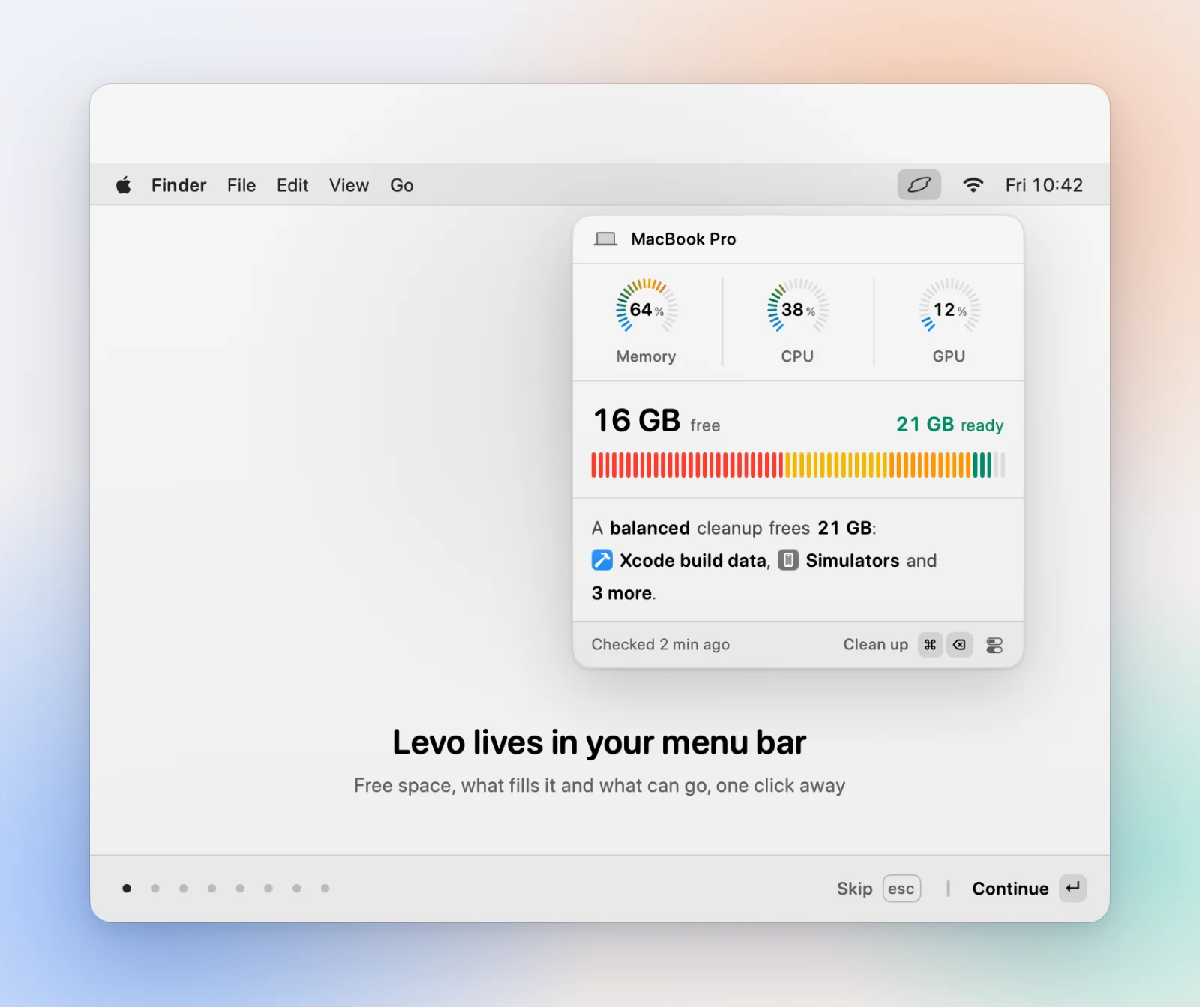
After that
Levo starts by indexing your home folder in the background. It runs at low priority, so give it a few minutes before the list is complete. You can replay the welcome any time from Settings › Licence, under Welcome.
If Levo won't open
- Move it to Applications first, then open it from there.
- If macOS says it can't verify the app, download it again from the page above; the copy there is notarised.