
Levo compared · Lists
Best RAM cleaners for Mac in 2026, and why most don’t help
Most RAM cleaners don’t help. macOS already uses spare memory on purpose, and “freeing” it just makes it refill. What helps is quitting the one app or process that’s hogging memory, and knowing which one is safe to quit.
Quick verdict
- Best when you want to know what to quit: Levo.
- Best built-in: Activity Monitor.
- Best one-click memory freeing, with a caveat: Memory Clean and similar apps.
- Best for the terminal: the
purgecommand.
Why most RAM cleaners don’t help
macOS keeps files and apps cached in unused memory so they open faster, and it compresses memory when it gets tight. A full memory bar is normal. What matters is memory pressure: green is fine, yellow is worth a look, red means the Mac is struggling. A cleaner that empties memory forces the Mac to reload things from disk afterwards, which can make it feel slower for a while.
Comparison table
| Tool | Price | What it does | Helps with real memory problems |
|---|---|---|---|
| Levo | Two free cleanups, then a lifetime licence | Lists the busiest processes by memory, CPU and GPU, with your agent’s verdict and a Quit button | Yes: it points at the process to quit |
| Activity Monitor | Free, built in | Shows memory use and memory pressure per process; you quit | Yes, if you know what to quit |
| Memory Clean and similar apps | Free or a few dollars (Nov 2026) | Frees inactive memory with one click | Rarely; the memory refills |
purge command | Free, built in | Flushes the disk cache from Terminal | No, and it slows things down briefly |
1. Levo
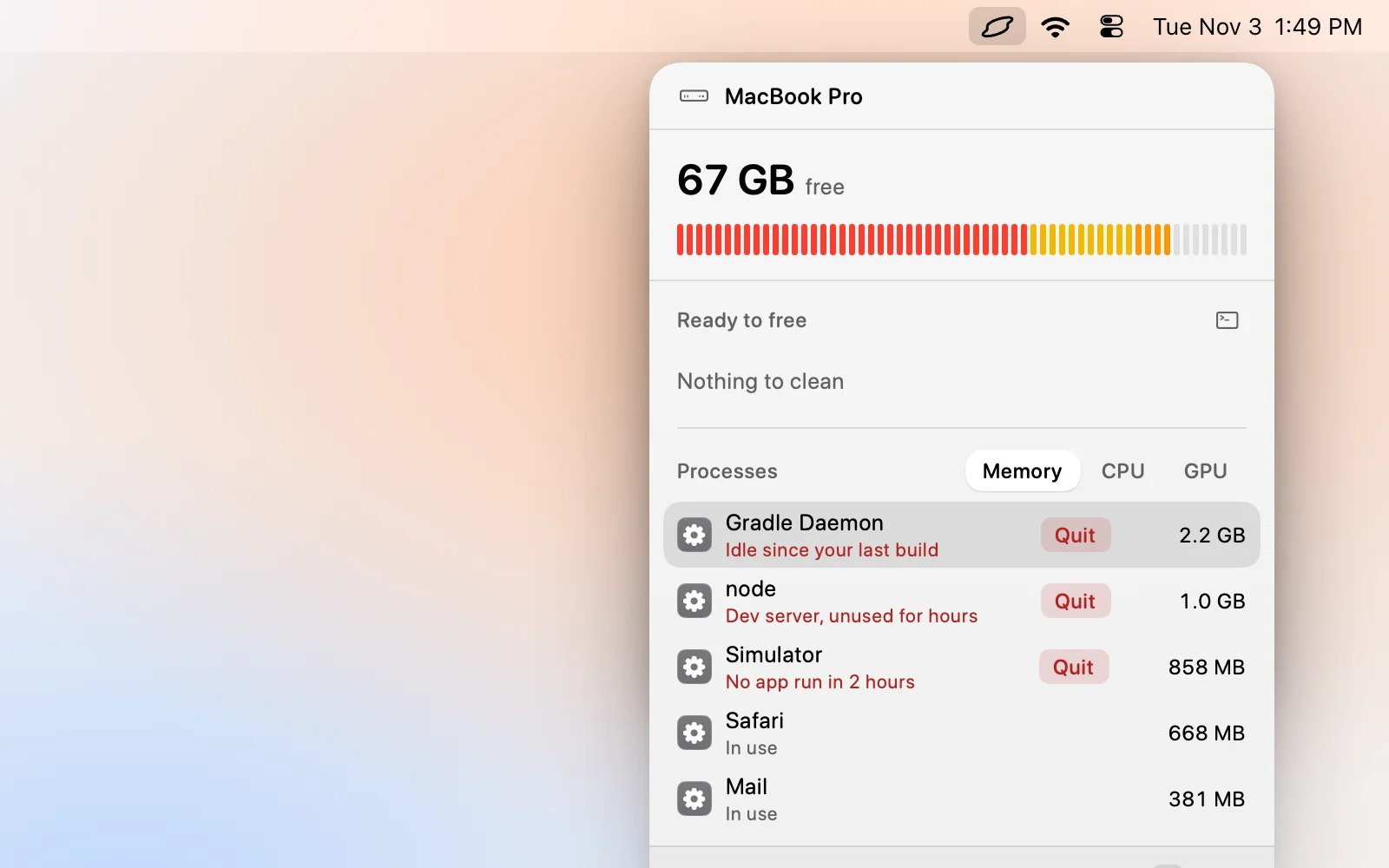
A menubar app for macOS 26 or later that watches memory (and disk, CPU and GPU) against a limit you set. When memory is tight, the Processes view lists the busiest processes with your own AI agent’s verdict, such as “Gradle daemon idle 3 h”, and a Quit button. Quitting is a real answer: it returns what that process held. Levo never quits system processes such as WindowServer, kernel_task, Finder or Dock, or other users’ processes.
- Good at: Finding the process holding memory, and whether quitting it is safe.
Pick it if: you want to quit the right thing, not empty a bar.
2. Activity Monitor
Apple’s built-in tool. Its Memory tab shows each process’s memory and a memory pressure graph, which is the number worth watching. Quitting is manual and the judgement is yours.
- Price: Free, built in.
- Good at: The full picture of what’s using memory.
Pick it if: you know what you’re looking at.
3. Memory Clean and similar apps
One-click apps that free inactive memory. They do release memory, but macOS refills it, so the effect fades quickly and sometimes the Mac feels slower afterwards.
- Price: Free or a few dollars (Nov 2026).
- Good at: A quick drop in the number.
Pick it if: you want the number to go down, knowing it’s cosmetic.
4. The purge command
Run sudo purge in Terminal to flush the disk cache. It’s useful for testing, not for daily use.
- Price: Free, built in.
- Good at: Benchmarking with a cold cache.
Pick it if: you’re a developer testing something specific.
What actually helps when memory is tight
First, find out whether you have a problem: open Activity Monitor and look at the memory pressure graph, not the number of free gigabytes. If it’s green, there’s nothing to fix. If it’s yellow or red, look at the top of the Memory tab for a process using far more than the others. Browsers with many tabs, simulators, virtual machines, Docker and idle dev servers are the usual culprits.
When quitting is the right answer
Quitting a process truly returns what it held, and unlike a memory flush the Mac doesn’t have to refill it. The risk is quitting something important. That’s where a verdict helps, and why Levo never quits system processes such as WindowServer, kernel_task, Finder or Dock. If a process keeps coming back after you quit it, it’s being relaunched by something else, and the fix lies there.
When to use both
Keep an eye on memory pressure in Activity Monitor for the long view, and let Levo notify you when memory crosses your limit so you don’t have to watch. If memory pressure is often high even with few apps open, that’s a sign the Mac simply needs more memory, and no cleaner will change that.
How we chose
- Starting point: the tools people most often name for this job, plus what macOS can do on its own.
- Kept: tools that are still maintained and that differ in approach, price or who decides what is safe.
- Sources: each maker’s own description and, for Levo, the app itself. Prices are rounded. No paid placements, and none of these makers reviewed this page.
Which one should you pick?
- Levo: You want to be told which process to quit, and have it quit safely.
- Activity Monitor: You want the full detail and will decide yourself.
- A one-click RAM cleaner: You just like seeing the number drop; it isn’t doing much.
purge: You’re benchmarking.
Questions
Do RAM cleaners work on Mac?
Mostly not. They free memory that macOS would have used for caching, and it fills up again. Quitting a process that’s really using a lot is what helps.
How do I know if my Mac needs more memory?
Watch memory pressure in Activity Monitor. If it stays yellow or red during normal work, or swap keeps growing, more memory (or fewer open apps) would help.
Is a full memory bar a problem?
No. macOS fills spare memory with caches on purpose and gives it back when an app needs it.
What should I quit to free memory?
The largest app or process you’re not using. Browsers, simulators, Docker and idle dev servers are common ones. Never quit system processes.
Does restarting free memory?
Yes, it clears everything, but only for as long as it takes your apps to reopen. It’s a blunt tool and rarely the best one.
What is swap, and is it bad?
Swap is disk space macOS uses when memory runs short. Some is normal. Heavy swapping alongside red memory pressure means you’re short of memory. Levo leaves the swap file to macOS.
Compared on 3 November 2026. Prices of other apps are rounded and can change; check the maker’s site.