
Levo compared · Lists
Best menu bar system monitors for Mac in 2026
A menu bar monitor keeps an eye on CPU, memory, disk and temperatures so you don’t have to open Activity Monitor. The difference between them is mostly what happens after you see a number: nothing, a cleanup, or an answer.
Quick verdict
- Best when you want to know what to do about it: Levo.
- Best for detail and looks: iStat Menus.
- Best free monitor: Stats.
- Best monitor with built-in tools: Sensei.
Comparison table
| App | Price | Watches | Helps you act | Notifies |
|---|---|---|---|---|
| Levo | Two free cleanups, then a lifetime licence | Disk, memory, CPU, GPU | Yes: a list of what to clean, and Processes with Quit | Yes, at limits you set |
| iStat Menus | Paid, about US$15 once (Nov 2026) | Very wide: CPU, memory, disk, network, sensors, battery, weather | No, it shows | Yes, rules you set |
| Stats | Free, open source | CPU, memory, disk, network, sensors, battery | No, it shows | Some |
| Sensei | Paid | System, disk and SSD health, with tools | Some tools | Not its focus |
1. Levo
A menubar app for macOS 26 or later that watches disk, memory, CPU and GPU against limits you set. Optional menubar gauges show each one as a live ring, with its number if you like. When one crosses its limit, it notifies you with the answer ready. The Processes view lists the busiest processes by memory, CPU and GPU, each with your agent’s verdict (“Gradle daemon idle 3 h”) and a Quit button. Levo never quits system processes such as WindowServer, kernel_task, Finder or Dock. The Ready to free list covers the disk side. On Macs with a battery, an Energy gauge shows the charge, time left and the apps drawing the most power, and Reduce energy use quits the biggest drains.
- Good at: Going from “something is slow or full” to “this is why, and here’s the button”.
Pick it if: you want fewer graphs and more answers.
2. iStat Menus
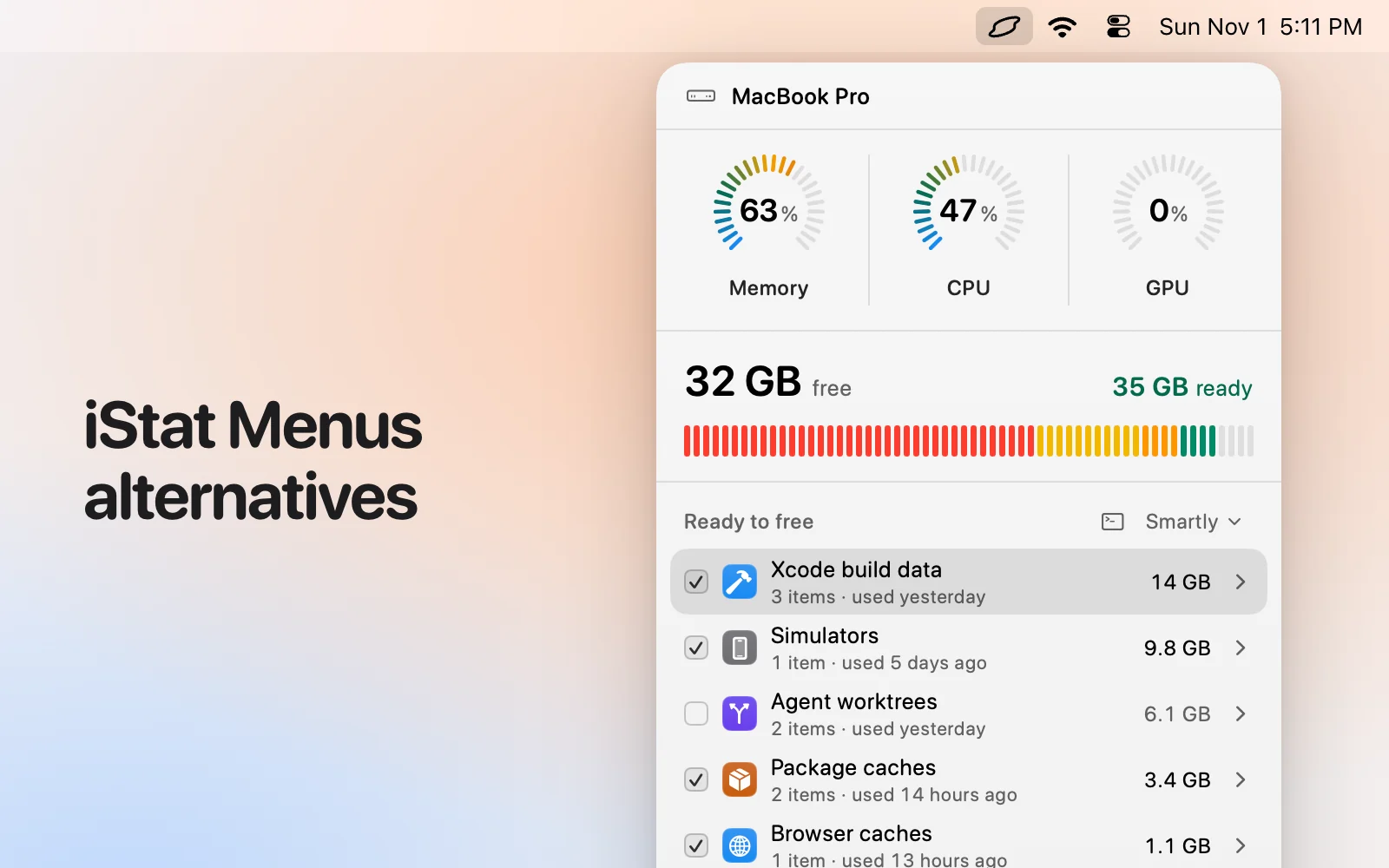
By Bjango. The detailed one: separate menu bar items for CPU, memory, disks, network, sensors and more, with careful design and alert rules. It shows you what’s going on and leaves the rest to you.
- Price: Paid, roughly US$15 once (Nov 2026), also on Setapp.
- Good at: The widest, best-looking readouts.
Pick it if: you want every number and a polished look.
3. Stats
A free, open-source menu bar monitor with modules for CPU, memory, disk, network, sensors and battery. It’s light and does the job without asking for money.
- Price: Free.
- Good at: Getting the basics into the menu bar for nothing.
Pick it if: you want a free iStat-style monitor.
4. Sensei
By Cindori. A monitor paired with a set of tools: system and disk information, SSD health and a cleaner. It sits between a pure monitor and a utility suite.
- Price: Paid; a subscription or one-off licence (Nov 2026).
- Good at: One app for monitoring plus a few maintenance tools.
Pick it if: you want a monitor with extras and a polished look.
What a menu bar monitor can’t do
Numbers alone don’t tell you what to do. A CPU graph at full tilt could be a build you started or a stuck helper process, and memory that looks full is often just cache that macOS will give back. The monitors above differ mostly in how much help they give with that step. Most leave it to you; Levo gives you your agent’s verdict on each of the busiest processes, and a Quit button, while never offering to quit system processes.
Light enough to leave running?
A monitor lives in the menu bar all day, so check its own cost in Activity Monitor. Many modules and a short refresh interval add up. Levo is built to stay light, and its watching is based on limits: it stays quiet until one is crossed.
When to use two
iStat Menus or Stats for a constant glance at temperatures, fans and network, plus Levo for the moments that matter: disk filling, memory tight, a process hogging CPU or GPU. They don’t conflict, and each does something the other doesn’t.
How we chose
- Starting point: the tools people most often name for this job, plus what macOS can do on its own.
- Kept: tools that are still maintained and that differ in approach, price or who decides what is safe.
- Sources: each maker’s own description and, for Levo, the app itself. Prices are rounded. No paid placements, and none of these makers reviewed this page.
Which one should you pick?
- Levo: You want to be told what’s wrong and what to clean or quit.
- iStat Menus: You want maximum detail and polish.
- Stats: You want it free and light.
- Sensei: You want a monitor with maintenance tools.
Questions
What is the best free menu bar monitor for Mac?
Stats. It’s open source and covers CPU, memory, disk, network, sensors and battery.
Does a monitor slow my Mac down?
A well-made one barely does. Check how much CPU it uses itself in Activity Monitor, especially with many modules or short refresh times.
Can a monitor quit things for me?
Most only show. Levo lists the busiest processes with your agent’s verdict and a Quit button, and never quits system processes.
Do I still need Activity Monitor?
Sometimes, for the full process list and sorting by anything. A menu bar monitor is for noticing; Activity Monitor is for digging.
Which monitor shows GPU use?
Levo watches the GPU along with disk, memory and CPU. iStat Menus and Stats also cover GPU.
Can I run two monitors at once?
Yes. Just watch the menu bar space and the combined CPU use.
Compared on 3 November 2026. Prices of other apps are rounded and can change; check the maker’s site.