
Levo guides · System Data
System Data on a 256 GB Mac: how to keep it in check
On a 256 GB Mac, macOS, System Data and your apps leave little room, and System Data is the part that swings by tens of gigabytes. Keep a few gigabytes free at all times, clear caches and build data on a schedule, and move big, rarely used files to an external drive.
| When | What | Why |
|---|---|---|
| Weekly | Empty the Trash, quit and relaunch heavy apps, delete finished downloads | The Trash and temp files hold space you think is free |
| Weekly | Clear browser and app caches that have grown past a gigabyte or two | They rebuild, but grow without limit |
| Monthly | Developer data: DerivedData, simulators, Docker, package caches | The biggest swing in System Data for anyone who builds software |
| Monthly | Old installers, disk images and iOS backups | Each can be several gigabytes and is forgotten |
| Every few months | Move video, photo archives and old projects off the Mac | These are the only things that shrink Documents, Photos and Other for good |
The floor to aim for
Keep at least 20 to 30 GB free on a 256 GB disk. Below that, macOS has less room for swap, snapshots and updates, so System Data grows when you can least afford it. A macOS update alone can ask for around 20 GB of working space while it installs. If you’re preparing for one, Not enough disk space for macOS Golden Gate has the quick wins.
How to do it yourself
- Check free space:
df -h /System/Volumes/Data. TheAvailcolumn is what you can really use. - See which top-level folders are heavy:
du -sh ~/* ~/Library ~/.[a-zA-Z]* 2>/dev/null | sort -h | tail -15- Look at the big caches in your Library:
du -sh ~/Library/Caches/* 2>/dev/null | sort -h | tail -10- Delete the oldest downloads and disk images:
find ~/Downloads -type f -mtime +60 -size +100M -exec ls -lh {} +That only lists them. Look first, then delete in Finder.
- Turn on Optimise Mac Storage in System Settings › Apple Account › iCloud, so Photos and Drive keep only recent items on the disk.
- Move what you rarely open to an external SSD, and check it opens before deleting the original.
Don’t chase System Data to zero. A chunk of it is macOS’s own files, swap and snapshots, and macOS needs them. Aim for a stable number and enough free space.
How Levo does it
Levo watches disk against a limit you set and notifies you with the answer ready, instead of waiting for you to open Storage settings. The popover’s Ready to free list shows what’s reclaimable by kind, with size and reason. Select › Smartly ticks what’s safe at your cleanup level, Careful, Balanced or Aggressive, and you untick anything you want to keep.
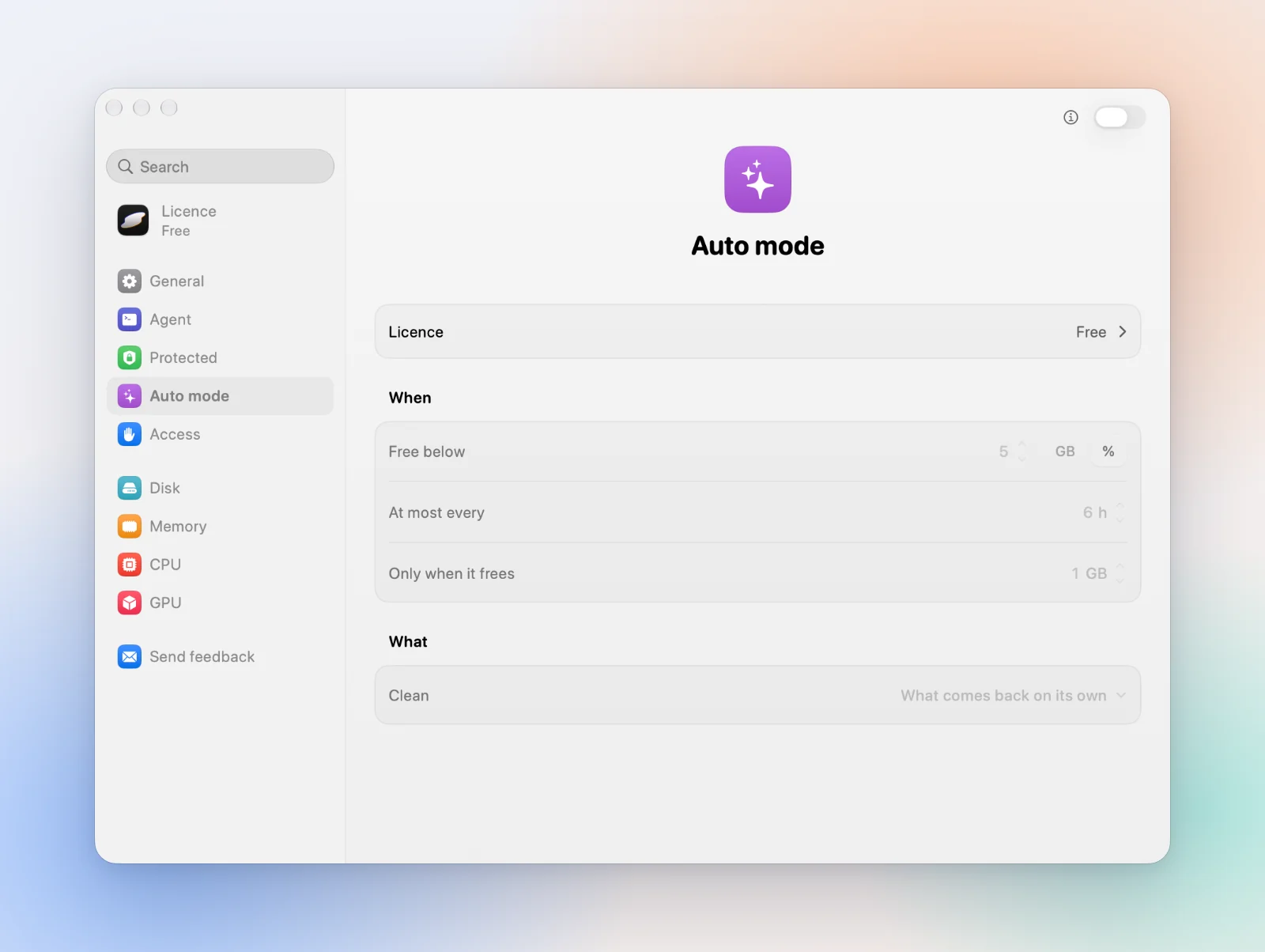
The part that suits a small disk is Auto mode. It cleans for you when free space drops below your limit, only in the kinds you tick, and it’s off until you turn it on. A 256 GB Mac can then sit above its floor without a weekly chore. Levo never touches Photos, Mail or Messages libraries, iCloud Drive or keychains, and it leaves Time Machine snapshots, swap and macOS’s own files to macOS. It counts purgeable space as free, as Finder does.
The setting is described in Auto mode.
FAQ
How much free space should a 256 GB Mac have?
Aim for 20 to 30 GB free. macOS needs working room for swap, snapshots and updates, and System Data grows when the disk is tight.
Is a big System Data normal on 256 GB?
Some is. A chunk belongs to macOS and stays. If System Data keeps growing week after week, find what grew with du, because the cause is usually caches, developer data or snapshots.
What should I move off a 256 GB Mac first?
Video projects, photo archives, old iPhone backups and AI models. They’re large, rarely opened and don’t rebuild by themselves.
Does iCloud’s Optimise Storage help?
Yes for Photos and Drive, which then keep full copies in the cloud. It does nothing for System Data.