
Levo help · Using Levo
Auto mode
Auto mode keeps free space above a limit you choose by cleaning on its own, with no click. It's off until you turn it on.
How it works
When free space falls below your limit, Levo cleans the groups you chose from what it has already found and checked. Then it posts a notification, "Auto mode freed 12 GB", with what was cleaned and the space now free. It doesn't clean again until the minimum time has passed, and it skips a clean that would free too little.
Turn it on
- Open Settings › Auto mode.
- Click to turn it on. A sheet asks "Let Levo clean on its own?"
- Read it, tick that you understand Auto mode deletes without asking and that Levo isn't responsible for deleted files, and press Turn on.
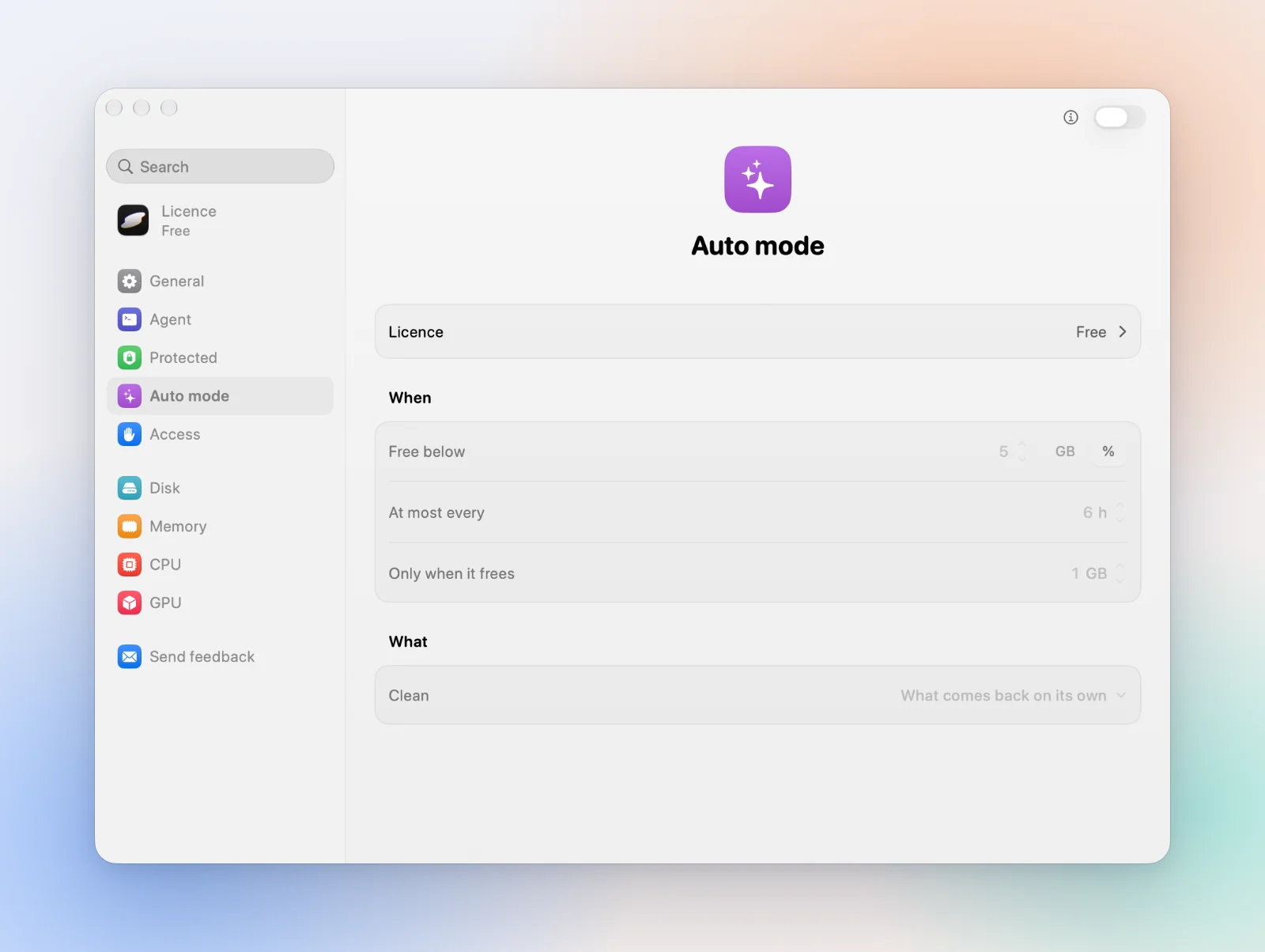
Settings
| Free below | Auto mode starts cleaning when free space falls below this. |
|---|---|
| At most every | The shortest time between two cleans. |
| Only when it frees | Skips a clean that would free less than this. |
| Clean | What comes back on its own: caches, build files and similar. Or Chosen groups, where you tick exactly which groups. |
What it never does
- It never touches user data, protected folders or anything in use.
- It runs the same checks right before deleting as a manual clean.
- It always deletes for good: nothing goes to the Trash.
The licence
Auto mode needs the licence, which covers 2 Macs. See Licence.
Turn it off
Switch it off in Settings › Auto mode at any time. Your agent can turn it off too, with Levo's command line, but never on.
Review what Auto mode would take before you rely on it. What it removes can't be restored.