
Levo help · Cleaning up
What happens when you clean up
Clean up works on exactly what's ticked, and nothing else. Here's the path from click to freed space.
Step by step
- Tick. Smartly has ticked what looks safe. Change that however you like.
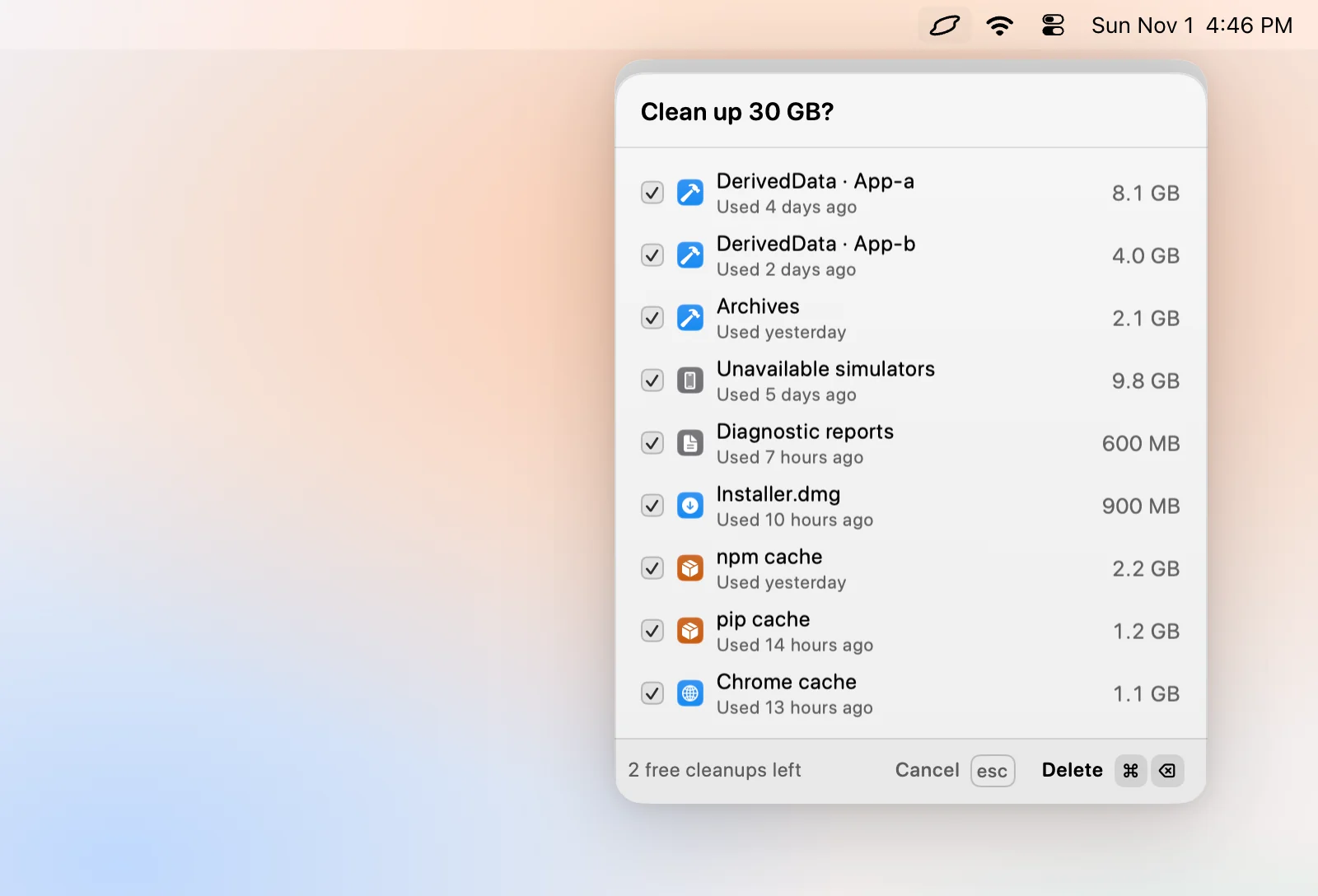
- Clean up. Click the button, or press ⌘⌫. A confirm step opens, titled "Clean up 18 GB?" with every item and part listed.
- Review. Untick anything you want to keep. Each row says whether it will be deleted for good or moved to the Trash.
- Confirm. Click Clean up again, or press ⌘⌫. The first time, you accept that Levo isn't responsible for what you choose to delete.
- Cleaning. Levo goes item by item and shows progress, "Cleaning 3 of 6…".
- Done. A note says how much was freed and what was skipped.
The checks right before
For every item, Levo checks again, just before acting: it still exists, it's still inside a place Levo may touch, nothing has opened it, and it hasn't changed since Levo verified it. Anything that fails is skipped, not forced.
How it's removed
- Levo uses the tool's own clean command first where there is one, such as
git worktree removefor a clean merged worktree, orxcrun simctl deletefor a simulator. - Otherwise it deletes the item for good. If you turn on Move to Trash in Settings › Agent, what you clean by hand goes to the Trash instead and can be put back.
- Auto mode always deletes for good.
The licence
Your first two cleanups are free. After that, the button reads Unlock and opens Settings › Licence. See Licence.
Afterwards
Levo measures what was actually freed, which can differ from the listed sizes because of disk clones, and updates its index. A record of every action is kept, which is what makes undo possible.