
Levo help · Using Levo
⌘K: every command, from Clean up to Quit, Force Quit and Uninstall
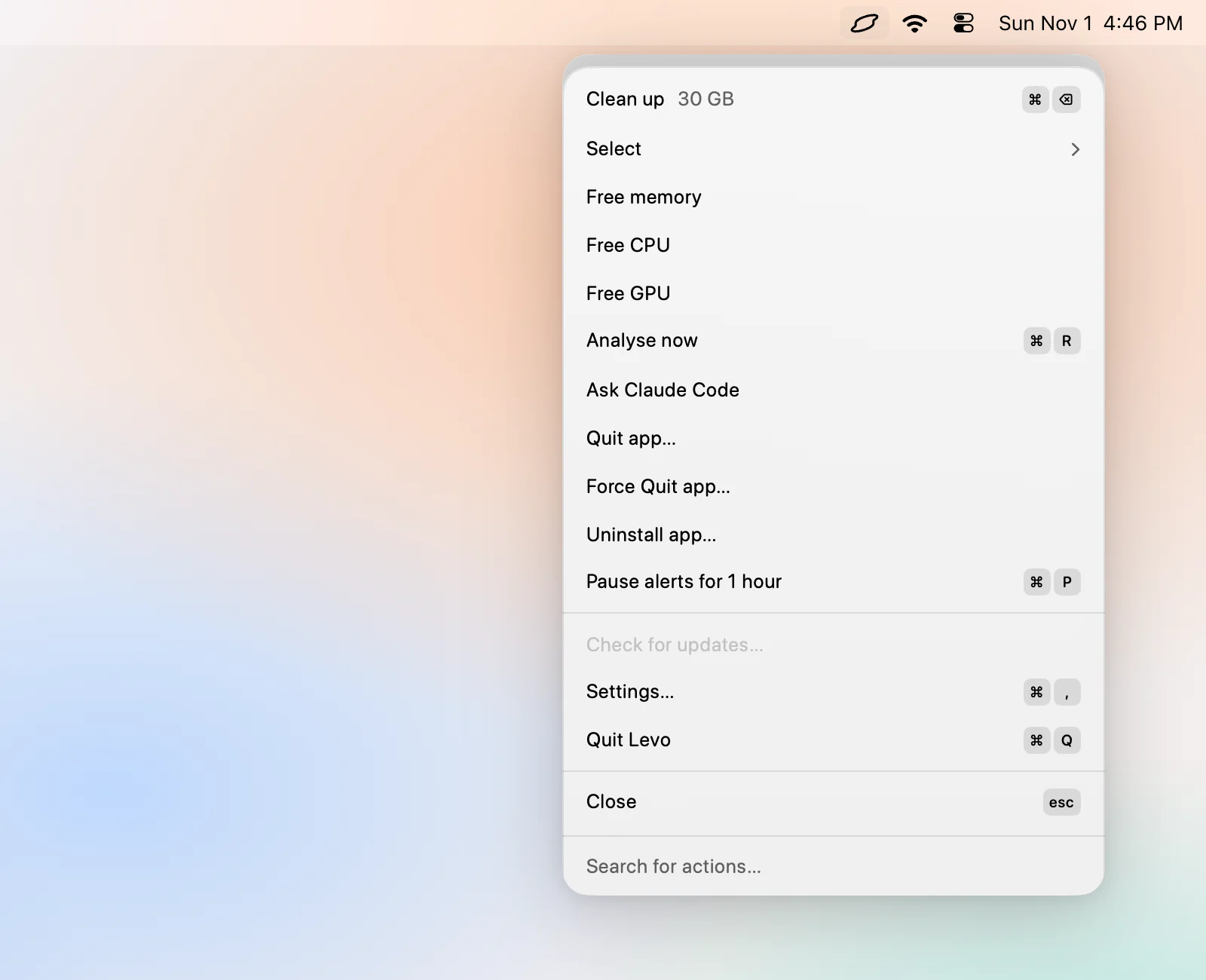
⌘K opens a panel in the popover where you type what you want. Every action in Levo is in it, with its shortcut beside it.
Use it
With the popover open, press ⌘K. Type a few letters, use ↑ and ↓ to choose, and press ↵. Esc closes it. Press ⌘K again to close it too.
What's in it
- Clean up (⌘⌫) and, for a group, Clean that group.
- Select: Smartly at any level, Everything or Nothing.
- Free memory, Free CPU, Free GPU.
- Analyse now (⌘R).
- Quit app… and Force Quit app….
- Uninstall app… and Put back the last one.
- Pause alerts for 1 hour or Resume alerts (⌘P).
- Ask: opens your agent in your terminal with context.
- Settings… (⌘,), Check for updates…, Update Levo, Quit Levo (⌘Q).
With a group or process selected, the panel adds that row's actions: Show in Finder or Open Activity Monitor (⌘↵), Always keep (⌘D), Force quit (⌥⌘Q).
Type a command
| quit slack | Lists running apps whose name has "slack". Choose one to quit it. |
|---|---|
| force quit slack | The same, for force quitting. Levo asks first: "Force Quit Slack? Unsaved changes are lost." |
| uninstall zoom | Lists matching apps with their size. Choose one to see the app and its leftovers. See Uninstall apps. |
| a setting's name | Jumps to that Settings row and highlights it, for example "launch at login" or "cleanup level". |
Typing an app's name on its own also offers to uninstall it. "Quit" alone stays a search until you add a space. Words like "kill", "mute" or "ram" work too.
A shortcut that works anywhere in the popover
Every ⌘ shortcut in the panel works straight away, with the panel open or not. A greyed one beeps instead of running. See Keyboard shortcuts.