
Levo help · Using Levo
The popover: meters, the summary, groups and rows
Click Levo's icon in the menubar to open the popover. It has a disk summary, gauges, a list of what's ready to free, and the busiest processes.
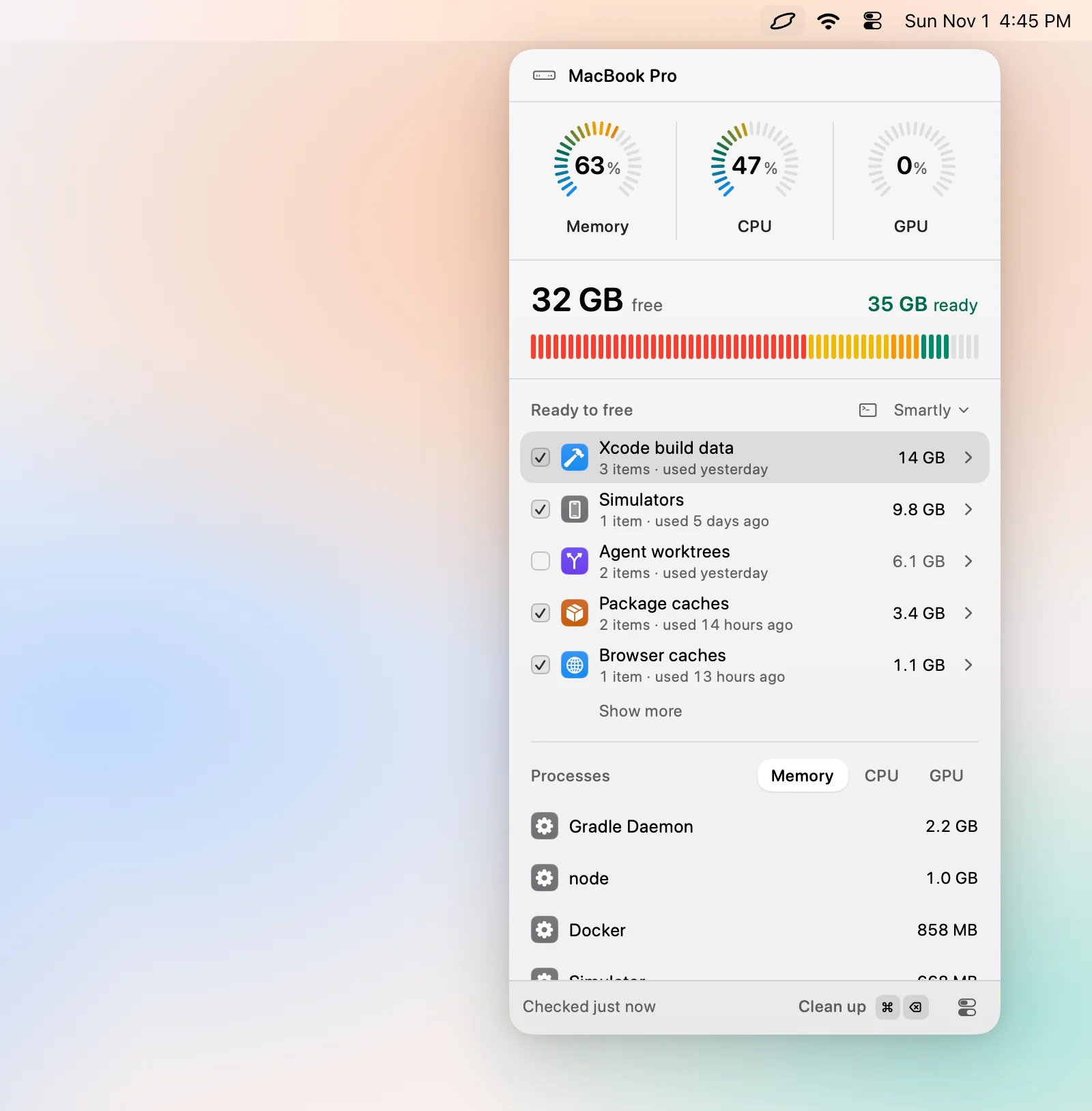
Layout
Settings › General › Layout sets how much it shows. Compact is the disk and what's ready to free. Summary adds the gauges and a sentence about what Levo can clean. Expanded shows the disk, the gauges and every row.
The disk
A bar of what fills your Mac: Your data, System Data, Applications and more, with Ready to free marked on it. Beside it, how much is free and how that changed today.
The summary
One sentence about what a cleanup would do: "A balanced cleanup frees 12 GB: …". It follows your cleanup level. When memory is high it says so instead: "Free memory, it's at 86%." With Auto mode on, it says what Auto mode is keeping free.
The gauges
Memory, CPU and GPU, each with its level. Choose which ones show in Settings › General › Gauges. Click one to see the processes behind it.
Ready to free
What Levo and your agent found, grouped by kind, such as Xcode build data, package caches or old installers.
- Each group has a checkbox, a size and a chevron. Open it to see the items.
- A box can be ticked, Partly ticked, or Not ticked. The Select menu sets what's ticked: Smartly at your cleanup level, Everything, or Nothing.
- Some items are made of parts, such as agent sessions. Open them to tick the parts one by one.
- A row that can't go right now says why, for example "Used by opencode" or "Quit Xcode". See Locked items.
- Only the top few groups show at first. Show more opens the rest.
The Clean up button cleans what's ticked. Before your licence it reads Unlock.
Processes
The busiest processes by memory, CPU and GPU, each with a one-line note about what it is, your agent's verdict, and a Quit button. See Free memory, CPU and GPU.
The footer
Analyse now, Settings and Quit. Everything here is also in ⌘K.