
Levo help · Cleaning up
Uninstall apps and their leftovers
Dragging an app to the Trash leaves its caches, preferences and support files behind. Levo finds them and removes the lot.
Uninstall an app
- Open the popover and press ⌘K.
- Type "uninstall" and part of the app's name, such as "uninstall zoom". Or just type the app's name.
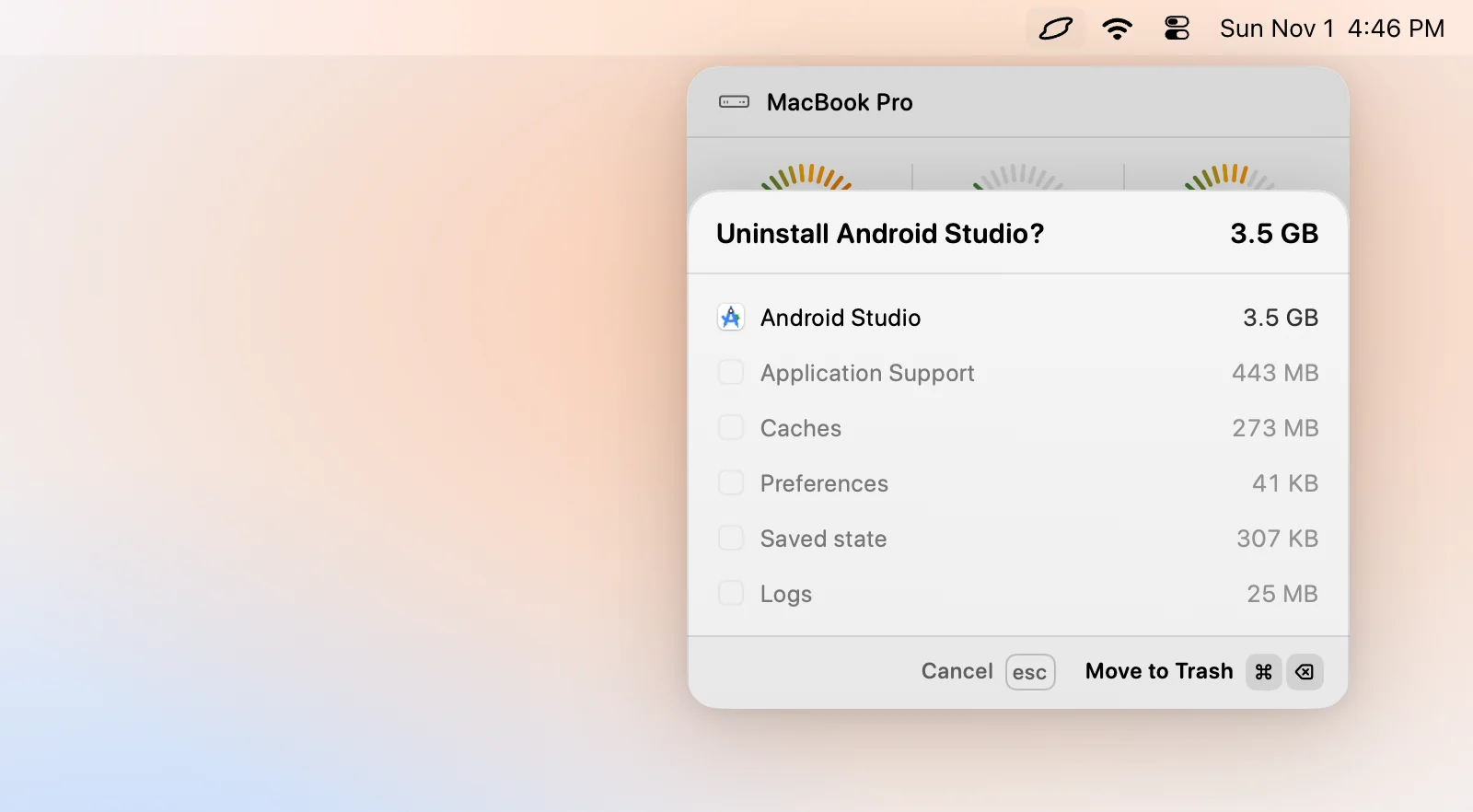
- Choose the app. A confirm step lists the app and what it left behind, such as Application Support, caches and preferences, each with its size.
- Untick any leftover you want to keep.
- Press ⌘⌫ to uninstall. If the app is running, ↵ quits it first.
The result reads, for example, "Uninstalled Zoom · 1.4 GB in the Trash", and notes how many things were kept.
It goes to the Trash
Uninstalls always go to the Trash, whatever your Move to Trash setting. Open ⌘K and choose Put back followed by the app's name to restore it with its leftovers, for a day. See Put back what you cleaned.
What can't be uninstalled
- Apple's own apps and anything macOS protects.
- Levo itself.
- An app that's open and won't quit. Quit it first.
- Leftovers in your protected folders, or that are held, stay where they are.
The licence
Uninstalling counts as a cleanup. Your first two are free, then it needs the licence. See Licence.