
Levo guides · Disk space
How to clear the browser cache on a Mac: Safari, Chrome, Arc and Firefox
Each browser has a clear-data setting that removes cached files: ⌥⌘E in Safari (after turning on the Develop menu) and ⇧⌘⌫ in Chrome, Arc and Firefox. Nothing important is lost. Sites load a little slower once while the cache refills.
Clearing for speed or a broken page is one job. Clearing for disk space is another, because the cache folders on disk can be bigger than the setting suggests.
| Browser | Clear it in the app | Cache folder on disk |
|---|---|---|
| Safari | Develop › Empty Caches (⌥⌘E) | ~/Library/Caches/com.apple.Safari, plus ~/Library/Containers/com.apple.Safari/Data/Library/Caches |
| Chrome | Delete browsing data › Cached images and files | ~/Library/Caches/Google/Chrome |
| Arc | Settings › Privacy › Clear browsing data | ~/Library/Caches/company.thebrowser.Browser |
| Firefox | Settings › Privacy & Security › Cookies and Site Data › Clear Data | ~/Library/Caches/Firefox/Profiles |
Safari
Safari hides its cache command until you turn on the developer menu.
- Open Safari › Settings › Advanced and tick Show features for web developers.
- Choose Develop › Empty Caches, or press ⌥⌘E.
This empties cached files only. To also drop cookies and site storage, use Settings › Privacy › Manage Website Data and remove sites one by one or all of them. That one signs you out of sites, so it’s a different decision from the cache.
History › Clear History clears history, cookies and cache together. It’s the blunt option.
Chrome and Arc
Both are Chromium browsers, so the steps match.
- Press ⇧⌘⌫ in Chrome. In Arc, open Settings › Privacy and pick Clear browsing data.
- Set the time range to All time if you want the space back. The default last hour frees almost nothing.
- Tick Cached images and files and untick Cookies and Passwords unless you mean them.
- Click Delete data.
Chrome keeps a separate cache for each profile and a shared one for compiled code and GPU shaders. The setting doesn’t always reach those.
Firefox
- Open Settings › Privacy & Security.
- Under Cookies and Site Data, click Clear Data.
- Untick Cookies and site data, keep Cached web content ticked, and confirm.
When the setting isn’t enough: the folders
On a heavily used browser, the cache folder can hold several gigabytes, and the browser only trims it when it likes. To see the real numbers:
du -sh ~/Library/Caches/Google/Chrome \
       ~/Library/Caches/com.apple.Safari \
       ~/Library/Caches/Firefox \
       ~/Library/Caches/company.thebrowser.Browser 2>/dev/null
To clear one by hand, quit the browser first, then move the contents (not the folder) to the Trash:
rm -rf ~/Library/Caches/Google/Chrome/*Stay out of the browser’s profile folder under ~/Library/Application Support. That’s where bookmarks, saved logins, extensions and sessions live, and none of it is cache. The same goes for the large service-worker and IndexedDB folders: they belong to sites you’re signed into.
What you lose, and what you don’t
Clearing the cache never removes bookmarks, history, passwords, tabs or extensions. You lose saved copies of images, scripts and fonts, so the first visit to each site is slower and uses a little data. Some sites that misbehave after an update are fixed by exactly this, which is why “clear your cache” is the standard advice.
A cache that keeps refilling to the same size isn’t a leak. Browsers fill whatever limit they set. If the disk is tight, clear it and expect it to creep back over weeks.
How Levo does it
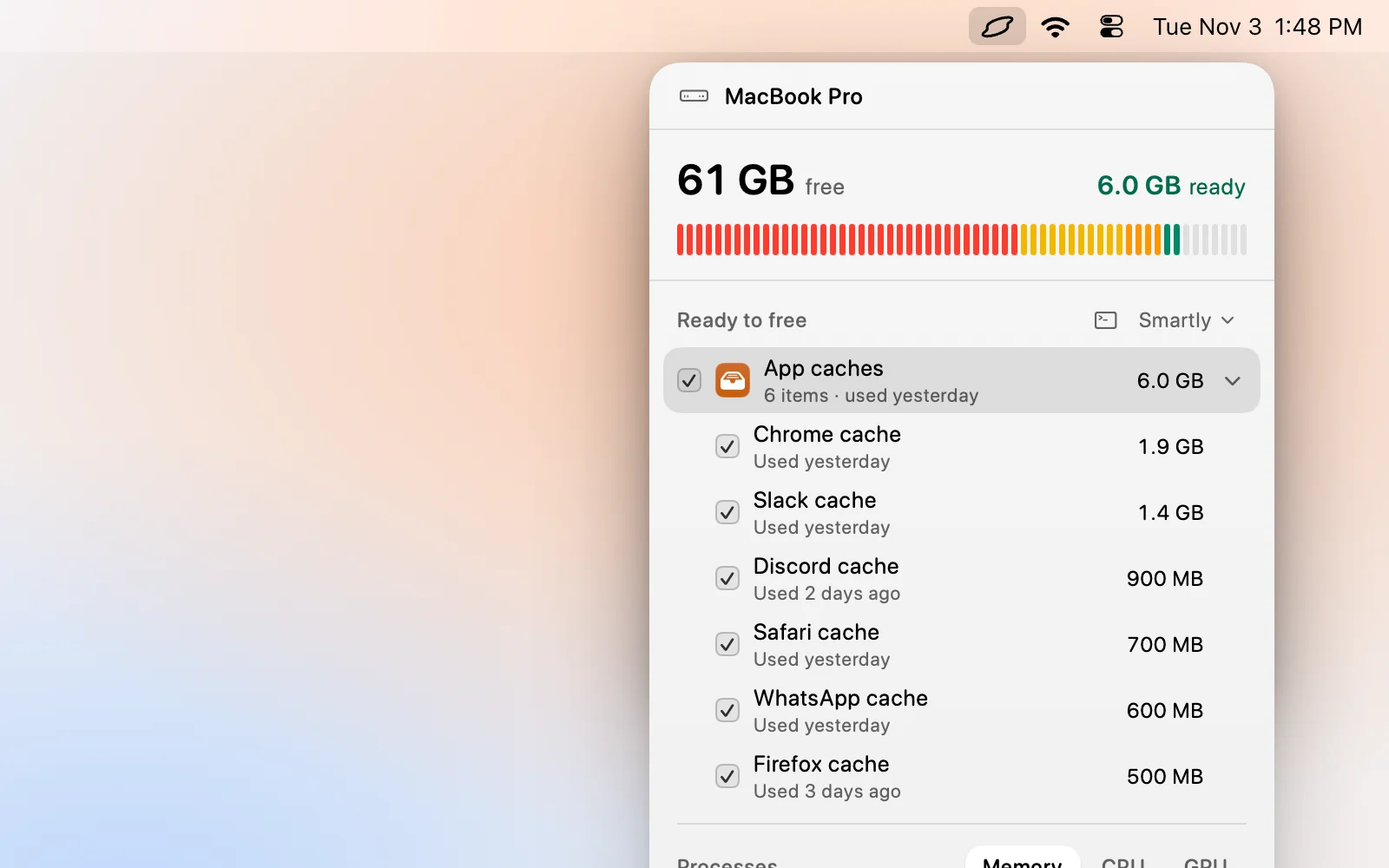
Levo lists Browser caches as one of the kinds in Ready to free, with a size and a reason, next to Xcode build data, package caches and the rest. You can see at a glance whether the browser is where your space went, instead of opening four apps and four folders.
Levo never cleans anything that’s open or in use, so a browser you’re running is skipped until you quit it. Browser caches rebuild on their own, so Select › Smartly ticks them at the usual cleanup levels (see cleanup levels). Your bookmarks, logins and profile aren’t cache and aren’t in that list. Everything you clean can go to the Trash with Put back.
FAQ
Does clearing the cache delete my passwords or history?
No. The cache holds copies of images, scripts and fonts. Passwords, bookmarks, history and tabs are separate, as long as you untick cookies and passwords in the Chrome, Arc and Firefox dialogs.
How often should I clear the browser cache?
Rarely. Do it when a site looks broken or the disk is short on space. A healthy cache speeds browsing up, and it refills anyway.
Why is my browser cache still big after clearing it?
The default time range in Chrome and Arc is the last hour. Choose All time. Some data, such as service workers and site storage, isn’t in the cache setting at all.
Can I delete the cache folder in Library by hand?
Yes, with the browser quit. Empty the contents of the cache folder, never the profile folder in Application Support, which has your logins and bookmarks.