
Levo guides · Disk space
Google Drive, OneDrive and Dropbox caches taking space on a Mac
Make the files online-only. In Finder, right-click a folder in Google Drive, OneDrive or Dropbox and choose the option that removes the local copy (Offline access › Remove, Free up space, or Make online-only). The files stay in the cloud and download again when you open them.
Two things take space: the files you’ve chosen to keep offline, and the sync app’s own cache. They’re handled differently.
| Service | Where files sit | Where the app’s cache sits | Free up space |
|---|---|---|---|
| Google Drive | ~/Library/CloudStorage/GoogleDrive-your@email | ~/Library/Application Support/Google/DriveFS | Right-click › Offline access › Remove offline access |
| OneDrive | ~/Library/CloudStorage/OneDrive-… | Inside the app’s container under ~/Library/Containers | Right-click › Free up space |
| Dropbox | ~/Library/CloudStorage/Dropbox | A hidden .dropbox.cache folder, in older setups | Right-click › Make online-only |
Why they take so much space
On modern macOS these services run through Apple’s File Provider system. Files show in Finder whether or not they’re downloaded, with a cloud icon for the ones that aren’t. But anything you open, or mark to keep, is downloaded in full, and apps can pull whole folders without you noticing: a video editor scanning a project, a backup tool, Spotlight indexing. The sync app also keeps a database and a staging area for uploads.
If your drive folders are on Mirror (Google Drive) or the always keep on this device setting, every file lives on both sides, and a 400 GB cloud account wants 400 GB of disk.
See what’s using the space
du -sh ~/Library/CloudStorage/* 2>/dev/null
du -sh ~/Library/Application\ Support/Google/DriveFS 2>/dev/null
For online-only files, du reports the downloaded size, which is what you want here. In Finder, Get Info shows a size and a size on disk, and the second is the real cost.
Google Drive
- Click the Drive icon in the menu bar, then Settings › Preferences.
- Under My Drive, choose Stream files instead of Mirror files. Streaming keeps only what you open.
- In Finder, right-click folders you don’t need offline and choose Offline access › Remove offline access.
Before changing from Mirror to Stream, let any pending uploads finish. Anything not yet uploaded exists only on your Mac.
OneDrive
- In Finder, right-click a file or folder in OneDrive and choose Free up space.
- To make it the default, open OneDrive’s Settings and turn on Files On-Demand. Also tick the option to free up space automatically if your version has it.
Dropbox
- Right-click a folder in Finder and choose Make online-only.
- In Dropbox’s Preferences › Sync, set the default for new files to online-only.
In older, non-File-Provider setups Dropbox keeps deleted files in a hidden .dropbox.cache folder inside the Dropbox folder, emptied after a few days. If you’re on that setup and it’s large, quit Dropbox and delete its contents.
The sync app’s own cache
Google’s DriveFS folder holds the metadata database and cached content. You can clear it, but the cleaner way is in the app: Preferences › Settings has an option to clear the cache or reset. Doing it by hand means quitting Drive and deleting the contents of ~/Library/Application Support/Google/DriveFS, after which the app re-syncs from scratch. That takes time on a big account, and it’s a last resort. A paused or stuck sync that keeps growing this folder is the usual reason you’d need it.
Never delete anything inside ~/Library/CloudStorage to “free space” unless you’ve already used the free-up command. Deleting a file in a synced folder deletes it everywhere. Freeing space is not the same as deleting.
A word about iCloud Drive
iCloud Drive has its own switch: System Settings › Apple Account › iCloud › Drive, with Optimise Mac Storage. Or right-click an item and choose Remove Download. Same idea, built into macOS.
How Levo does it
Levo never touches iCloud Drive, and it won’t delete files inside your synced folders. Freeing space there is the sync app’s own command, and that’s where it’s safest: the app knows what’s uploaded.
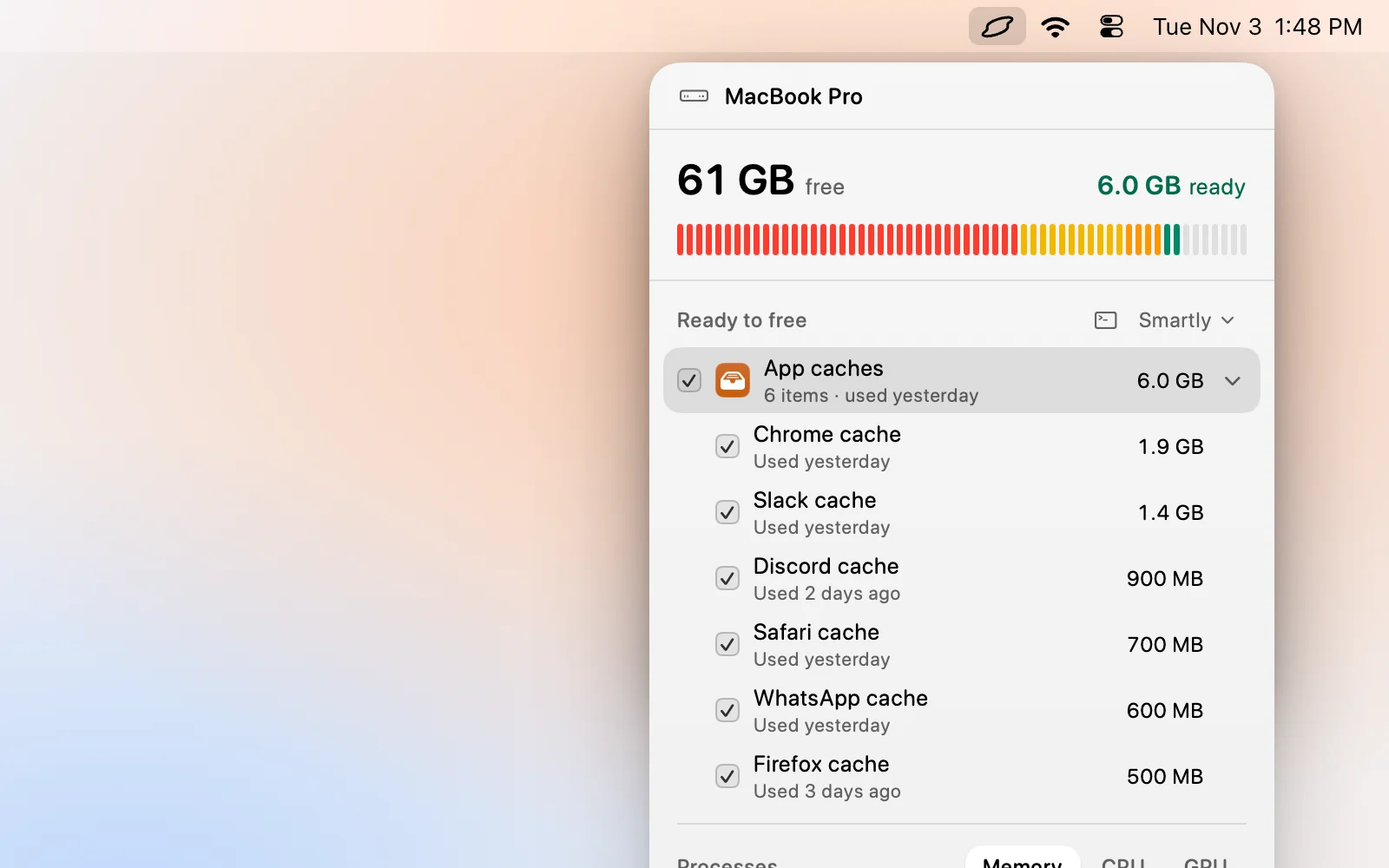
What Levo gives you is the watching. Set a free-space limit and it notifies you when the disk drops below it, with the answer ready, so you know a drive folder is the cause before you go digging. Its Ready to free list covers the other clutter, such as caches and build data, so the cloud folders are the only manual job left. See protected folders to keep any folder out of a clean-up for good.
FAQ
Does Free up space or Make online-only delete my files?
No. The file stays in the cloud and shows in Finder with a cloud icon. Opening it downloads it again. Only the local copy goes.
Why is Google Drive using so much disk space on my Mac?
Mirror mode keeps every file on both your Mac and Google’s servers. Switch to Stream files and remove offline access on folders you don’t need.
Is it safe to delete the DriveFS folder?
It’s a cache and database, and Drive rebuilds it, but the account then re-syncs from scratch, which is slow on a large Drive. Finish pending uploads first and try the app’s own reset before deleting.
Can I just delete files from the CloudStorage folder?
Not to free space. Deleting there deletes the file from the cloud account too. Use the free-up command instead.