
Levo guides · Developers: Apple
What is iOS DeviceSupport, and can you delete it?
iOS DeviceSupport is a folder of debug symbols that Xcode copies from every iPhone or iPad you plug in, one folder per iOS version. It is safe to delete: Xcode copies the symbols again the next time you connect that device, which takes a few minutes. Keep the folders for the versions your devices run now.
| Folder | Where | Safe to delete? |
|---|---|---|
| iOS DeviceSupport | ~/Library/Developer/Xcode/iOS DeviceSupport | Yes, copied again on connect |
| watchOS DeviceSupport | ~/Library/Developer/Xcode/watchOS DeviceSupport | Yes |
| tvOS DeviceSupport | ~/Library/Developer/Xcode/tvOS DeviceSupport | Yes |
| visionOS DeviceSupport | ~/Library/Developer/Xcode/visionOS DeviceSupport | Yes |
How to do it yourself
Each subfolder is named by model, version and build, for example iPhone16,1 18.2 (22C152), and is usually 2 to 5 GB. One per beta, per point release and per device model piles up fast.
- Check the total:
du -sh "$HOME/Library/Developer/Xcode/iOS DeviceSupport". - Open the folder in Finder: ⇧⌘G, paste the path, and sort by Date Modified.
- Check which iOS versions your own devices run, in Settings › General › About on each.
- Move the folders for every other version to the Trash. Delete the whole contents if you want to, with Xcode quit.
ls -t "$HOME/Library/Developer/Xcode/iOS DeviceSupport"
rm -rf "$HOME/Library/Developer/Xcode/iOS DeviceSupport/iPhone16,1 18.2 (22C152)"
Debug sessions on a device are the only thing affected. If you delete the folder for the version a connected iPhone runs, Xcode shows "Preparing device for development" and copies the symbols again before it lets you run.
Device support is one of three big Xcode folders. The others are DerivedData and simulators; why Xcode is so big covers all of them. Old iPhone backups are a separate matter, and they are not safe to delete without checking.
Why there are so many folders
Xcode creates a new folder for every distinct iOS version and build it sees, not just the major release. A phone on 18.1, then 18.2, then a beta of 18.3 leaves three folders, and a second iPhone model adds more. Test devices that run a different release each week fill the folder fast.
The folder name also tells you the device model, such as iPhone16,1 for an iPhone 15 Pro. If you no longer own that model, nothing will ever use the folder again, and it can go without a second thought.
If you also keep an Apple Watch paired for testing, the same thing happens in watchOS DeviceSupport. It is smaller, but old ones are worth clearing in the same pass. And if Xcode asks to "prepare" a device and it takes a while, that is the copy happening again, once per version. After it finishes you are back to normal, so there is no reason to keep folders just in case.
How Levo does it
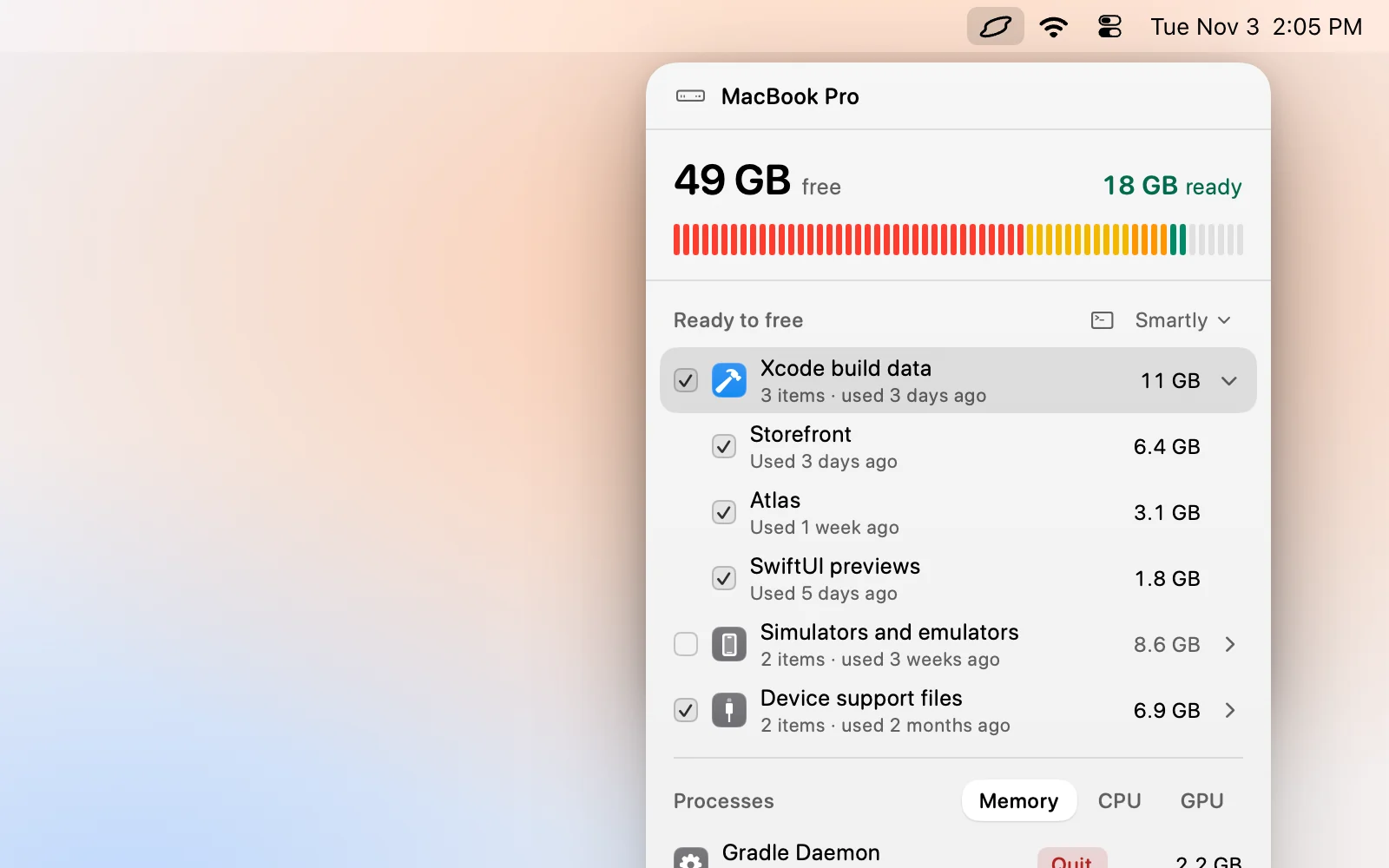
Levo lists the device support folders as one group, with each iOS version and its size, and ticks the old ones at the cleanup levels that allow it. You can see at a glance which versions your devices have moved past.
iPhone and iPad backups are shown in the list but never ticked, because a backup may be the only copy of a phone. See Levo for iOS and Mac developers for what it looks for.
FAQ
What is iOS DeviceSupport?
A folder where Xcode stores debug symbols it copies from each iPhone, iPad, Apple Watch or Apple TV you connect, one folder per OS version.
Is it safe to delete iOS DeviceSupport?
Yes. The files are copies of what is on the device. Xcode copies them again when you next connect, which takes a few minutes.
Why is iOS DeviceSupport so big?
Each folder is 2 to 5 GB and there is one for every iOS version, beta and device model you have connected. Years of updates leave dozens.
Which iOS DeviceSupport folders should I keep?
Keep the ones for the versions your own devices run now. Delete the rest, including old betas.