
Levo guides · Memory, CPU and GPU
Mac running slow? What actually helps in 2026
A slow Mac is almost always one of four things: a nearly full disk, too much memory pressure, one busy background process, or a recent update still settling. Check them in that order. Most fixes are free and take minutes.
| Check | Where | What good looks like |
|---|---|---|
| Free disk space | Apple menu › System Settings › General › Storage | More than 10% free |
| Memory pressure | Activity Monitor › Memory | Green graph, little swap |
| Busy processes | Activity Monitor › CPU | Nothing steady over 50% |
| Updates | System Settings › General › Software Update | Up to date, not mid-index |
| Login items | System Settings › General › Login Items | Only what you want at startup |
| Browser tabs and extensions | Activity Monitor, or the browser's task manager | Few heavy tabs, no stray extensions |
| Visual effects | System Settings › Accessibility › Display | Reduce Transparency only on old Macs |
What to do, in order
1. Free some disk space
A full disk slows everything, because macOS needs room for swap, updates and caches. Look at System Settings › General › Storage. If free space is low, clear the biggest items first. The guides on a nearly full disk, how much free space a Mac needs and clearing System Data go through it.
2. Check memory pressure
Open Activity Monitor, click Memory and look at the graph at the bottom. Green is fine. Yellow or red, with heavy swap, means you are using more than the Mac has. Quit apps you are not using. See what memory pressure means.
3. Find the busy process
In the CPU tab, sort by % CPU. One row steadily over 50% is the cause of most "my Mac got slow" days. Quit it, or read about it in the process guides, such as mds_stores or WindowServer.
4. Update, then wait
Install pending updates, and after a big one give the Mac a day to finish indexing. See Mac slow after a macOS update.
5. Trim login items and restart
Remove what you do not need at startup in Login Items, and restart once a week or so. A restart ends processes that have grown and clears swap.
uptime
memory_pressure | tail -3
Things that do not help on a modern Mac: "RAM cleaners", defragmenting, and deleting language files or /Library folders by hand.
Quick tests that tell you where the problem is
Before changing anything, find out which resource is short. Three commands give a fast answer:
df -h /                     # free disk space
memory_pressure | head -5   # memory state
top -o cpu -l 1 | head -15  # busiest processes
If disk is under about 10% free, start there. If memory pressure says critical or swap is large, quit apps. If one process dominates the CPU, deal with that one. If all three are fine, the Mac may just be old, or the slowness is in one app, a browser extension or the network.
Slow in one app only
If only one app is slow, the Mac is not the problem. Update the app, disable its plugins or extensions, and try a new user profile or a cache reset for that app. For browsers, test in a private window without extensions. For a creative app, clear its media cache.
Slow at startup
Long startup comes from login items and launch agents. Review System Settings › General › Login Items & Extensions and remove what you do not recognise. Also, a nearly full disk makes startup slow.
What will not help
Reinstalling macOS, resetting the SMC, "optimiser" apps and deleting system folders will not fix a slow Mac and may harm it. If an old Intel Mac is slow on the newest macOS, the honest answer may be that the hardware is the limit. Apple silicon Macs rarely have that problem unless memory is too small for the work. See is 8 GB of RAM enough.
How Levo does it
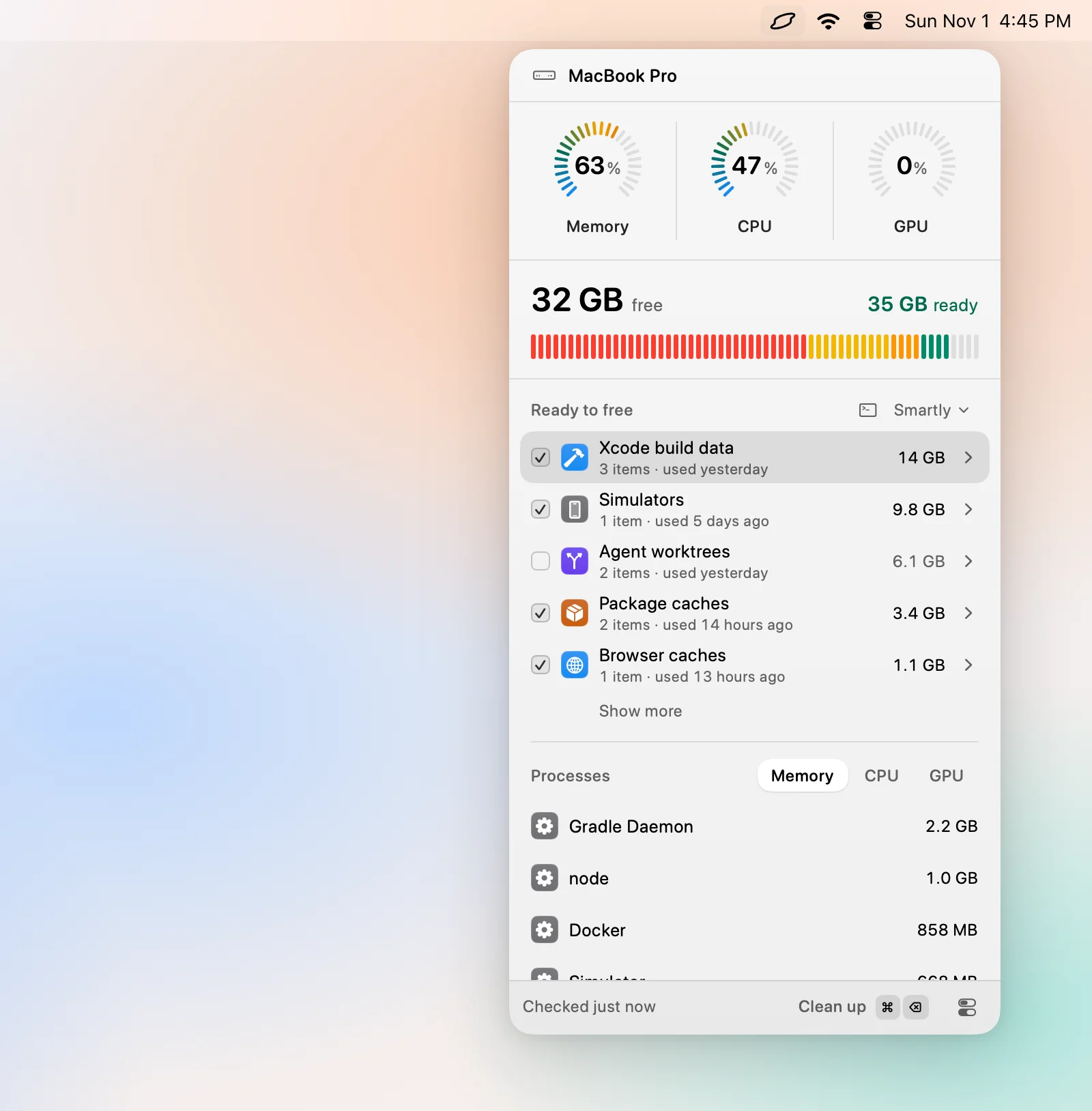
Levo watches all four things at once in the menu bar: disk, memory, CPU and GPU, each against a limit you set. When one crosses its limit, it notifies you with the answer ready. If disk is the problem, the Ready to free list shows what can go with a size and a reason for each. If a process is the problem, the Processes list names it with a Quit button.
Your own agent CLI judges what is safe. You tick what goes, or use Select › Smartly to tick only what is safe at your cleanup level, then Clean up. Levo leaves Time Machine snapshots, swap and macOS's own files to macOS, and never quits system processes.
You get two free cleanups, then a lifetime licence. See the popover and what Levo does.
FAQ
Why is my Mac suddenly so slow?
Usually a full disk, one busy background process, or a recent macOS update that is still indexing. Check free space and sort Activity Monitor by CPU.
Does restarting a Mac make it faster?
Often, yes. It ends processes that have grown, clears swap and caches. If it is slow again within the hour, find the busy process.
Will adding more RAM or storage fix a slow Mac?
Apple silicon Macs cannot be upgraded. Check memory pressure and free space first: if both are healthy, more of either will not help.
Do I need a cleaner app to speed up my Mac?
Not for speed in general. Freeing disk space and quitting a busy process are what help, and you can do both by hand.
Why is my Mac slow even with free space?
Check memory pressure and the busiest process. Free space is only one of the usual causes.
Is a slow Mac a sign of a virus?
Rarely. On a Mac it is almost always a busy app, a full disk or an update still indexing. Check Activity Monitor for something you do not recognise.