
Levo guides · Developers: everything else
How to clear Gradle caches on a Mac
Stop the daemons with ./gradlew --stop, then delete ~/.gradle/caches. It’s safe, and Gradle rebuilds it, but the next build downloads every dependency again, so do it with a network and some patience.
| What | Where | Safe to delete? |
|---|---|---|
| Dependency and build caches | ~/.gradle/caches | Yes, downloads again |
| Wrapper distributions | ~/.gradle/wrapper/dists | Yes, one folder per Gradle version |
| Daemon logs | ~/.gradle/daemon | Yes, after you stop the daemons |
| Project build output | build and .gradle in each project | Yes, the next build recreates them |
| Settings and credentials | ~/.gradle/gradle.properties, init.d | Keep |
| Android Studio’s own cache | See JetBrains caches | Yes |
What lives in ~/.gradle
du -sh ~/.gradle/* 2>/dev/null | sort -hThe big one is nearly always caches. Inside it, modules-2 holds every dependency you’ve downloaded (jars, POMs, AARs), and transforms-* and jars-* hold processed copies. build-cache-1 holds task outputs if you’ve turned on the build cache. wrapper/dists holds one full Gradle distribution for each version your projects ask for through gradlew, a few hundred MB each. Old projects pin old versions, so these pile up.
How to clear it yourself
- Stop every Gradle daemon so nothing is writing to the cache.
- Quit Android Studio or IntelliJ if they’re running a sync.
- Delete what you want back. Start with the cheap wins, then go further if you need the space.
./gradlew --stop        # or: gradle --stop

# the cheap win: daemon logs and old wrapper versions you no longer use
rm -rf ~/.gradle/daemon
ls ~/.gradle/wrapper/dists

# the big one: all downloaded dependencies
rm -rf ~/.gradle/caches
For the wrapper, delete the folders for versions no project uses. If you’re not sure, delete them all: ./gradlew downloads the version a project needs the first time you run it.
Per project, ./gradlew clean removes that project’s build folder. Android projects can run to several GB of build output across a few apps. The project’s .gradle folder is cache too, and the repo ignores it.
Don’t delete the whole ~/.gradle folder blindly. gradle.properties often holds signing passwords, repository tokens or proxy settings, and init.d holds your own init scripts. Back those up first, or delete only caches, daemon, native and wrapper.
Gotchas
- The re-download. A first build after clearing
cachescan pull gigabytes. On a slow connection, or a plane, leave it. - Offline builds. If a dependency has gone from its repository, or you use
--offline, it won’t come back from nowhere. - Gradle cleans up after itself, partly. It removes caches for old versions it hasn’t used for a while, but not everything, and not
buildfolders. - Idle daemons. Each Gradle daemon holds memory while it sits there. Stopping them is also the fix for a Mac that’s short on RAM; see Idle dev servers and daemons eating memory.
How Levo does it
Levo’s live index covers ~/.gradle and your project folders, so the dependency cache and the old wrapper versions appear in Ready to free with their sizes and last-used dates, next to the other package caches. So does the build folder of every Gradle module, which Smartly ticks once the project has sat for two weeks and no Gradle daemon is running.
Your agent judges each item. It knows a Gradle cache comes back on its own, and it won’t suggest anything that’s open or changed in the last few minutes. You tick what goes, and Levo does the deleting. Select › Smartly ticks only what’s safe at your cleanup level, and your credentials in gradle.properties aren’t on the list.
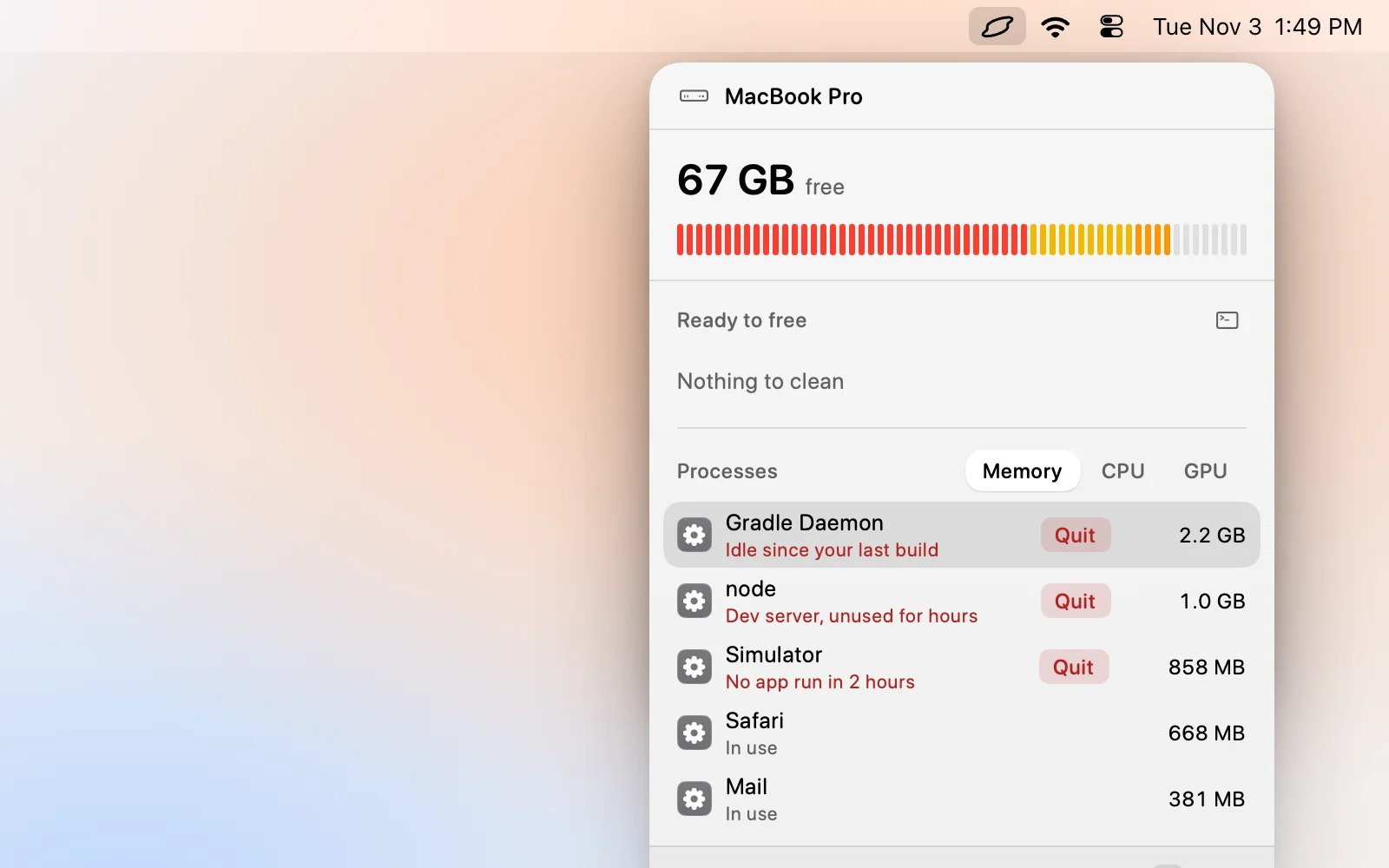
The Processes list is the other half. It shows idle Gradle daemons with the agent’s verdict, for example “Gradle daemon idle 3 h”, and a Quit button. See freeing memory, CPU and GPU and Levo for Android developers.
FAQ
Is it safe to delete ~/.gradle/caches?
Yes. Gradle rebuilds the folder from your build files. The cost is that the next build downloads every dependency again, so do it while you have a network.
Can I delete the whole ~/.gradle folder?
You can, but you’d lose gradle.properties and init scripts, which may hold signing passwords, tokens or proxy settings. Delete caches, daemon, native and wrapper instead, or back up the properties file first.
What are the folders in ~/.gradle/wrapper/dists?
Each one is a full Gradle distribution for a version your projects request through gradlew. Delete the ones you don’t use. The wrapper downloads the right one again when you run a build.
Why is my Gradle cache so big?
It holds every dependency version from every project you’ve built, plus processed copies of them. Android and Kotlin projects pull in a lot, and old versions stay until you clear them.