
Levo guides · Developers: everything else
JetBrains IDEs: delete caches, logs and old versions
Every JetBrains IDE keeps a folder per version in ~/Library/Caches/JetBrains and ~/Library/Logs/JetBrains, and old versions are never cleaned up. Delete the folders for versions you’ve stopped using, and keep the settings folder for the version you run.
| What | Where | Safe to delete? |
|---|---|---|
| Caches and indexes | ~/Library/Caches/JetBrains/<Product><version> | Yes, reindexes on next open |
| Logs | ~/Library/Logs/JetBrains/<Product><version> | Yes |
| Settings, keymaps, plugins | ~/Library/Application Support/JetBrains/<Product><version> | Keep, unless it’s an old version you’ve moved on from |
| Android Studio | ~/Library/Caches/Google/AndroidStudio…, Logs/Google, Application Support/Google | Same rules |
| The app itself | /Applications or Toolbox’s apps folder | Old builds, yes |
How the folders are laid out
Each IDE and version gets its own named folder in three places, for example IntelliJIdea2025.2 or PyCharm2025.3. When you upgrade, the new version imports your settings and starts a new set of folders. The old set stays, with its index, thousands of small cache files and a few years of logs.
ls ~/Library/Caches/JetBrains ~/Library/Logs/JetBrains \
   ~/Library/Application\ Support/JetBrains
du -sh ~/Library/Caches/JetBrains/* | sort -h
Android Studio is built on IntelliJ but files itself under Google, for example ~/Library/Caches/Google/AndroidStudio2025.1.
What to delete
- Quit the IDE. Check Toolbox as well, since it can keep an IDE running.
- Work out the versions you still use, usually the newest of each product.
- Delete the Caches and Logs folders for every other version. Nothing in them is yours.
- Delete the Application Support folder for an old version only if you’ve opened the newer one and it kept your settings. If you want a safety net, export settings first with File › Manage IDE Settings › Export Settings.
For the version you do use, don’t delete by hand. Choose File › Invalidate Caches…, tick what you want, and restart. That clears the index safely, and the IDE reindexes your projects when it starts.
Old versions of the app
If you install through Toolbox, it keeps previous builds so you can roll back. Open Toolbox, choose the gear for the IDE, and remove old versions. If you installed from a DMG, the old .app in /Applications goes to the Trash like any app. To remove an IDE completely, with every folder it left, see How to uninstall Android Studio on a Mac completely, which follows the same pattern for the others.
Don’t delete Application Support/JetBrains for the version you use. It holds your keymap, code style, licence, plugins and recent projects list, and the IDE starts from scratch without it.
Why the caches get big
The index is the main reason. The IDE indexes your project, its libraries and the SDK, so a monorepo or a big Android project can reach many GB. Gradle and Maven projects add to it every time they sync. The Gradle cache itself is separate: see How to clear Gradle caches on a Mac.
How Levo does it
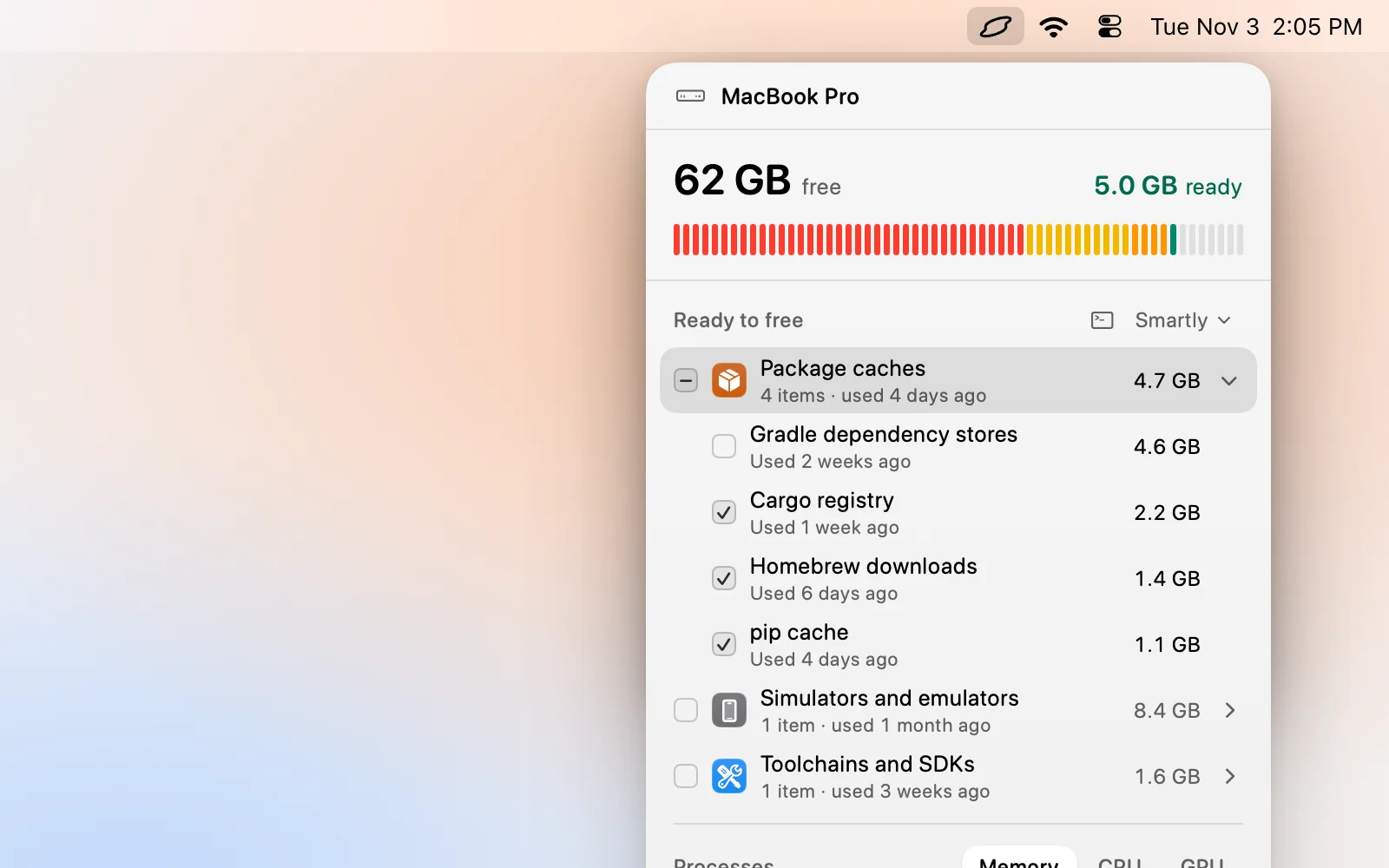
Levo’s live index covers ~/Library, so the caches and logs of each IDE version appear in Ready to free as separate items with their sizes and last-used dates. The versions you haven’t opened in a year are the obvious ones.
Your agent judges each one: a cache or log comes back on its own, an old version’s settings folder might be worth keeping. Nothing that’s open or recently changed is cleaned, so a running IDE is safe. You tick what goes, and Levo does the deleting. See how Levo decides what’s safe and Levo for Android developers.
FAQ
Is it safe to delete JetBrains caches?
Yes. The cache and index folders are rebuilt the next time you open a project. Quit the IDE first. The first start afterwards takes longer while it reindexes.
Do old JetBrains versions leave folders behind?
Yes. Each version keeps its own caches, logs and settings folders, and upgrading never removes the old ones. They can add up to many GB.
Will deleting the Application Support folder lose my settings?
For that version, yes: keymaps, code style, plugins and licence are there. Delete it only for old versions you’ve moved on from, or export your settings first.
What does Invalidate Caches do?
It clears the IDE’s index and caches for the version you’re running, then restarts. It’s the safe way to clear them, and it also fixes odd indexing problems.