
Levo guides · Memory, CPU and GPU
Should you force quit apps on a Mac?
Force quit an app only when it is frozen or stuck. Force quitting apps to "save memory" or battery does nothing useful on a Mac: macOS already parks idle apps. What helps is quitting the few that are really busy or holding lots of memory while you are not using them.
| Situation | Do this | Why |
|---|---|---|
| App frozen, spinning wheel for minutes | Force Quit | Normal Quit cannot reach it |
| App you are done with | Normal quit, ⌘Q | It saves its state and closes cleanly |
| Dozens of idle apps open | Leave them | Idle apps cost little; macOS compresses them |
| App using 100% CPU while idle | Quit it, then Force Quit if it hangs | It is wasting battery and making fans spin |
| Finder, Dock, WindowServer | Leave alone | System processes; macOS restarts them if needed |
| Menu bar app that stopped responding | Quit it from its own menu, else Force Quit | Menu bar apps are easy to forget and often stay stuck |
| Finder window frozen | Relaunch Finder from the Force Quit window | This is the one system app macOS lets you relaunch |
How to force quit on a Mac
- Press ⌘⌥⎋ to open the Force Quit Applications window.
- Pick the app marked "Not Responding" (or any app) and click Force Quit.
- Or Apple menu › Force Quit, or right-click the app's Dock icon while holding ⌥ and choose Force Quit.
- For background processes with no window, open Activity Monitor, select the process, click the stop button and choose Force Quit.
From Terminal, find the process and send it a signal:
pgrep -fl Safari
kill 1234        # polite: asks it to quit
kill -9 1234     # force: no chance to save
Force quitting skips the app's save step. Unsaved work in that app is gone. Try a normal quit first and give it a minute.
When force quitting does not help
The idea that a Mac is faster with every app quit comes from older machines with little RAM. Today macOS keeps recently used apps in memory because reopening them is slower than waking them. Memory that looks "used" is mostly cache that macOS hands back the moment something needs it. The number that matters is memory pressure, not how much is used.
Force quitting also costs you: the app has to launch again from scratch, reload its state, and often re-index or re-sync, which burns more CPU than leaving it alone would have.
What does help is quitting the right apps: the ones using CPU or memory while you are not touching them. A Gradle daemon left from yesterday's build, a browser tab running a video, a dev server nobody is using. Sort Activity Monitor by CPU or Memory and look at the top few rows, not the whole list. The guides on checking CPU usage and stopping processes cover this in more detail.
Before you force quit
A spinning wheel does not always mean a frozen app. Some apps are busy: exporting a video, indexing a library, waiting for a slow network share. Force quitting in the middle of that loses the work and can corrupt a half-written file. Give it a minute or two, check Activity Monitor, and see whether the app's CPU is moving. If it sits at 0% and the app is marked Not Responding in red, it really is stuck.
It also helps to know the three levels of quitting:
- Close the window (⌘W). Many Mac apps keep running with no windows. The Dock shows a dot under them.
- Quit (⌘Q). The app saves and exits. This is what you want 95% of the time.
- Force Quit. The system ends the process with no goodbye.
When an app will not force quit
Rarely, an app stays in the list after Force Quit. It is usually stuck in the kernel waiting on a disk or network volume. Disconnect the external drive or the share it was using and it normally clears. In Terminal, kill -9 with the PID is the last resort before a restart:
ps -Aceo pid,stat,comm | grep -i " U"
kill -9 1234
A process in state U (uninterruptible) will not die until what it waits for returns. A restart is then the honest fix.
Apps that keep coming back
If an app relaunches itself right after you quit it, something starts it: a login item, a launch agent, or a helper from another app. Check System Settings › General › Login Items, and look for its entry under Allow in the Background. Turn that off if you do not need it. Quitting repeatedly will not fix a launch agent.
How Levo does it
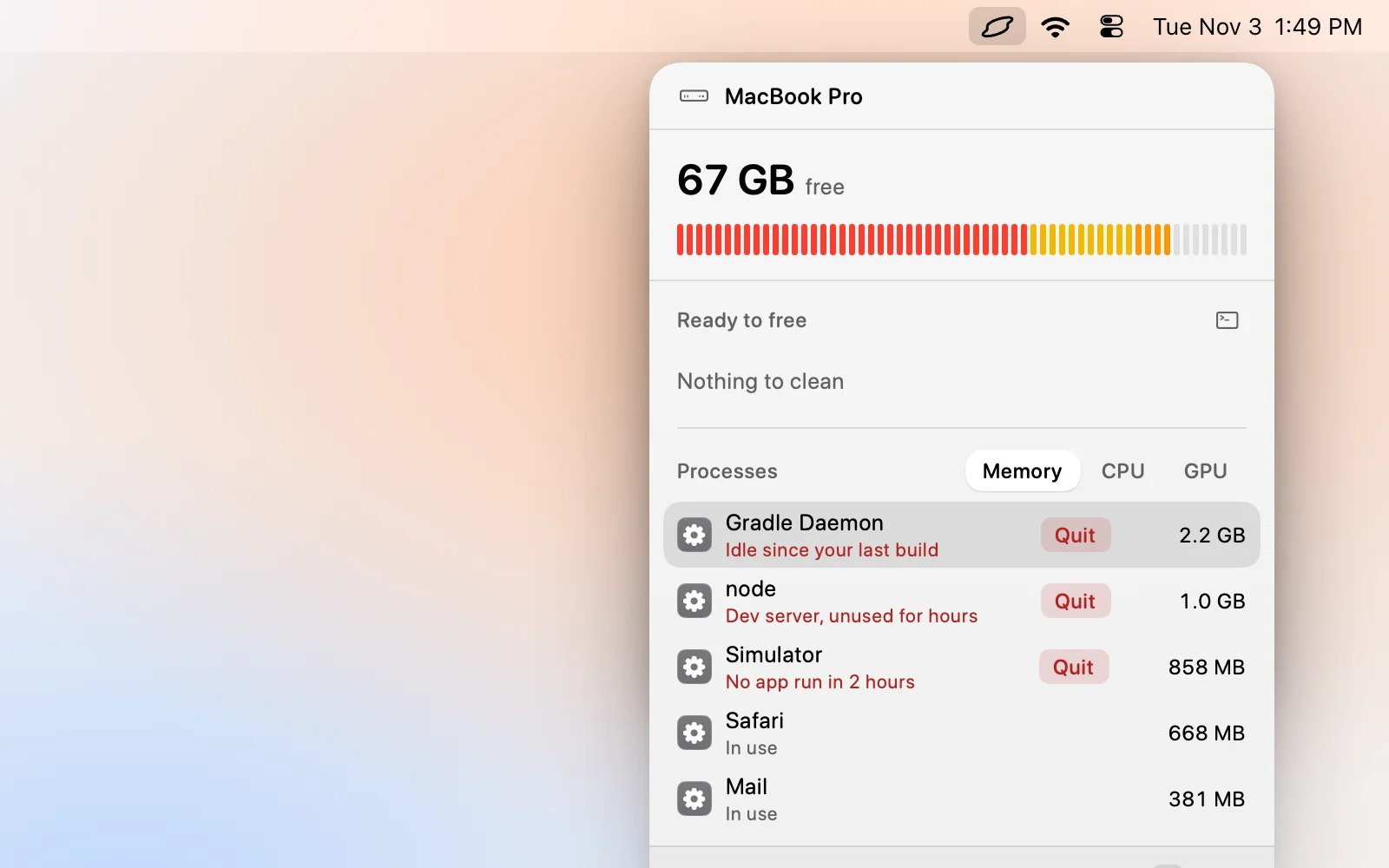
Levo watches memory, CPU and GPU against limits you set. When one goes over, it notifies you with the answer ready: the few processes responsible, each with a reason such as "Gradle daemon idle 3 h" and a Quit button. You never have to guess which of 400 rows matters.
Your own agent (Claude Code, Codex, Gemini or another CLI you already use) judges what is idle and what you are using. It can only read; Levo does the quitting. Levo asks the app to quit first and uses Force Quit only when you choose it, in the Processes list or from ⌘K. It never quits system processes such as WindowServer, kernel_task, Finder or Dock, nor other users' processes.
See Free memory, CPU and GPU for the Processes list.
FAQ
Is it bad to force quit apps on a Mac?
Not harmful to macOS, but you lose unsaved work in that app and it has to start from scratch next time. Use it for frozen apps, not as a habit.
Does force quitting apps save battery on a Mac?
Only if the app was busy in the background. Idle apps use almost nothing, and relaunching them costs more energy than leaving them. Quit the ones that show high CPU or Energy Impact.
What is the difference between Quit and Force Quit?
Quit asks the app to close and lets it save and clean up. Force Quit tells macOS to end it immediately, with no chance to save.
Why does an app say it cannot be quit?
It is usually stuck waiting on something, such as a disk, a network share or a dialog hidden behind another window. Wait a minute, then use Force Quit.
Should I force quit all my apps before shutting down?
No. macOS closes them for you at shutdown and restart, and a normal quit saves their state.
What happens to my unsaved work when I force quit?
It is lost in most apps. Some apps keep autosave versions, so reopen the app and check File then Open Recent or its recovery prompt.