
Levo guides · Memory, CPU and GPU
How to see and stop processes on a Mac
Open Activity Monitor, select the process, and click the stop button (the octagon with an X). Choose Quit to ask it politely, Force Quit if it does not respond. In Terminal, kill PID does the same. Never stop system processes such as WindowServer, kernel_task, launchd, Finder or Dock.
| Tool | Command or action | Effect |
|---|---|---|
| Activity Monitor | Stop button › Quit | Asks the app to quit and save |
| Activity Monitor | Stop button › Force Quit | Ends it now; unsaved work is lost |
| Terminal | kill PID | Polite stop signal (SIGTERM) |
| Terminal | kill -9 PID | Hard stop; cannot be ignored |
| Terminal | pkill -x Name | Stops processes by exact name |
See what is running
- Open Activity Monitor. Use View › All Processes to include background and system ones.
- Search by name at the top right, or sort by CPU, Memory or Energy.
- Double-click a process to see its path, its parent and when it started. The path tells you whether it belongs to an app you know.
ps -Ao pid,ppid,etime,comm | head -n 20
lsof -i :3000
The first lists processes with their parent and how long they have run. The second shows what is listening on port 3000, useful for a dev server you cannot find.
Stop one
- In Activity Monitor, select the process and click the stop button. Try Quit first; use Force Quit if it does not go within a few seconds.
- In Terminal, find the PID, then ask politely:
kill 4321If it ignores that, escalate:
kill -9 4321
pkill -x "Google Chrome Helper"
Stopping a process started by launchd, such as a background agent or daemon, usually makes macOS start it again. To stop it for good, remove its login item or disable the agent in System Settings › General › Login Items & Extensions.
Which processes never to stop
- kernel_task, launchd: the kernel and the process that starts everything. Stopping launchd is impossible, and kernel_task is the Mac's cooling.
- WindowServer: draws your screen. Killing it logs you out and loses unsaved work.
- Finder, Dock, SystemUIServer, Control Centre: the desktop. They restart, but the screen flickers and windows move.
- Anything owned by root or another user, unless you know exactly what it is.
- Security tools and backup runs, such as a Time Machine backup in progress.
If you do not recognise a name, search it before you stop it. Most unfamiliar processes belong to macOS and are harmless at their usual size.
Find the one you want
Dev servers and background tools are hard to find by name, so find them by port, age or size:
lsof -i :3000
lsof -i -P | grep LISTEN
ps -Ao pid,etime,comm | grep -i node
top -o mem -l 2 -n 8 | tail -n 12
lsof -i :3000 prints the process holding port 3000, with its PID in the second column. etime is how long a process has been running, so an old Node or Java process with no window is probably a leftover from finished work.
Safer ways to stop things
- Quit before kill. A plain
killlets the process save and clean up.kill -9does not, and can leave lock files or corrupt a database. - Prefer an exact name.
pkill -x Namematches only that name. A loosepkill nodecan stop unrelated tools as well. - Check the owner. Your own processes are yours to stop. A process owned by root is not, and
sudo killshould be a last resort. - Look at the parent. Stopping a helper while its parent app runs just makes the app start another.
If you are unsure whether something is safe to stop, wait. Most idle processes cost little, and the real wins are the large, old and unused ones.
How Levo does it
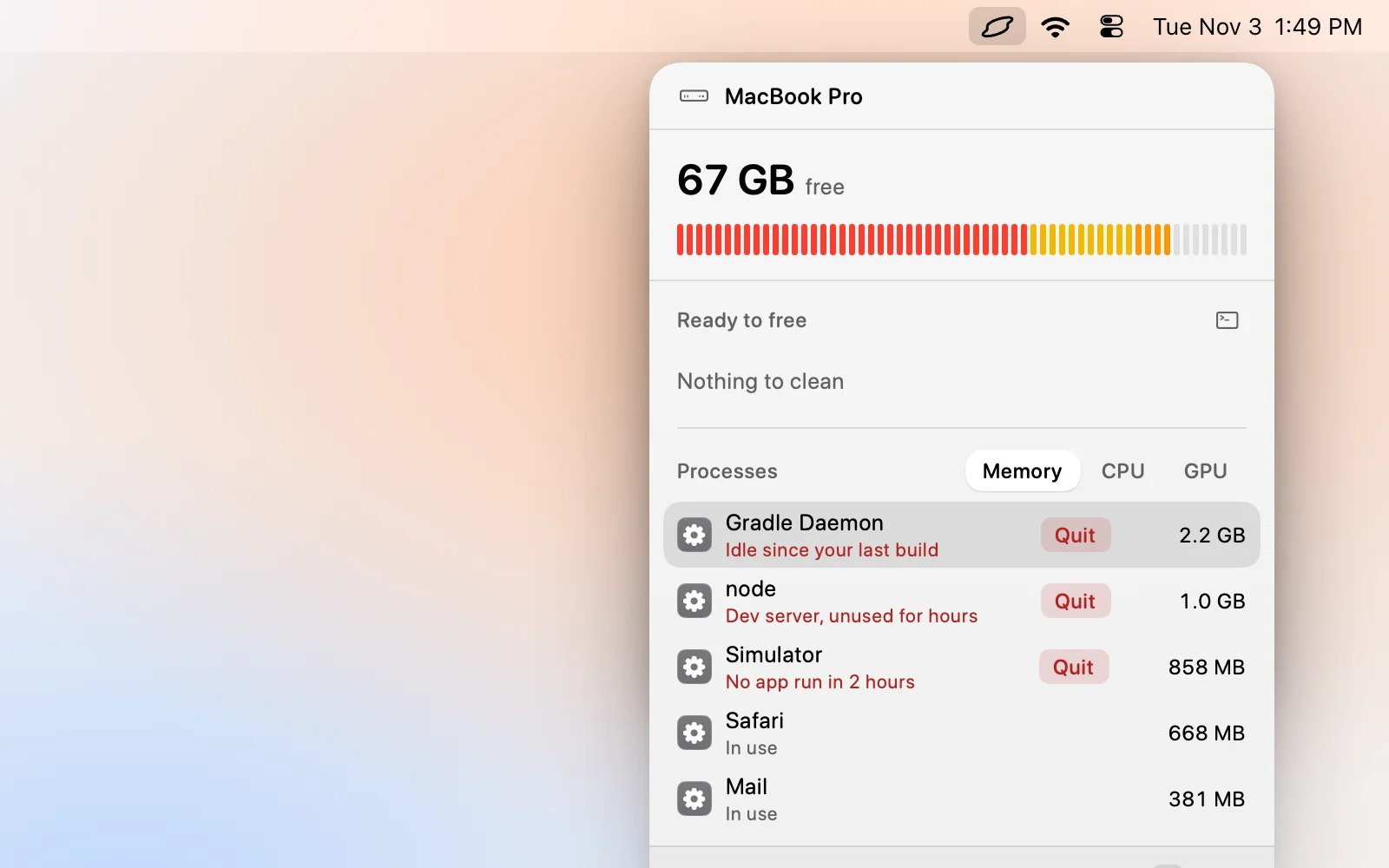
Levo's Processes list does the finding for you. It shows the busiest processes by memory, CPU and GPU, each with a plain note about what it is and your own AI agent's verdict, such as "Gradle daemon idle 3 h", and a Quit button. Apps are asked to quit politely first. Other processes of yours get a polite stop signal, then a hard one after a timeout.
Levo never quits system processes such as WindowServer, kernel_task, Finder or Dock, other users' processes, itself, or anything you told it to keep (⌘D on a process). If one will not quit, ⌥⌘Q force quits it after asking, and ⌘K has Quit and Force Quit by typing. See the help article.
FAQ
How do I see all running processes on a Mac?
In Activity Monitor choose View, then All Processes. In Terminal, run ps -Ao pid,comm to list them.
What is the difference between Quit and Force Quit?
Quit asks the process to close and save its work. Force Quit ends it at once, so unsaved changes are lost. Try Quit first.
Why does a process come back after I stop it?
It is managed by launchd or a login item, which restarts it. Disable it in Login Items and Extensions, or quit the app that owns it.
Is it safe to kill a process I do not recognise?
Search its name first. Many are macOS services. Stopping the wrong one can log you out or break a feature until restart, so leave system processes alone.
How do I stop a process using a port on a Mac?
Run lsof -i :PORT to find the PID, then kill that PID. Replace PORT with the number, such as 3000.
Is kill -9 safe?
It always works, but the process cannot save or clean up. Use plain kill first and keep kill -9 for processes that ignore it.