
Levo help · Using Levo
Settings, pane by pane
Open Settings from the popover's footer, or press ⌘,. The sidebar has a search field: type any setting's name to jump to it.
Licence
Your status, the licence key and its activation, Install updates automatically, the version with a check for updates, and Welcome, which replays the first-launch tour. See Licence.
General
- Launch at login and Show in Dock.
- Check every: how often Levo reads disk, memory, CPU and GPU. Shorter catches problems sooner; longer uses a little less energy.
- Theme, Menu bar icon (outline or filled, optionally with free space) and Text size.
- Show shortcut hints, Layout (Compact, Summary or Expanded) and Gauges.
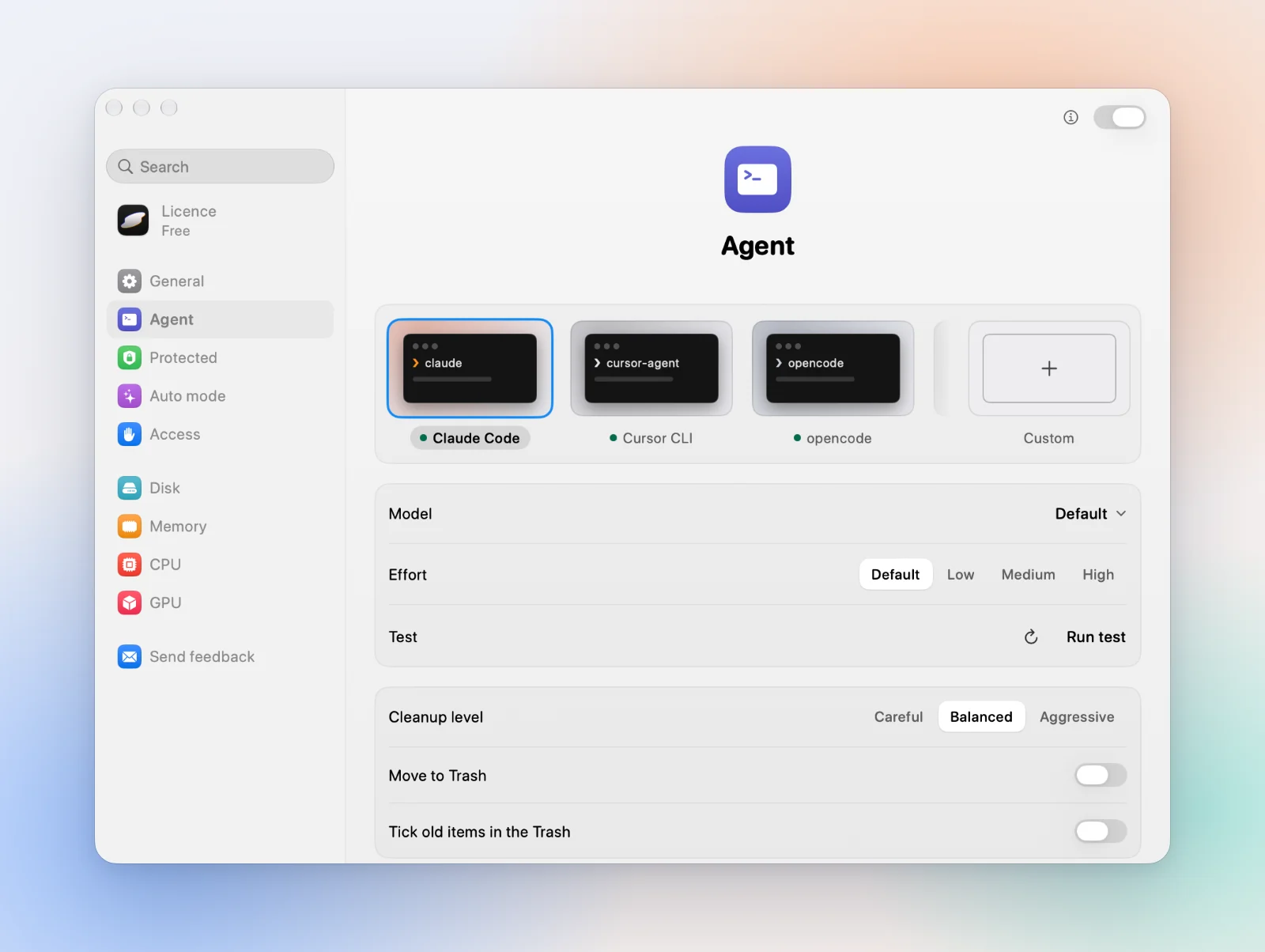
Agent
Your agent, model, effort, a custom command and Test. Then Cleanup level, Move to Trash, Tick old items in the Trash, and the limits on a run: time, steps, runs per day, and pause on battery. Ask opens in picks the terminal, and Command line tool links levo into ~/.local/bin. See Connect your AI agent.
Protected
Protected folders, kept processes, Keep what changed within and the read-only Always protected list. See Protected folders.
Auto mode
Turn it on and set its limit, pace, minimum and scope. See Auto mode.
Access
Whether Levo has Full Disk Access and permission to send notifications, with a button to fix each. See Full Disk Access.
Disk, Memory, CPU and GPU
- Disk: Free below in GB or percent, Start analysing early so the answer is ready when the alert comes, and Also look in for other folders or drives to index.
- Memory: Pressure (Warning or Critical) and For, how long it must last.
- CPU and GPU: Total above, One process above (100% is one full core on CPU) and For.
- Each has Send a notification.
Each setting can be found from ⌘K
Type its name in ⌘K and Levo opens the pane and highlights the row.