
Levo guides · Disk space
How to delete iOS files and old iPhone backups on a Mac
Delete old iPhone backups in System Settings › General › Storage › iOS Files, or in Finder with your iPhone selected under Locations › Manage Backups. Each backup is often 20 to 100 GB. Keep the newest one for each device you use, and delete the rest only after you’ve checked the date.
| What | Where | Safe to delete? |
|---|---|---|
| iPhone and iPad backups | ~/Library/Application Support/MobileSync/Backup | Yes for old devices, but it may be the only copy |
| iOS software update files | ~/Library/iTunes/iPhone Software Updates | Yes, they’re downloaded again |
Old firmware (.ipsw) | Downloads, or ~/Library/iTunes | Yes |
| iCloud backups | In iCloud, not on the Mac | Manage them on the iPhone |
Delete backups from System Settings
- Open System Settings › General › Storage.
- Click the ⓘ beside iOS Files.
- Control-click a backup and choose Delete. The name shows the device and, in the pane, the date.
- Confirm. The space is free straight away, though Storage may take a moment to update.
Delete backups from Finder
- Connect the iPhone with a cable and open Finder. Backups can only be managed with the phone connected.
- Select the iPhone in the sidebar, then click Manage Backups… under General.
- Select a backup, check its date and click Delete Backup.
Check the date before you delete. If the newest backup of a phone is also the one you’d need after a lost or broken phone, keep it or make a new one first. An iCloud backup can stand in, but only if it is current.
Find them in Terminal
Each backup is a folder named by a long ID, so the names tell you nothing. List them with dates and sizes:
ls -lt ~/Library/Application\ Support/MobileSync/Backup
du -sh ~/Library/Application\ Support/MobileSync/Backup/*
Finder’s Manage Backups shows the device names that these IDs match, so use it to decide, and Terminal only to check sizes. Deleting the folders by hand works too, and once the Trash is emptied the backup is gone for good.
Software update files
When you update an iPhone or iPad from the Mac, the firmware is kept so a second device doesn’t have to download it. They’re 5 to 8 GB each and no longer used after the update:
ls -lh ~/Library/iTunes/iPhone\ Software\ UpdatesDelete any .ipsw files that are listed. iOS downloads what it needs next time.
Move backups to an external drive
macOS doesn’t have a setting for the backup location, so the standard trick is a symbolic link:
- Quit Finder windows showing the iPhone, and give Terminal Full Disk Access in System Settings › Privacy & Security.
- Copy the
Backupfolder to the drive. - Rename the original to
Backup.old. - Link the drive’s copy back:
ln -s /Volumes/Drive/Backup ~/Library/Application\ Support/MobileSync/Backup- Make a test backup. If it works, delete
Backup.old.
The drive has to be connected for backups. If it’s missing, the Mac makes a backup to nowhere or fails.
How Levo does it
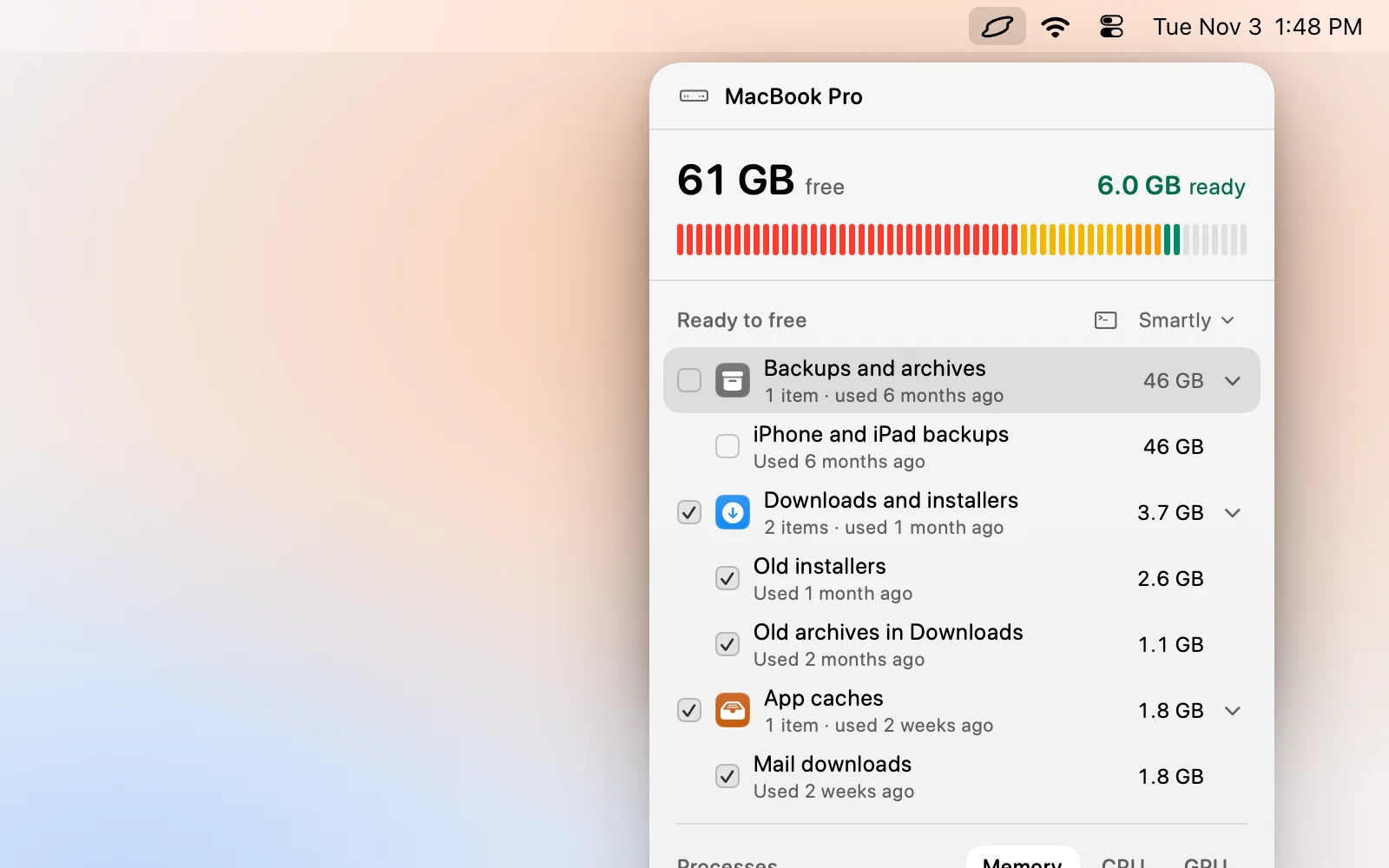
Levo lists iPhone and iPad backups in Ready to free with their size and when they were last changed, next to caches and installers, so you can compare a 60 GB backup with everything else you could free. The label comes from Levo’s index of MobileSync, which Storage settings buries under iOS Files.
Backups are never ticked for you, because a backup may be the only copy of a phone. Your own AI agent, such as Claude Code or Codex, can still read what is there and tell you. If you do tick one, Levo checks it again right before deleting, and with Move to Trash on you can put it back. Levo can’t see inside iCloud, and it never touches anything there. It needs Full Disk Access to read the backup folder.
FAQ
Is it safe to delete old iPhone backups?
Yes if the device is gone or has a newer backup, or an iCloud backup. If it is the only backup of a phone you still use, keep it or make a new one first.
Where are iPhone backups stored on a Mac?
In ~/Library/Application Support/MobileSync/Backup. Each backup is a folder with a long ID, so use Manage Backups in Finder to see which device it is.
Will deleting a local backup delete my iCloud backup?
No. They are separate. Local backups live on the Mac and iCloud backups live in iCloud, and you manage the second one from the iPhone’s settings.
What are iOS Files in Storage settings?
Mostly iPhone and iPad backups, plus downloaded iOS update files. You can delete both there, and the update files are downloaded again if needed.