
Levo guides · System Data
How to clear System Data on a Mac
Clear System Data from the outside in: Time Machine snapshots first, then caches and logs, then developer data, then old iPhone backups. Never delete anything inside /System, /private/var/db or the Library folders of other apps you still use.
| Step | What | Typical size | Comes back? |
|---|---|---|---|
| 1 | Time Machine local snapshots | 5 to 50 GB | Yes, hourly while Time Machine is on |
| 2 | Caches in ~/Library/Caches | 2 to 20 GB | Yes, as apps need them |
| 3 | Logs and crash reports | Under 2 GB | Yes, new ones |
| 4 | Xcode, Docker and package caches | 10 to 100 GB | Yes, rebuilt or downloaded |
| 5 | Old iPhone and iPad backups | 5 to 60 GB each | No |
How to do it yourself
Work through these in order and check System Settings › General › Storage after each one. It can take a minute or two to recalculate.
- Snapshots. List them, then thin them. The number is the bytes you want back and the 4 is the urgency.
tmutil listlocalsnapshots /
sudo tmutil thinlocalsnapshots / 20000000000 4- Caches. Quit the apps first. Open Finder, choose Go › Go to Folder (⇧⌘G), enter
~/Library/Caches, and move the biggest folders to the Trash. Leave the folders themselves, delete what is inside. - Logs. The same way, with
~/Library/Logsand~/Library/Logs/DiagnosticReports. - Developer data. If you use Xcode, these are the big ones:
rm -rf ~/Library/Developer/Xcode/DerivedData
xcrun simctl delete unavailable
docker system prune- Old backups. In Finder, open your iPhone in the sidebar, or go to
~/Library/Application Support/MobileSync/Backup. Delete backups of devices you no longer own. Do this from Finder’s Manage Backups, not by dragging folders, so you don’t break one you want.
Leave the swap files in /private/var/vm, the contents of /System, and the Mail, Photos and Messages libraries alone. A restart is the safe way to shrink swap.
What to skip, and how much to expect
Most people get back 10 to 30 GB from steps 1 to 3, and the developer step is where the big numbers come from. If you skipped Xcode and Docker because you don’t use them, you will likely stop after the caches.
- Don’t use “cleaner” scripts that delete
~/Librarywholesale. It holds your app settings, saved passwords for some apps and license files. Clear caches and logs only. - Don’t delete
Group ContainersorApplication Supportfor apps you still use. They hold the app’s real data, not a cache. Leftovers from apps you have removed are the exception. - Don’t chase the swap file. It is in
/private/var/vm, macOS recreates it at once, and a restart is the proper way to shrink it. - Do one step, then look. If Storage settings hasn’t moved, wait a minute and reopen it before assuming the step did nothing.
If the number is still high after all five steps, the remaining space is probably a virtual machine, a model library or a large project folder. See System Data over 100 GB for how to size each.
How Levo does it
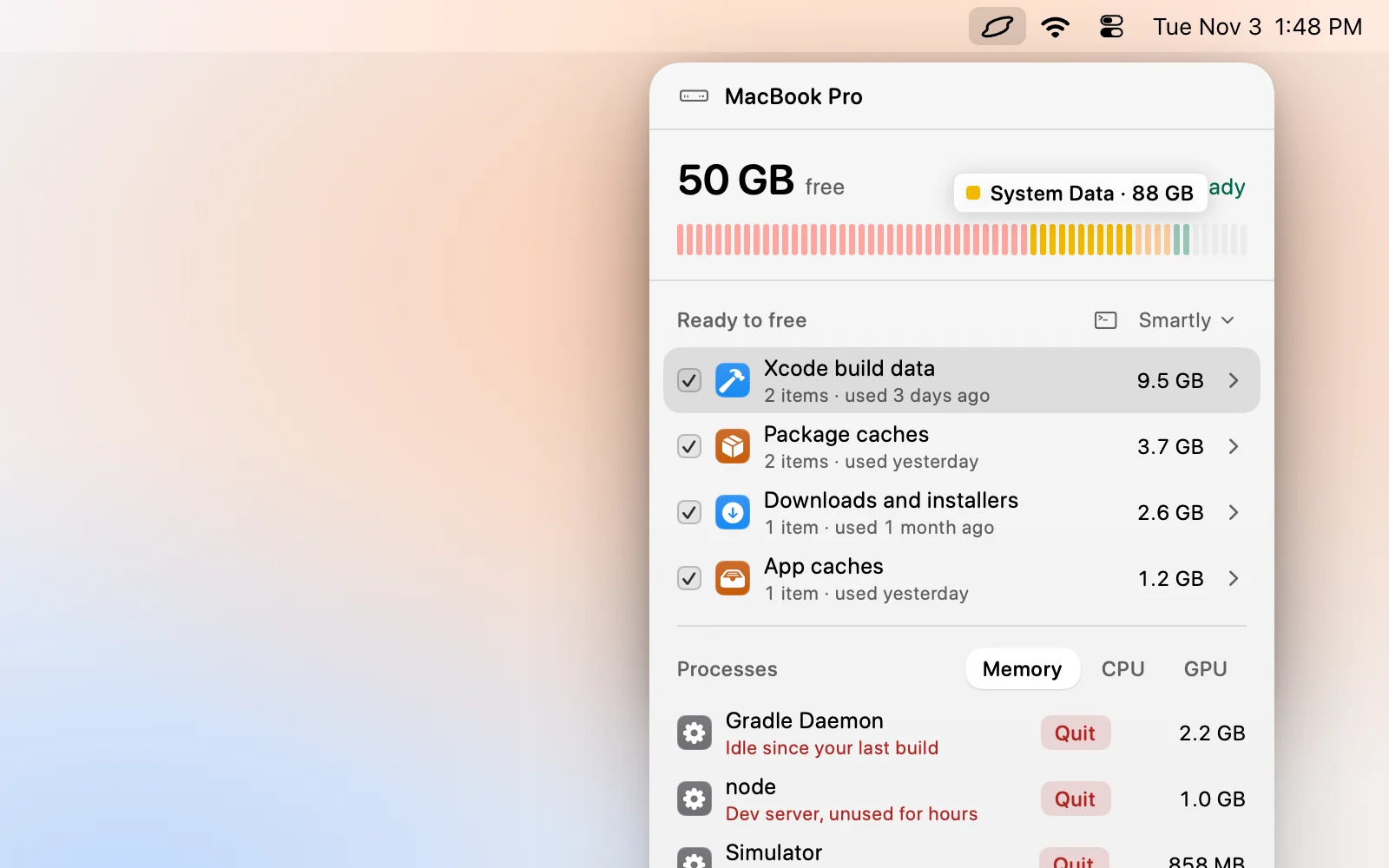
Levo keeps a live index of your home folder, hidden folders included, so it already knows the sizes. Its popover lists what is really inside System Data under Ready to free: caches by app, Xcode build data, simulators, Docker images, old backups and more, each with a size and a reason.
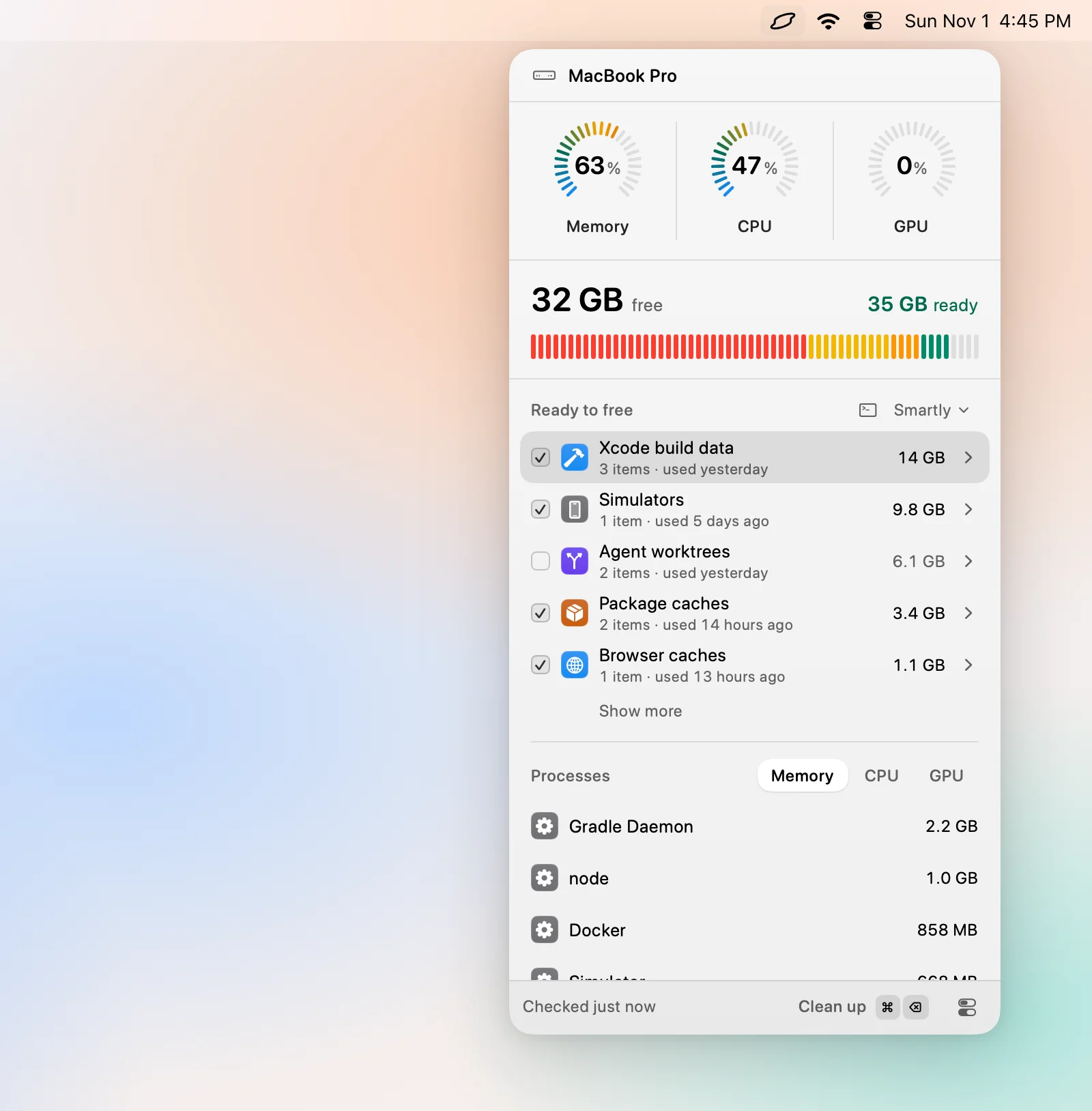
Choose Select › Smartly and Levo ticks only what is safe at your cleanup level. Your own AI agent, such as Claude Code or Codex, helps judge the items, but it can only read; Levo does every deletion, and checks each item again right before it goes. Backups, virtual machines and large files are listed but never ticked for you. You untick anything you want to keep, then Clean up.
Levo leaves Time Machine’s local snapshots, the swap file and macOS’s own files to macOS, so step 1 above stays a Terminal job. There are two free cleanups, then a lifetime licence.
FAQ
Is it safe to clear System Data?
Clearing caches, logs, build data and old backups is safe. Deleting files inside the system folders or the Photos, Mail and Messages libraries is not.
Why did System Data not shrink after I deleted things?
Storage settings recalculates slowly, and emptying the Trash is a separate step. Local Time Machine snapshots also hold space until macOS thins them or you do.
Will clearing caches slow my Mac down?
Only for a moment. Apps rebuild the caches they need the next time you open them, so the first launch can be a little slower.
Can I clear System Data completely?
No. macOS keeps its own files, swap and snapshots in there, so it never reaches zero.