
Levo guides · System Data
System Data over 100 GB: what to check first
When System Data passes 100 GB, check five places before anything else: app containers, the Developer folder, iPhone backups, virtual machine disks and AI models. One of them usually holds more than half of it.
| # | Place | Path | If it is huge |
|---|---|---|---|
| 1 | App containers | ~/Library/Containers | Docker, chat apps, editors |
| 2 | Developer | ~/Library/Developer | Simulators, DerivedData, device support |
| 3 | Device backups | ~/Library/Application Support/MobileSync | Old iPhone backups |
| 4 | Virtual machines | ~/Parallels, ~/Library/Containers/com.utmapp.UTM | Disk images that never shrink |
| 5 | AI models | ~/.ollama, ~/.cache/huggingface, ~/.lmstudio | One model is 5 to 40 GB |
How to do it yourself
Run these in Terminal. They only read, so nothing is deleted. Apps that were never installed just report that the folder does not exist.
du -sh ~/Library/Containers/* 2>/dev/null | sort -rh | head -8
du -sh ~/Library/Developer/* 2>/dev/null | sort -rh
du -sh ~/Library/Application\ Support/MobileSync/Backup/* 2>/dev/null
du -sh ~/Parallels ~/Virtual\ Machines.localized 2>/dev/null
du -sh ~/.ollama ~/.cache/huggingface ~/.lmstudio 2>/dev/null
Then deal with the biggest hit, with the right tool for it:
- Containers: open the app and clear its own cache, or uninstall it if you no longer use it. Don’t delete the container by hand while the app is installed.
- Developer:
CoreSimulatoris usually the largest.xcrun simctl delete unavailableremoves simulators for old runtimes, and Xcode › Settings › Components removes runtimes you don’t test on. - Backups: in Finder, select your iPhone, choose Manage Backups, and delete the ones for devices you no longer have.
- Virtual machines: delete snapshots inside the VM app, then use its compact or reclaim option. Deleting files inside the guest does not shrink the disk file.
- Models:
ollama listshows them andollama rm <name>removes one. You can download it again later.
If those five add up to under 50 GB, the remainder is probably swap, snapshots and macOS itself. Check tmutil listlocalsnapshots / and ls -lh /private/var/vm.
Reading the result
Write down the five sizes, then add them up. That is the part of System Data you can do something about. What is left over belongs to macOS.
- Over 70% explained: clear the biggest item and recheck. Storage settings can take a few minutes to catch up.
- Under 50% explained: look at snapshots and swap, then at
/Libraryand/private/varwithsudo du. Large caches from system services can sit there. - Nothing stands out: restart, wait ten minutes, and run the commands again. Mid-session numbers can be a snapshot spike.
For a Mac with a small SSD, one old iPhone backup or one big simulator runtime can be the whole difference between a full disk and a healthy one. Look at those two before anything fiddly.
How Levo does it
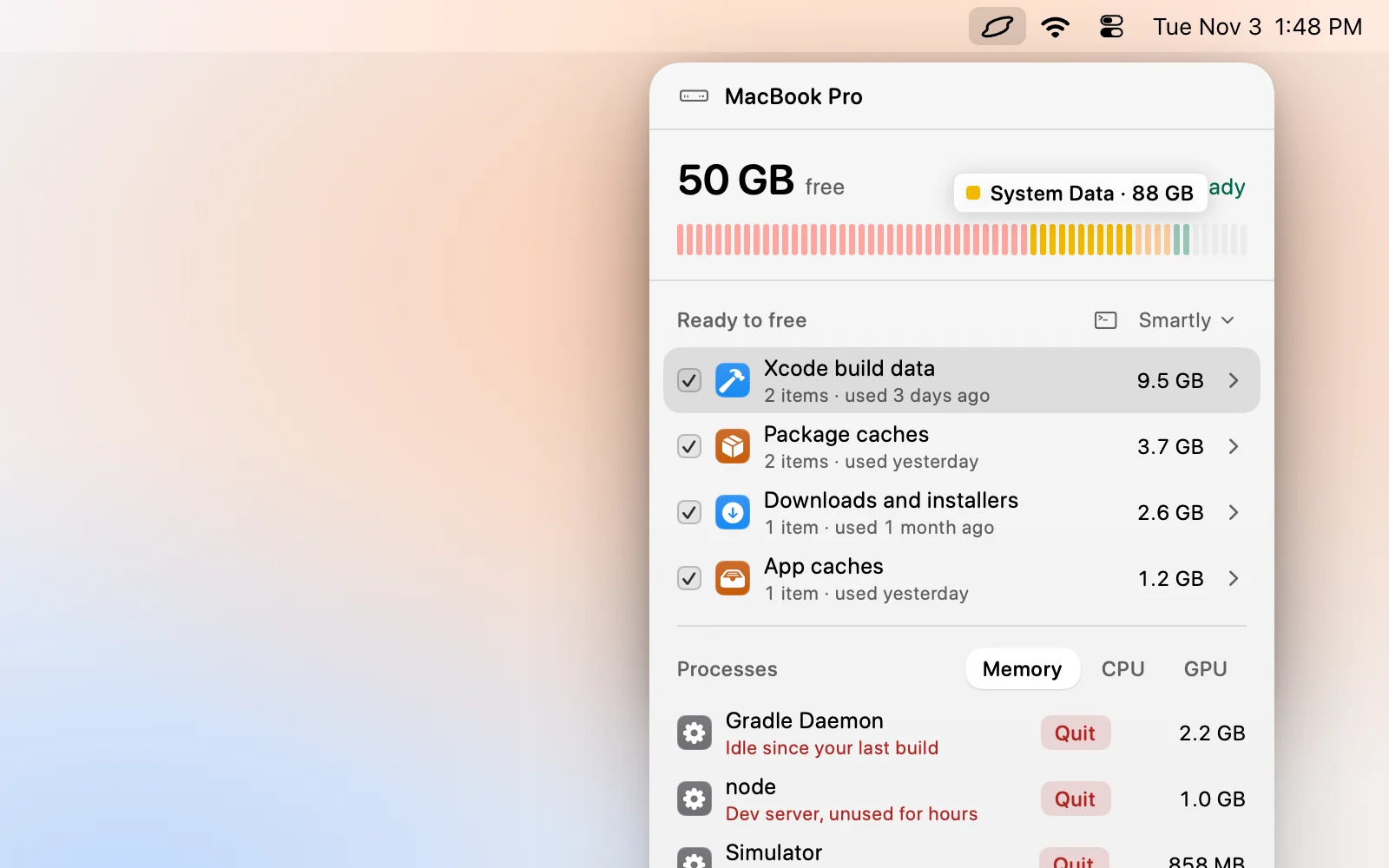
The same five places show up in Levo’s Ready to free list without the commands: Simulators, Docker images, models, backups and caches, each with a size and when it was last used. Because Levo keeps a live index, the numbers are there when you open the popover.
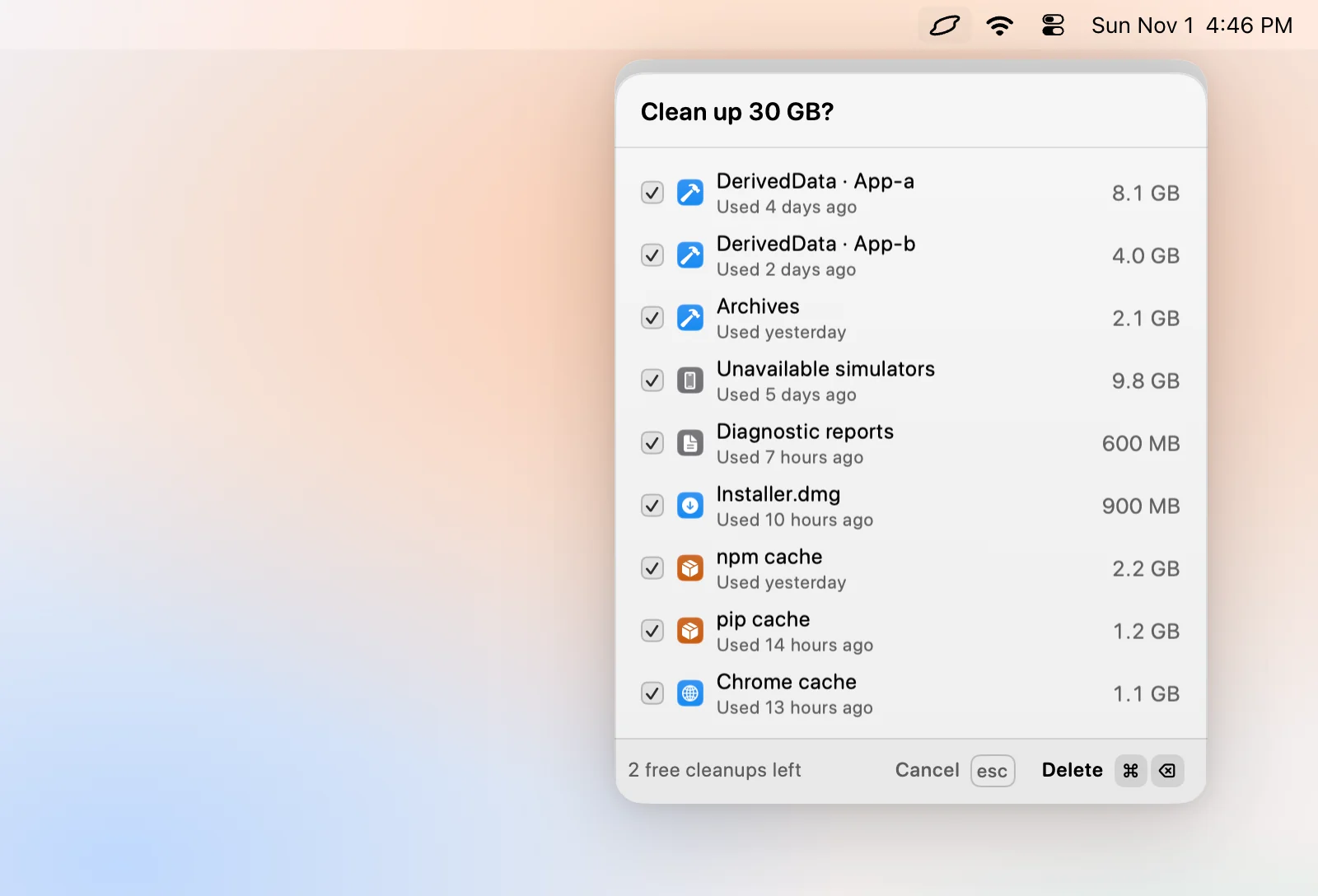
Virtual machines, backups, AI models and large files are listed but never ticked for you, since they hold your own work or cost a long download to replace. Tick the ones you want gone, check the confirm step, and Levo does the deletion. With Move to Trash on, you can put it back.
FAQ
Is 100 GB of System Data too much?
It is a lot, but it depends on your disk and your work. On a 256 GB Mac it is a problem. On a 2 TB developer Mac it can be normal.
Can the Photos library be inside System Data?
No. Photos is counted under Photos. If a photo app keeps a cache elsewhere, that cache can show as System Data.
Why can’t I find 100 GB with Finder?
Library is hidden and Finder doesn’t total folders by default. Use Terminal’s du command, or a tool that indexes hidden folders.
What if the five places are small?
Then check snapshots and swap. If those are small too, restart and wait for Storage settings to recalculate.