
Levo guides · System Data
How to see what’s inside System Data
You can’t see inside System Data in Storage settings: it shows one number and no list. To look, measure the hidden folders yourself with Finder or du, use a disk map app, or use Levo, which lists what is inside by kind.
| Way | Sees hidden folders? | Shows what is safe? | Effort |
|---|---|---|---|
| Storage settings | No | No | None |
| Finder, Show Calculated All Sizes | Yes, if you go there | No | Slow, folder by folder |
du in Terminal | Yes | No | A few commands |
| A disk map app | Yes, with Full Disk Access | No | One scan |
| Levo | Yes, live | Yes, with a reason | Open the popover |
How to do it yourself
Finder. Open your home folder, press ⇧⌘. to show hidden files, and open Library. Choose View › as List, press ⌘J and tick Calculate all sizes. It computes folder sizes as you browse. It is slow, but it works with no extra tools.
Terminal. du sizes a folder, and sorting puts the largest first. This walks one level down and prints the top 15:
du -hxd 1 ~/Library 2>/dev/null | sort -rh | head -15Repeat on the biggest folder, then the next, until you reach something you recognise. To see the whole home folder, including hidden items such as .cache and .docker:
du -hxd 1 ~ 2>/dev/null | sort -rh | head -15For the part outside your home folder, such as swap and update files, you need sudo, and you should expect it to take a minute:
sudo du -hxd 1 /private/var /Library 2>/dev/null | sort -rh | head -15A disk map app. Tools such as DaisyDisk or GrandPerspective draw a map of everything on the disk. Give them Full Disk Access first, or the Library folders come out empty. See DaisyDisk alternatives. They show size, but not which items are safe, so you still decide.
None of these tools can read Time Machine snapshots. Their size doesn’t appear in any folder, which is why the folders you find can add up to less than Storage settings says.
Which way to pick
For a one-off look, Terminal is enough: three commands tell you where the space is. If you are curious about a particular folder, a disk map is quicker, because you can click down into it. If you will do this more than once, or want to know what is safe to remove, an index that stays current saves the repeat work.
- You want a number now:
duon~/Libraryand~. - You want to explore: a disk map app, with Full Disk Access on.
- You want to clean: a tool that names the kinds and gives a reason for each item.
Whichever you use, look at the kinds, not at single files. System Data is mostly hundreds of small things in the same few folders, and clearing the right folder is more useful than hunting a large file.
How Levo does it
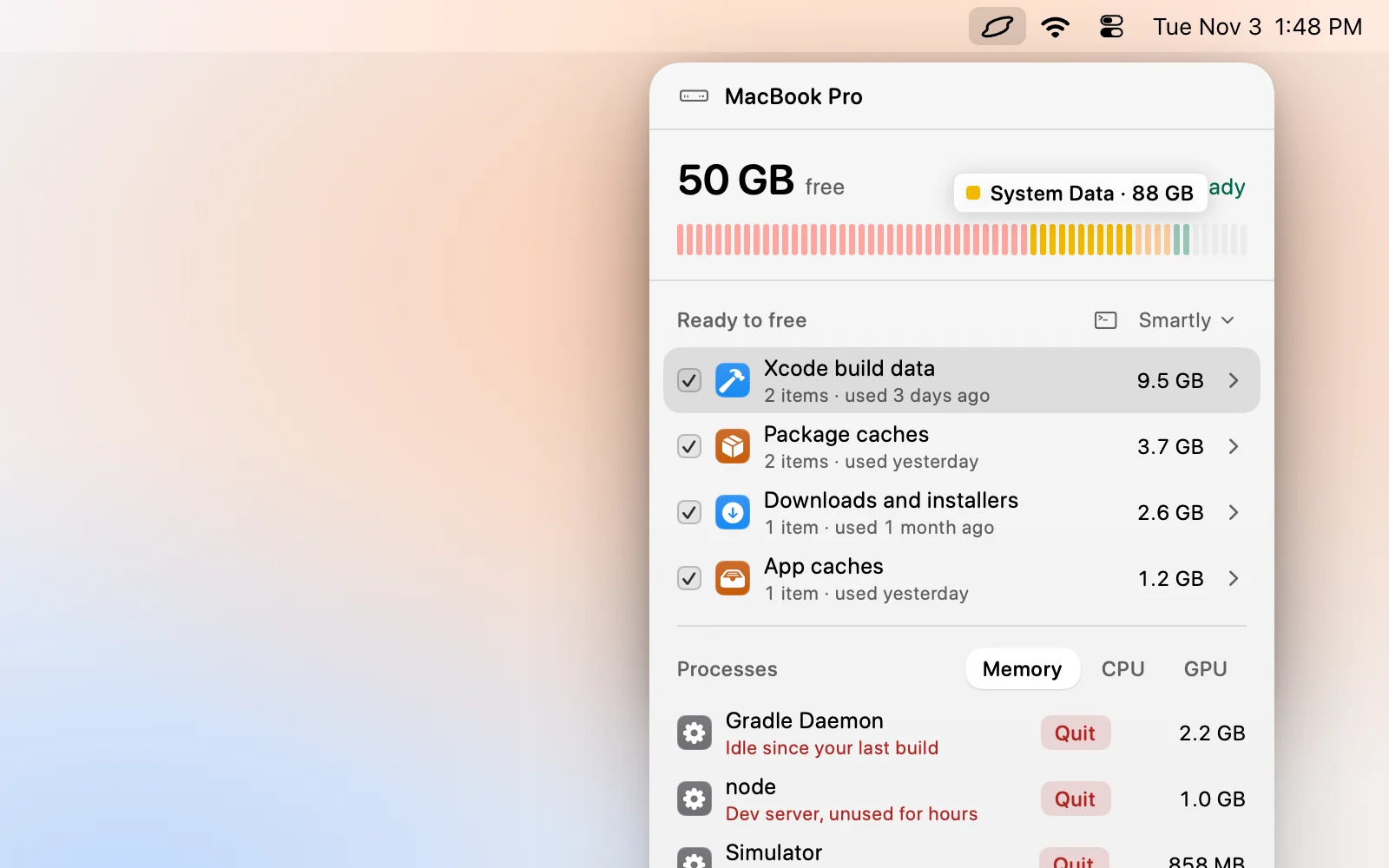
Levo keeps a live index of your home folder, hidden folders included, so there is no scan to wait for. Its disk bar splits Caches, Developer, Mail and Messages out of System Data, and Ready to free names the rest by kind, with a size and when it was last used.
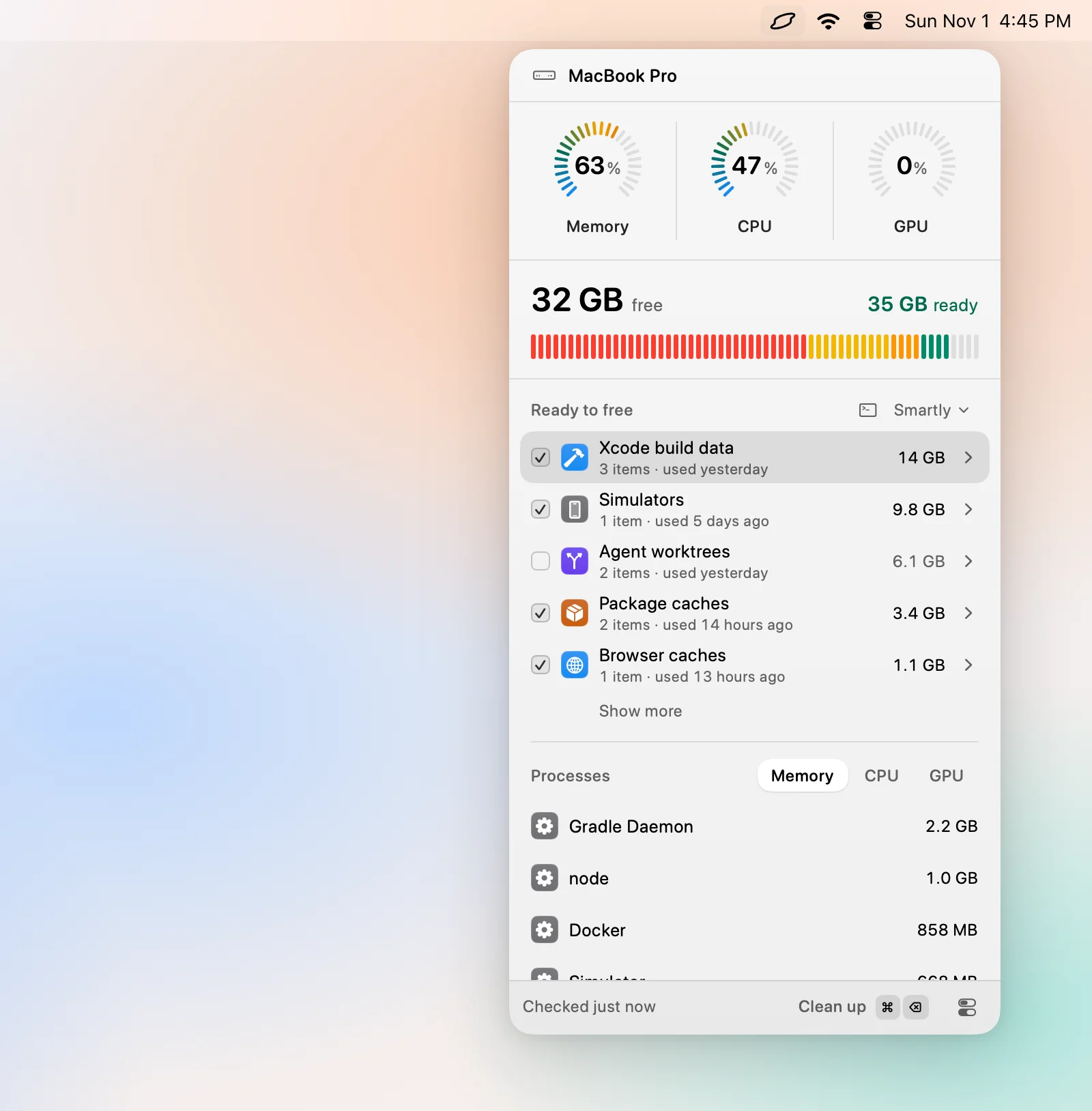
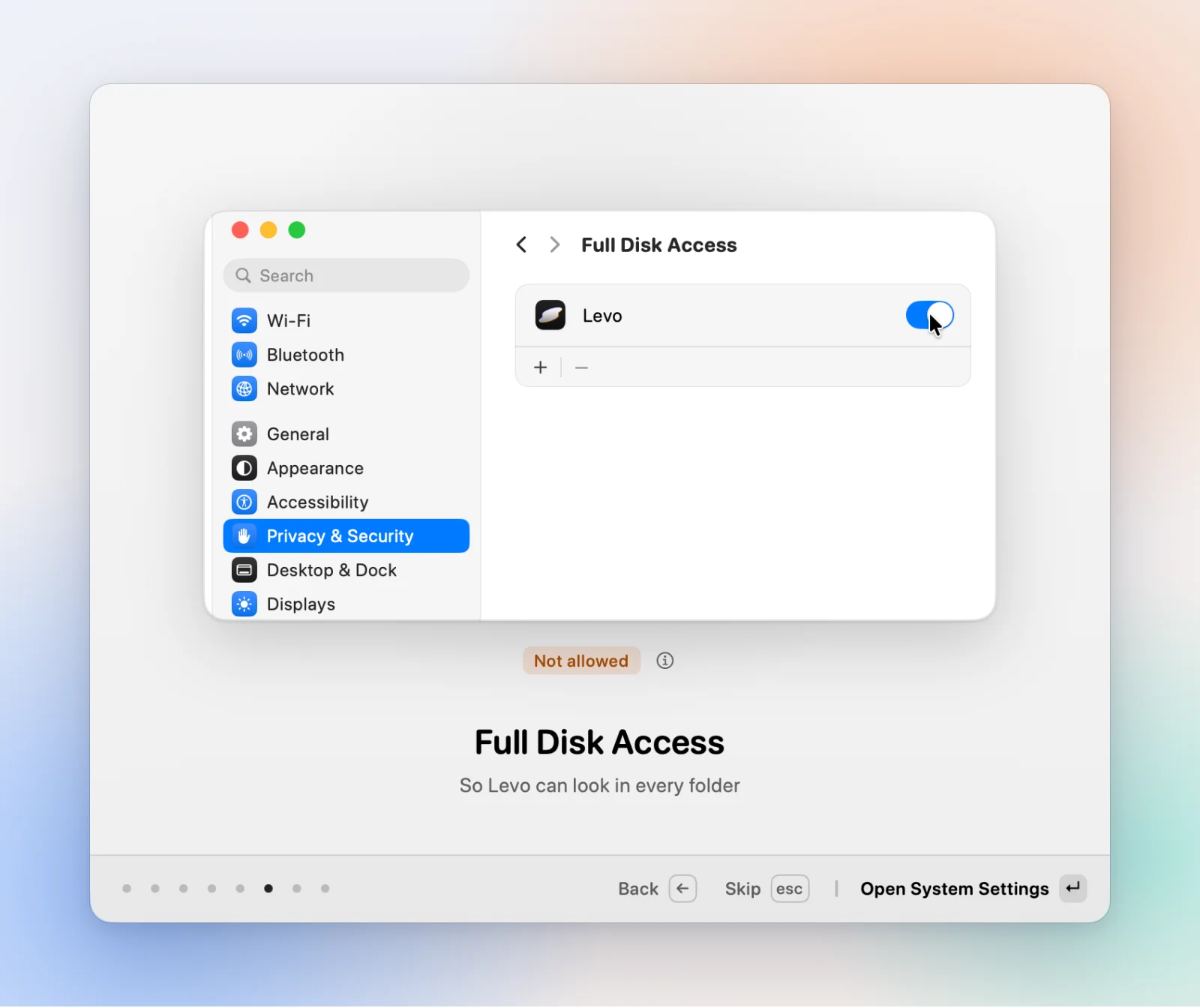
Your own AI agent adds the judgement: what an item is, whether it comes back, whether it is safe to remove. For the full picture, give Levo Full Disk Access. Without it, other apps’ containers, Mail and Messages stay unnamed. Time Machine snapshots, swap and macOS’s own files are macOS’s, so Levo doesn’t list them for cleaning. See Levo vs macOS Storage settings.
FAQ
Why doesn’t Storage settings show what is in System Data?
Apple shows only the category totals. Clicking the info button on System Data gives a size and no breakdown.
Can Finder show the Library folder?
Yes. Press Shift Command Period in your home folder to show hidden items, or hold Option and use the Go menu to reach Library.
Why do the folders I find add up to less than System Data?
Snapshots, swap, system files and purgeable space don’t sit in a folder you can measure, so they are missing from any folder total.
Do I need Full Disk Access to see everything?
For a complete answer, yes. Without it, Terminal, disk map apps and Levo can’t read Mail, Messages and some app containers.