
Levo guides · What's that process?
coreaudiod high CPU on a Mac
coreaudiod is the Mac's audio engine. It mixes every app's sound and drives your outputs. A little CPU is normal while sound plays. A lot, or crackling, usually comes from a virtual audio device, an app with sound it never stops processing, or a Bluetooth or sample rate mismatch.
What it does
Every sound from every app goes through coreaudiod. It mixes streams, converts sample rates, and talks to the speakers, headphones, HDMI and USB devices. Audio plug-ins from drivers, such as virtual cables, run inside it, which is why a bad one can make it spike.
| Cause | Sign | Fix |
|---|---|---|
| Virtual audio device (BlackHole, Loopback, a meeting app's driver) | High CPU with nothing playing | Remove it, or set the default output back to the Mac's |
| Aggregate or multi-output device | Crackles, drift, high CPU | Delete it in Audio MIDI Setup |
| Sample rate mismatch between apps and the device | Constant conversion | Set one rate in Audio MIDI Setup |
| An app that holds audio open silently | CPU high while it's idle | Quit the app, often a call or music tool |
| Bluetooth headphones switching modes | Spikes when a call starts | Use the Mac's mic for calls |
| A stuck state after sleep or a device change | High after plugging in | Restart coreaudiod |
How to find and fix it yourself
- In Activity Monitor, note whether
coreaudiodstays high while no sound plays. If it only rises with playback, it's just working. - Quit audio apps one at a time: music, video, a call, a DAW, a screen recorder. The one that makes it drop is your cause.
- Open Audio MIDI Setup (in
/Applications/Utilities). Remove aggregate and multi-output devices you don't need, and set the same sample rate (44.1 or 48 kHz) on your output and input. - In System Settings › Sound, change the output and input to the Mac's built-in devices, and see if it calms.
- Uninstall virtual audio drivers you aren't using. They're often left behind in
/Library/Audio/Plug-Ins/HAL. - Restart the audio engine. Sound cuts out for a couple of seconds and comes back:
sudo killall coreaudiod
Restarting coreaudiod stops anything playing, and some apps lose their audio until you restart them. Save calls and recordings first.
Bluetooth and calls
Bluetooth headphones add their own trouble: when a call starts, the headset switches to a lower quality mode with a microphone, and coreaudiod converts everything on the fly. If calls make it spike, choose the Mac's microphone as input and keep the headphones for output only. Apps that expose several virtual inputs, such as meeting tools and recorders, can also stack up. Remove the ones you don't use.
Should you quit it?
Restarting it is a standard fix and safe. Leave it running otherwise: without it there's no sound.
Terminal checks for coreaudiod
Confirm that the load is in coreaudiod and see which apps have audio open. The second command lists the devices macOS sees, including virtual ones.
top -o cpu -l 2 -stats pid,command,cpu | grep coreaudiodsystem_profiler SPAudioDataType | grep -E '^ [A-Za-z]|Default|Sample'A virtual device in that list that you don't remember installing is a prime suspect. You can also read the recent audio log with log show --last 5m --predicate 'process == "coreaudiod"' | tail -30. Repeated lines about a device that disconnects point at a flaky USB or Bluetooth connection. If you restart the engine with sudo killall coreaudiod, run the first command again afterwards to see whether the number actually fell. If it didn't, the cause is the app feeding it audio, so quit that app and test again. Keep notes of which device was selected when it spiked, since a spike that only happens with one headset or one interface is a driver or cable question, not a macOS one.
How Levo does it
Levo never quits system processes, and coreaudiod is one of macOS's own, so it leaves it alone.
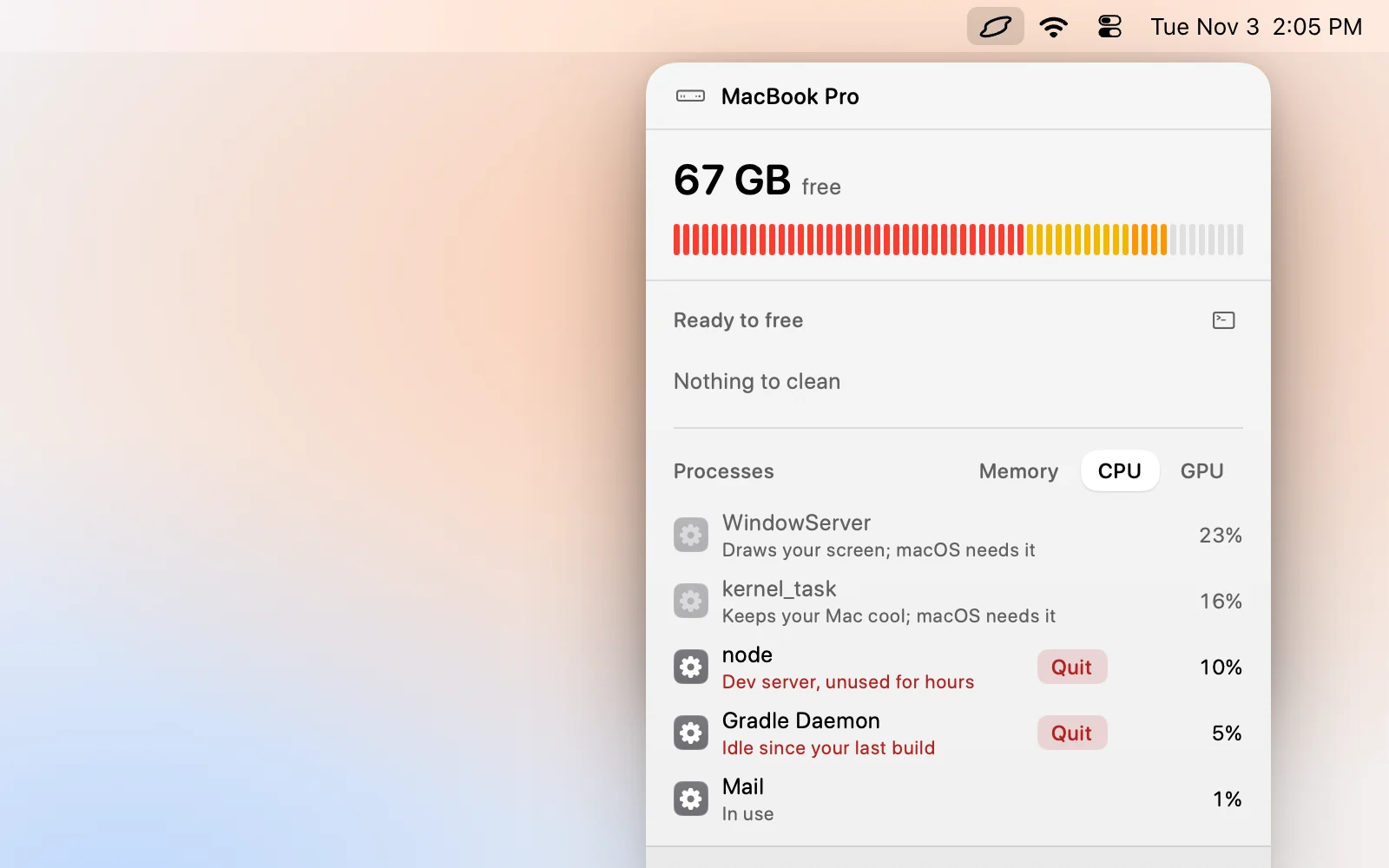
The useful part is the apps next to it. The audio hog is often a call or music app left open in the background, or a recorder, and those are ordinary rows with their own CPU and a Quit button. Your agent flags the ones sitting idle. Quit those with a click or ⌘K, then see whether coreaudiod drops. Driver changes and Audio MIDI Setup stay in macOS.
See How to check CPU usage on a Mac to confirm.
FAQ
Why is coreaudiod using CPU when nothing is playing?
Usually a virtual audio device or an app that keeps an audio stream open silently, like a recorder or a call app.
Is it safe to kill coreaudiod?
Yes. macOS restarts it in seconds. Sound cuts out briefly and some apps need restarting.
Why does my Mac crackle with coreaudiod high?
Often a sample rate mismatch, an aggregate device or a busy Mac. Match rates in Audio MIDI Setup.
Can I turn coreaudiod off?
No. It's how macOS plays and records sound.
Why does coreaudiod use CPU while I'm in a video call?
It mixes and converts your microphone, speakers and the call's audio. A few percent is normal. Much more suggests a virtual device or a mismatch.
How do I check for virtual audio drivers?
Look in /Library/Audio/Plug-Ins/HAL and in Audio MIDI Setup. Remove the ones you don't use.