
Levo guides · Uninstalling apps
How to uninstall apps on a Mac completely
Dragging an app to the Trash removes the app and nothing else. Its caches, preferences, support files and background helpers stay in your Library folder until you delete them, and for most apps that’s a few megabytes. For a few it’s gigabytes.
| What | Where | Safe to delete? |
|---|---|---|
| Application Support | ~/Library/Application Support/<app> | Yes, if you don’t need the app’s data (projects, libraries, databases) |
| Caches | ~/Library/Caches/<bundle id> | Yes, rebuilt on demand |
| Preferences | ~/Library/Preferences/<bundle id>.plist | Yes, settings reset |
| Sandbox data | ~/Library/Containers/<bundle id>, ~/Library/Group Containers/… | Yes, but documents can live here |
| Saved state and logs | ~/Library/Saved Application State, ~/Library/Logs | Yes |
| Login items and agents | ~/Library/LaunchAgents, /Library/LaunchAgents, /Library/LaunchDaemons | Yes, if the name matches the app |
| Privileged helpers | /Library/PrivilegedHelperTools | Yes, if the name matches the app |
| Installer receipts | pkgutil --pkgs | Harmless; forget them if you like |
How to do it yourself
The leftovers are keyed by the app’s bundle identifier, a name like com.company.AppName. Get it first, because folder names often differ from the app’s name.
- Quit the app. If it has a menu bar icon, quit it from there. Check System Settings › General › Login Items & Extensions and switch off anything it added.
- Read the bundle identifier before you delete the app:
mdls -name kMDItemCFBundleIdentifier /Applications/AppName.app- Some apps ship their own uninstaller, in the app’s menu, in its disk image or on the vendor’s support page. Use it first. Adobe, Microsoft Office, Docker and most security tools have one.
- Drag the app from
/Applicationsto the Trash. Apps installed with a.pkgmay also have files in/Libraryand/usr/local. - In Finder choose Go › Go to Folder (⇧⌘G) and open each folder from the table. Look for the bundle identifier or the app’s name.
Terminal is faster. This lists candidates without deleting anything:
find ~/Library /Library -maxdepth 3 \( -iname "*appname*" -o -iname "*com.company*" \) 2>/dev/nullRead the list before you remove anything. Move items to the Trash instead of using rm until you’re sure the app still isn’t needed.
Don’t delete a folder just because it’s big or shares a word with the app. ~/Library/Application Support/Google belongs to Chrome, Drive and Earth. ~/Library/Group Containers folders can be shared between a vendor’s apps. Match the exact bundle identifier or app name.
Homebrew casks and package installs
If you installed with Homebrew, let it do the work. The --zap flag also removes the files the cask knows about:
brew uninstall --cask --zap appnameFor an app that came from a .pkg, list what the installer put down and where:
pkgutil --pkgs | grep -i appname
pkgutil --files com.company.appname.pkg
Removing those files by hand is only worth it for large or system-level ones. Then run sudo pkgutil --forget com.company.appname.pkg to drop the receipt.
Find orphans from apps you removed long ago
Sort ~/Library/Application Support and ~/Library/Containers by size in Finder (list view, View › Show View Options › Calculate all sizes) and look for names of apps you no longer have. Do the same for ~/Library/Caches. For anything unfamiliar, search the name before deleting. If it’s one of the apps below, the specific guide lists the exact places:
- Docker Desktop, Xcode and Android Studio, which leave tens of gigabytes
- Adobe Creative Cloud and Microsoft Office, which spread across
/Librarytoo - Ollama, whose models stay in
~/.ollama
The general case for app folders is covered in What’s in Application Support.
How Levo does it
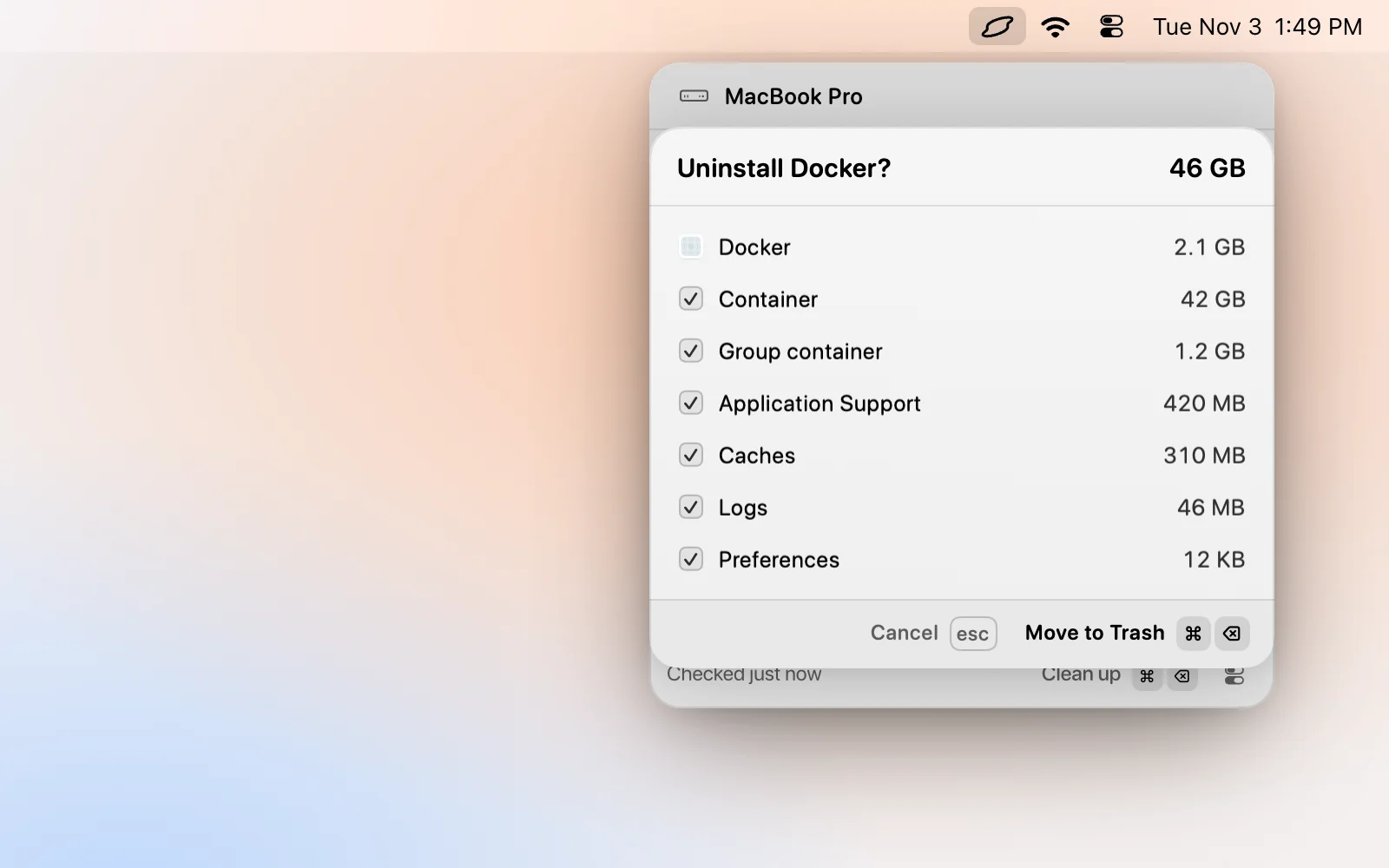
Press ⌘K, type “uninstall” and the app’s name, and Levo opens a confirm step that lists the app and what it left behind in Application Support, caches and preferences, each with its size. Untick anything you want to keep, then press ⌘⌫. If the app is running, ↵ quits it first.
Levo doesn’t remove Apple’s own apps, itself, or leftovers in folders you protect. It works on what’s in your home Library, so helpers in /Library are still a manual job, as above. See Uninstall apps and their leftovers. Uninstalls go to the Trash, and Put back in ⌘K restores the app with its leftovers for a day.
FAQ
Is dragging an app to the Trash enough?
For the app itself, yes. It leaves caches, preferences and support files in your Library folder, usually a few megabytes but sometimes gigabytes. They’re harmless, so it’s about space, not safety.
Will deleting leftovers break anything?
Not if they belong to the app you removed. Match the exact bundle identifier or app name, and avoid shared vendor folders that other apps from the same company use.
Why do some apps have a separate uninstaller?
Apps that install background helpers, drivers or system extensions can’t remove them by being dragged to the Trash. The vendor’s uninstaller removes those pieces, so use it first.
How do I find leftovers from apps I deleted years ago?
Sort the Application Support, Containers and Caches folders in your Library by size and look for names of apps you no longer have. Search the name before deleting anything you don’t recognise.