
Levo guides · System Data
Time Machine snapshots in System Data: how to delete them
Time Machine local snapshots are APFS snapshots macOS keeps on your startup disk so it can restore files without your backup drive. They count as System Data, and you can list them with tmutil listlocalsnapshots / and remove them with sudo tmutil deletelocalsnapshots.
| Task | Command | Needs sudo |
|---|---|---|
| List snapshots | tmutil listlocalsnapshots / | No |
| List just the dates | tmutil listlocalsnapshotdates / | No |
| Delete one snapshot | tmutil deletelocalsnapshots 2026-11-03-101500 | Yes |
| Ask macOS to free space | tmutil thinlocalsnapshots / 20000000000 4 | Yes |
| Make a snapshot now | tmutil localsnapshot | No |
When macOS clears them itself
While Time Machine is on, macOS takes a local snapshot about once an hour and keeps them for roughly 24 hours. It also deletes them early when the disk runs low. So a snapshot you notice today is usually gone tomorrow, and the space is never lost, just borrowed. Snapshots only hurt when you’re deleting big files to make room: the files stay in the snapshot, and nothing frees up. They also appear before a macOS update, which makes System Data jump for a day or two.
If the disk isn’t tight, the best action is to do nothing.
How to do it yourself
- Give Terminal permission to see the whole disk: System Settings › Privacy & Security › Full Disk Access, then switch on Terminal and reopen it.
- List what’s there:
tmutil listlocalsnapshots /Each line looks like com.apple.TimeMachine.2026-11-03-101500.local. The part between the dots is the date to use below. No output means there are none.
- Delete a single snapshot by that date:
sudo tmutil deletelocalsnapshots 2026-11-03-101500- To delete every one, loop over the list:
for d in $(tmutil listlocalsnapshotdates / | grep -E '^[0-9]'); do
  sudo tmutil deletelocalsnapshots "$d"
done- Or ask macOS to do it. The first number is how many bytes you want back, the second is urgency from 1 to 4:
sudo tmutil thinlocalsnapshots / 50000000000 4- Check the result with
df -h /System/Volumes/Data, and give Storage settings a minute to catch up.
New snapshots keep appearing while Time Machine is on. To stop them for good, turn Time Machine off in System Settings › General › Time Machine, or remove the backup disk and switch off automatic backups. Don’t do that if the backup drive is your only backup.
Deleting snapshots doesn’t touch your Time Machine backups on an external drive or network disk. It only removes the local convenience copies.
How Levo does it
Levo leaves Time Machine’s local snapshots to macOS. It doesn’t list them or delete them, because macOS already thins them when space runs low and there’s no safe reason for an app to force it. If System Data is big because of snapshots, that part will stay until macOS or the commands above clear it.
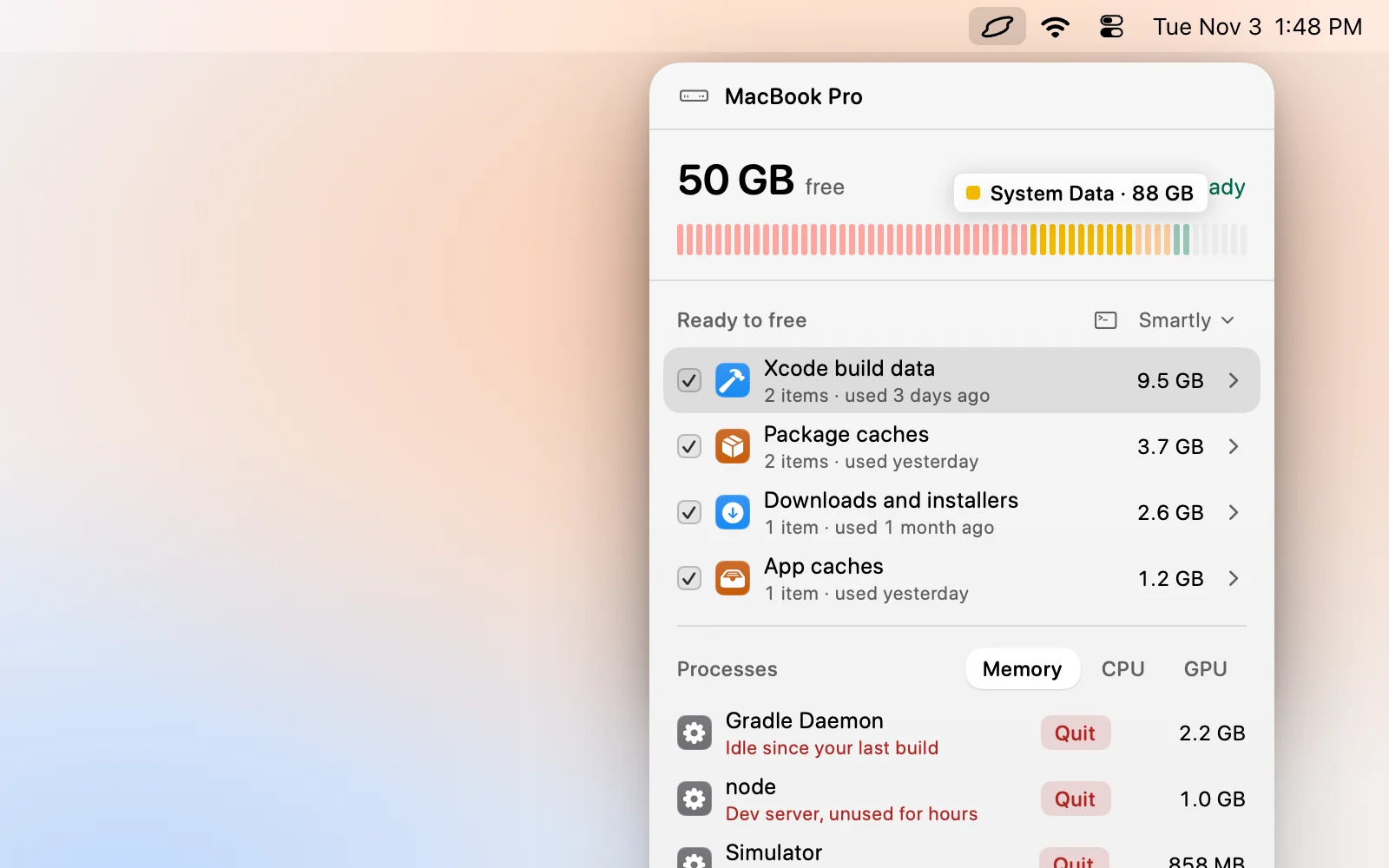
What Levo does is free the rest of System Data that macOS doesn’t manage: caches, developer data, simulators, Docker images and old agent worktrees, listed under Ready to free with a size and a reason each. You tick what goes, or use Select › Smartly, and Levo deletes it itself after checking each item again. Purgeable space counts as free, as in Finder, so Levo’s free-space number won’t drop just because snapshots exist.
See What is System Data on a Mac, and how Levo clears it for what Levo leaves to macOS.
FAQ
Is it safe to delete Time Machine local snapshots?
Yes. They are extra local copies, and your regular Time Machine backups on a drive stay as they are. You lose only the option to restore from those local points.
How do I see how much space snapshots use?
macOS doesn’t show a size for them. Run tmutil listlocalsnapshots / to see what exists, then compare the free space from df -h before and after you delete them.
Why do snapshots come back after I delete them?
While Time Machine is on, macOS takes a new local snapshot about every hour. Turn off automatic backups in System Settings if you don’t want them, as long as you have another backup.
Do snapshots exist without Time Machine?
Yes. macOS also makes snapshots before a software update, and those clear after the update settles.