
Levo guides · Uninstalling apps
How to uninstall Adobe Creative Cloud on a Mac
Remove your Adobe apps from the Creative Cloud desktop app first, then run Adobe’s own Creative Cloud Uninstaller. Dragging the app to the Trash isn’t enough: Creative Cloud runs several background helpers and a Finder extension that keep running and keep their files.
| What | Where | Safe to delete? |
|---|---|---|
| Creative Cloud apps | /Applications/Adobe Photoshop 2026 and similar folders | Yes, uninstall from the desktop app |
| Creative Cloud app | /Applications/Utilities/Adobe Creative Cloud | Yes, via the uninstaller |
| Shared Adobe data | /Library/Application Support/Adobe | Only once no Adobe app is left |
| Per-app settings and presets | ~/Library/Application Support/Adobe | Back up presets and brushes you made |
| Media cache | ~/Library/Application Support/Adobe/Common/Media Cache Files | Yes, can be tens of GB |
| Caches and logs | ~/Library/Caches/Adobe, ~/Library/Logs/Adobe | Yes |
| Preferences | ~/Library/Preferences/com.adobe.*.plist, Adobe folders | Yes |
| Launch agents and helpers | /Library/LaunchAgents/com.adobe.*, /Library/LaunchDaemons/com.adobe.*, /Library/PrivilegedHelperTools/com.adobe.* | Yes, after the apps are gone |
| Your files | ~/Creative Cloud Files, ~/Documents/Adobe | Keep; synced files are also on the web |
How to do it yourself
Before you start
- Your documents are safe: they’re wherever you saved them, plus
~/Creative Cloud Files, which is also on Adobe’s servers. Check that sync has finished. - Export custom brushes, actions, presets and workspaces you made. They live in per-app folders inside
~/Library/Application Support/Adobe. - Sign out of the apps you’ll keep using on other computers, to free the activation.
1. Uninstall the Adobe apps
- Open Creative Cloud, go to Apps › Installed, click the three dots next to each app, and choose Uninstall. Say yes to removing preferences if you won’t come back.
- Wait until each is gone. Don’t drag app folders to the Trash, because that skips the removal of shared components and Adobe’s helper entries.
2. Run Adobe’s uninstaller
Download Creative Cloud Uninstaller from Adobe’s help page “Uninstall Creative Cloud desktop app”, open the download, and run it. It asks for your administrator password. On Macs where it fails, quit Creative Cloud and its helpers first.
pkill -f "Creative Cloud"
pkill -f "Adobe Desktop Service"
pkill -f CCXProcess
pkill -f AdobeIPCBroker
3. Clear what it leaves
A few caches and the shared folders can remain. Look before deleting:
ls ~/Library/Application\ Support/Adobe
ls /Library/Application\ Support/Adobe
ls ~/Library/Caches | grep -i adobe
ls /Library/LaunchAgents /Library/LaunchDaemons /Library/PrivilegedHelperTools | grep -i adobe
Then remove the ones that belong to Adobe:
rm -rf ~/Library/Caches/Adobe
rm -rf ~/Library/Logs/Adobe
rm -rf ~/Library/Application\ Support/Adobe
rm -f ~/Library/Preferences/com.adobe.*.plist
sudo rm -rf /Library/Application\ Support/Adobe
sudo rm -f /Library/LaunchAgents/com.adobe.* /Library/LaunchDaemons/com.adobe.* /Library/PrivilegedHelperTools/com.adobe.*
Keep /Library/Application Support/Adobe if Adobe Acrobat Reader, Digital Editions or any other Adobe app is still installed. Several apps share its Common and CoreSync content, and removing it breaks them.
4. Stop the background processes
Open System Settings › General › Login Items & Extensions and switch off the Adobe items under Allow in the Background and under Extensions (the Finder extension that adds sync badges). Check Activity Monitor for names starting with “Adobe”, “Creative Cloud” and “CC”. After a restart, there should be none.
Only the cache is the problem?
Adobe’s media cache is often the largest part and can be cleared without removing anything. How to clear the Premiere Pro and After Effects media cache shows where it is.
How Levo does it
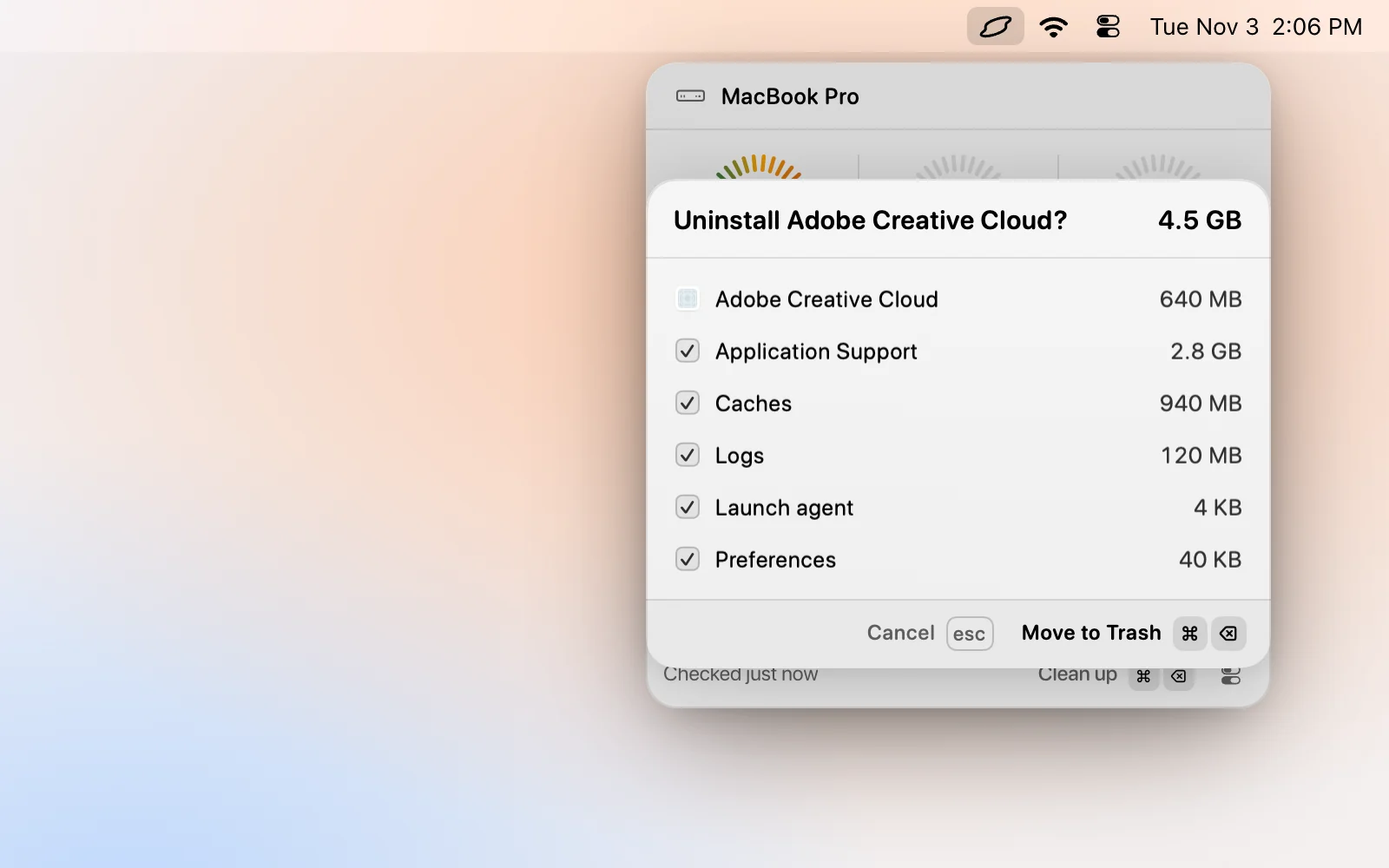
Levo’s Ready to free list shows media caches as their own group with sizes, such as Premiere Pro and After Effects cache files, so you can reclaim the largest part of Adobe’s footprint without removing the apps. It skips anything open or in use.
For a single Adobe app that’s already out of the Creative Cloud desktop app, press ⌘K and type “uninstall” and its name, and Levo lists the app with its leftovers in Application Support, caches and preferences. For the whole of Creative Cloud, use Adobe’s own uninstaller as above: it handles the helpers and licensing pieces in /Library that Levo doesn’t. See Levo for video editors and Uninstall apps and their leftovers. Uninstalls go to the Trash, and Put back in ⌘K restores the app with its leftovers for a day.
FAQ
Why can’t I just drag Creative Cloud to the Trash?
It runs background helpers, a Finder extension and licensing components that keep running and keep their files. Adobe’s Creative Cloud Uninstaller removes them together.
Will uninstalling Creative Cloud delete my files?
No. Your documents are wherever you saved them. Files in Creative Cloud Files are also on Adobe’s servers, so make sure sync has finished before you start.
What’s the biggest thing Adobe leaves behind?
Usually the media cache in ~/Library/Application Support/Adobe/Common, plus caches for individual apps. It can be tens of gigabytes and is safe to delete.
Should I delete /Library/Application Support/Adobe?
Only when no Adobe app remains, including Acrobat Reader. Shared components live there, and removing them while an Adobe app is installed breaks it.