
Levo guides · Video, audio and design
How to clear the Premiere Pro and After Effects media cache
In Premiere Pro, open Settings › Media Cache and click Delete next to Remove Media Cache Files. In After Effects, open Settings › Media & Disk Cache and click Empty Disk Cache and Clean Database & Cache. Both caches rebuild themselves, so clearing them is safe; the next time you open a project, Premiere spends a few minutes conforming audio and building waveforms again.
| What | Default folder | Safe to delete? |
|---|---|---|
Media Cache Files (conformed audio, .cfa, .pek) | ~/Library/Application Support/Adobe/Common/Media Cache Files | Yes, rebuilt when you open a project |
| Media Cache database | ~/Library/Application Support/Adobe/Common/Media Cache | Yes, with Premiere and After Effects closed |
| After Effects disk cache | ~/Library/Caches/Adobe/After Effects/<version> | Yes, frames render again |
| Premiere preview files | Next to the project, in Adobe Premiere Pro Video Previews | Yes, for finished projects |
| Auto-saves | Next to the project, in Adobe Premiere Pro Auto-Save | Old ones, yes; they’re project copies |
| Proxies | Wherever you set them, often Proxies beside the footage | Yes, if the originals are still there |
What the media cache is
When you import a clip, Premiere and After Effects decode its audio into conformed audio files (.cfa) and draw its waveform into peak files (.pek). For long-GOP formats such as H.264 and HEVC they also write index files so scrubbing is fast. These go into one shared folder used by Premiere, After Effects, Media Encoder and Audition. Nothing cleans it automatically unless you tell it to, so a few years of projects can leave tens of gigabytes behind, much of it for footage you deleted long ago.
The After Effects disk cache is separate: it keeps rendered frames so a RAM preview doesn’t start from scratch. Adobe’s default limit is generous, and on a small SSD that’s a lot of space for frames you’ll render again anyway.
To see how big each one is:
du -sh ~/Library/Application\ Support/Adobe/Common/Media\ Cache*
du -sh ~/Library/Caches/Adobe/After\ Effects/*
How to do it yourself
Premiere Pro
- Open Premiere Pro with no project, or save and close the one that’s open.
- Choose Premiere Pro › Settings › Media Cache.
- Next to Remove Media Cache Files, click Delete.
- Choose Delete all media cache files from the system, or the option to remove only unused files if a project is open.
- While you’re there, turn on Automatically delete cache files older than and pick a number of days, or set a maximum size.
After Effects
- Choose After Effects › Settings › Media & Disk Cache.
- Click Empty Disk Cache, then Clean Database & Cache.
- Set Maximum Disk Cache Size to something your disk can spare. On a 512 GB Mac, 20 to 50 GB is plenty.
From Finder, if an app won’t open
Quit every Adobe app, including Media Encoder, then delete the folders’ contents:
rm -rf ~/Library/Application\ Support/Adobe/Common/Media\ Cache\ Files/*
rm -rf ~/Library/Application\ Support/Adobe/Common/Media\ Cache/*
Delete the contents, not the folders, and only with the apps closed. If you moved the cache to an external drive in Settings, look there instead; the default folders may be nearly empty.
Preview files and auto-saves
Preview (render) files live next to each project, not in the shared cache. For a finished project, choose Sequence › Delete Render Files, or delete the Adobe Premiere Pro Video Previews folder in Finder. Old Auto-Save folders hold copies of the project file only, so they’re small, but delivered projects don’t need them.
A sensible size
The cache earns its keep on projects you’re editing this month. Beyond that it’s waste. A rule that works for most editors: let Premiere delete cache files older than 30 to 90 days, keep the cache on the internal SSD if it has room (it’s faster), and move it to a fast external SSD on a 256 GB Mac.
How Levo does it
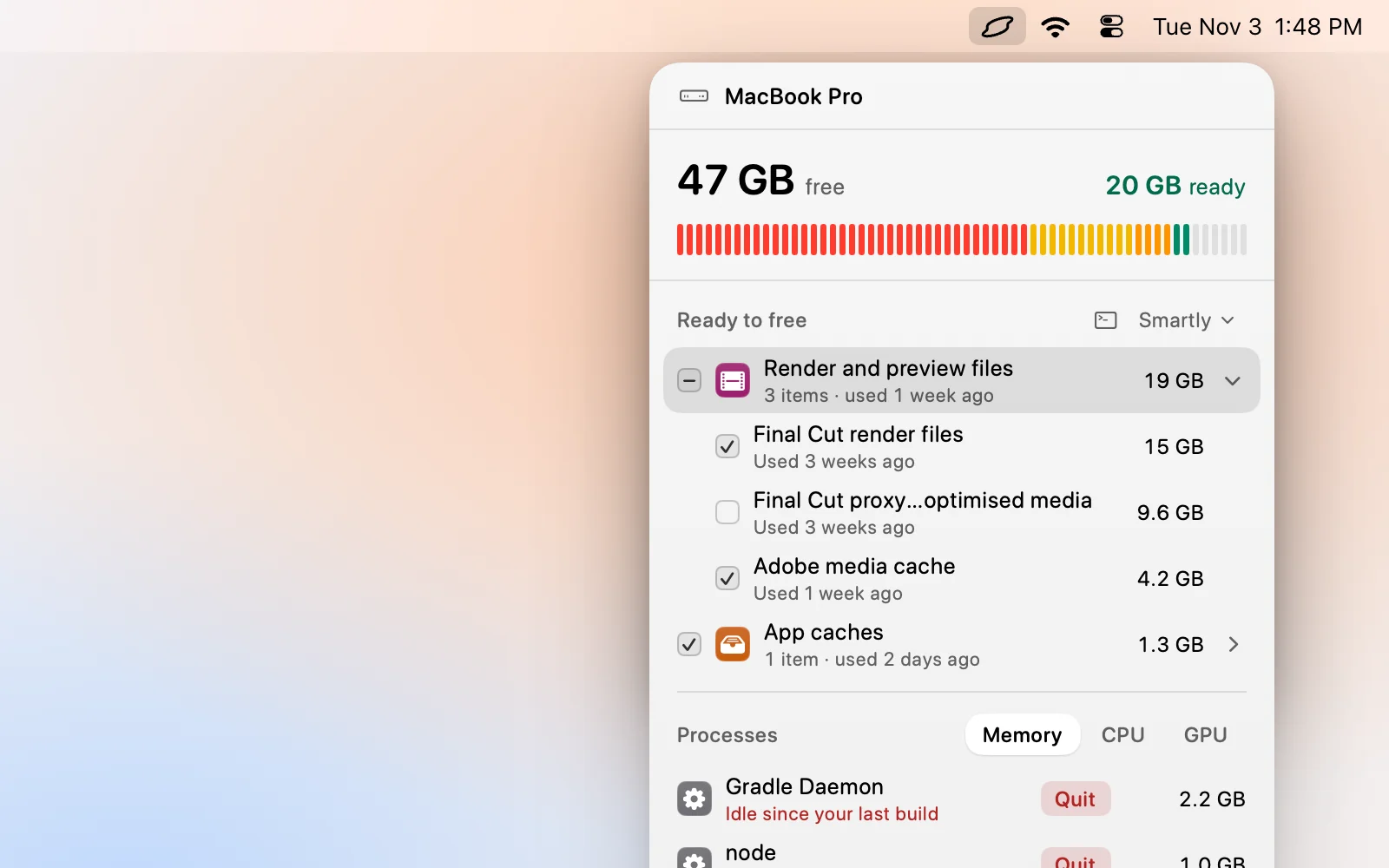
Levo lists the Premiere and After Effects media cache and disk cache in Ready to free, along with Photoshop’s recovered and scratch files and Lightroom previews, each with its size. Your own AI agent judges each item: what made it, whether it comes back and whether it can go. You tick what goes and press Clean up; Levo checks each item again right before deleting it.
If Premiere or After Effects is open, their files show as locked and aren’t cleaned, so nothing disappears mid-edit. Your footage and project files are never ticked for you. See For video editors.
FAQ
Is it safe to delete the Premiere Pro media cache?
Yes. The media cache only holds conformed audio, waveforms and index files that Premiere makes from your footage. It rebuilds them the next time you open a project, which takes a few minutes.
Does clearing the media cache delete my projects or footage?
No. Project files, footage and proxies live elsewhere. Clearing the cache only removes files Adobe’s apps generated from your media.
How big should the After Effects disk cache be?
Big enough for the projects you’re working on now. On a 512 GB Mac, 20 to 50 GB is plenty; on a 256 GB Mac, move it to an external SSD or keep it small.
Why is the Media Cache folder still big after clearing it?
Premiere may have been open with a project using the files, or Media Encoder was running. Quit every Adobe app and clear it again, and check whether Settings points the cache at another drive.