
Levo guides · Video, audio and design
How to clear the DaVinci Resolve cache
In DaVinci Resolve, open the project and choose Playback › Delete Render Cache › All. For optimised media and proxies, select the clips in the Media Pool, right-click and choose Delete Optimized Media or Delete Proxy Media. All of it is generated from your footage, so Resolve can make it again.
| What | Where | Safe to delete? |
|---|---|---|
| Render cache | CacheClip inside the cache folder set in Project Settings | Yes, rendered again when needed |
| Optimised media | OptimizedMedia inside the cache folder | Yes, if the originals are still there |
| Proxies | A Proxy folder beside the footage, or the proxy location you set | Yes, if the originals are still there |
| Gallery stills | In the Gallery folder set in Project Settings | Only stills you no longer need |
| Project backups | The backup folder set in Preferences › Project Save and Load | Old ones, yes |
| Project database and media | The project library and your footage folders | No |
Where Resolve keeps its cache
Resolve writes its cache to the first folder in Preferences › Media Storage, unless a project picks its own in Project Settings › Master Settings › Working Folders. On a Mac with one drive that’s usually inside ~/Movies, in a folder named CacheClip, with one subfolder per project and timeline. Each subfolder is named by an id, not the project’s name, so it’s hard to tell from Finder which project a folder belongs to.
The render cache grows with Smart or User caching on: every node, effect or Fusion composition you play gets rendered to disk, usually in ProRes or DNxHR. On a colour-heavy 4K timeline that can be hundreds of gigabytes. When you delete a project from the Project Manager, its cache stays behind.
To size it:
du -sh ~/Movies/CacheClip
du -sh ~/Movies/CacheClip/* | sort -h | tail
How to do it yourself
Inside Resolve
- Open the project whose cache you want to clear.
- Choose Playback › Delete Render Cache, then All to clear everything, or Unused to keep what the current timelines use.
- In the Media Pool, select all clips with ⌘A, right-click and choose Delete Optimized Media, then Delete Proxy Media if you made proxies.
- Repeat for each project you’ve delivered.
From Finder, for deleted projects
For projects you’ve already deleted, there’s nothing to open, so clear the folder itself:
- Quit Resolve.
- Open the cache folder shown in Preferences › Media Storage.
- Delete the
CacheClipandOptimizedMediafolders’ contents. Resolve makes new ones for the projects you open.
rm -rf ~/Movies/CacheClip/*Check the path in Media Storage first. If it points to an external drive, the cache is there, not in ~/Movies.
Keep it under control
- Set Render Cache to None or Smart rather than User unless you need it, from the Playback menu.
- Point the cache at a fast external SSD on a small Mac. Resolve reads it quickly over Thunderbolt or USB 4.
- Choose a lighter optimised media format, such as ProRes Proxy, in Master Settings, if you only need it for editing.
How Levo does it
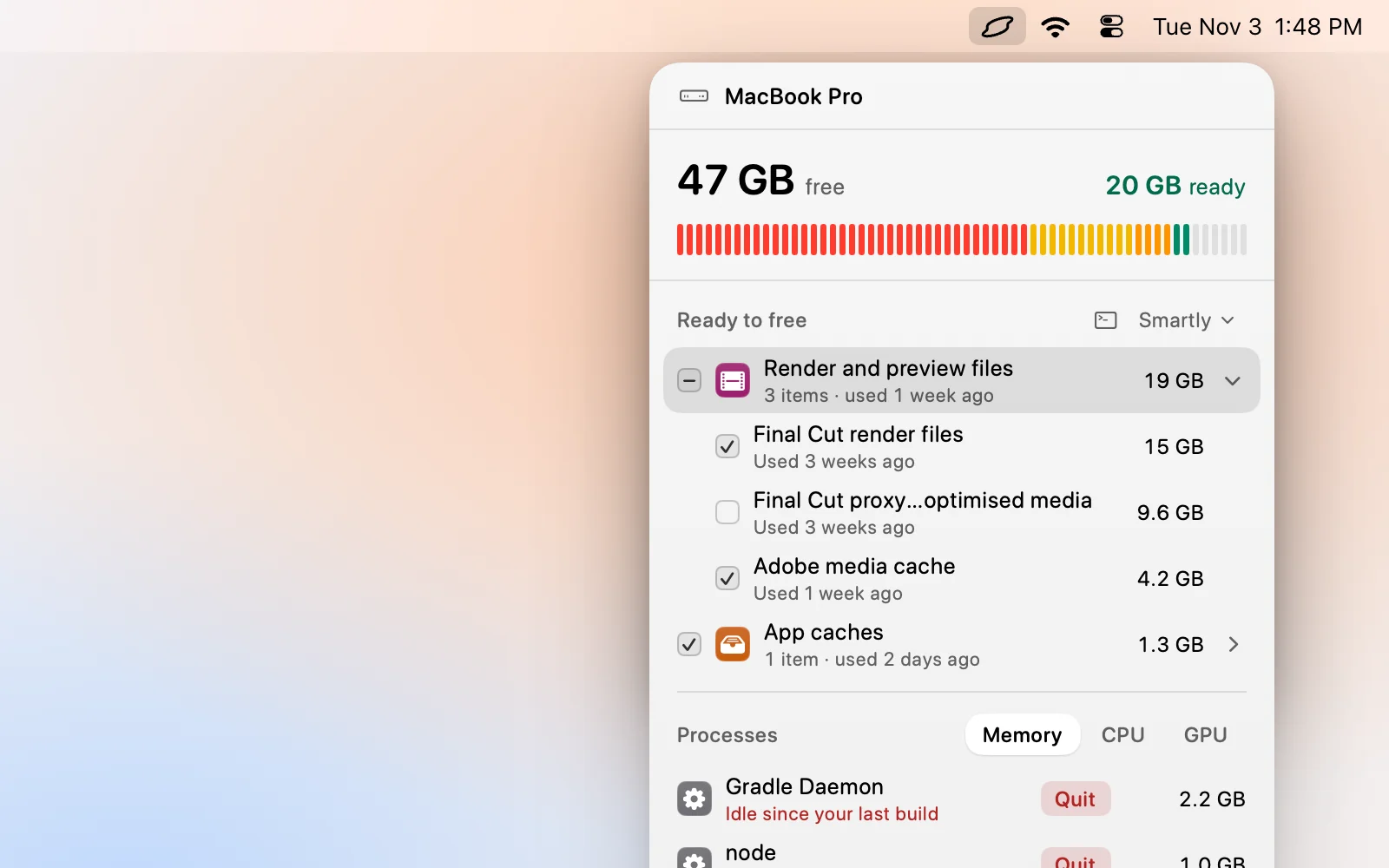
Levo’s live index finds Resolve’s cache and stills folders and lists them in Ready to free, each with a size and a reason from your own AI agent: what the folder is, that it comes back, and whether a project still uses it. You tick what goes and press Clean up. While Resolve is open, its files show as locked and aren’t touched.
Footage, projects and the project database are never ticked for you, and a folder you protect is never looked inside. See For video editors and Protected folders. Levo needs macOS 26 or later; it’s two free cleanups, then a lifetime licence.
FAQ
Is it safe to delete the DaVinci Resolve render cache?
Yes. The render cache only holds frames Resolve rendered for smooth playback. It renders them again when you play the timeline, so the only cost is slower playback for a while.
Where is the DaVinci Resolve cache on a Mac?
In the folder listed first in Preferences › Media Storage, or the one set in the project’s Working Folders. It’s usually a CacheClip folder inside your Movies folder.
Does deleting optimised media affect my footage?
No. Optimised media is a copy made from your footage. Deleting it leaves the originals alone, and Resolve uses them again until you make new optimised media.
Why is CacheClip still big after deleting a project?
Deleting a project in the Project Manager doesn’t delete its cache. Quit Resolve and delete the leftover folders in CacheClip by hand.