
Levo guides · Storage settings
System Data, macOS and Other Volumes in Storage settings: what each means
Storage settings sorts your disk into coloured categories. Applications, Documents, Photos and the other labelled ones are yours and you can shrink them. macOS is the system itself. System Data is everything left over, and Other Volumes in Container is other APFS volumes sharing your disk.
| Category | What’s in it | Can you shrink it? |
|---|---|---|
| Applications | Apps in /Applications and your user Applications | Yes, delete apps you don’t use |
| Documents | Files, downloads, disk images, archives | Yes, you choose |
| Photos, Music, TV | The libraries, plus downloaded copies | Yes, inside each app |
| Messages, Mail | Attachments and message databases | Yes, inside each app |
| iCloud Drive | Files kept on this Mac from iCloud | Partly, by removing downloads |
| Developer | Xcode, simulators and tools, when Xcode is installed | Yes, mostly rebuildable |
| Trash | What you deleted and haven’t emptied | Yes, empty it |
| macOS | The operating system, about a fixed size | No |
| System Data | Caches, logs, snapshots, swap, VMs, leftovers, other apps’ data | Partly |
| Other Volumes in Container | Other APFS volumes on the same container | Only by deleting those volumes |
The three that confuse people
macOS is the installed system, usually 15 to 30 GB depending on version and what Apple ships with it. It’s sealed and read-only, and you can’t change it. Deleting apps or files won’t move it.
System Data is a catch-all. It holds app and browser caches, logs, Time Machine local snapshots, the swap file, virtual machines, leftovers of deleted apps, Docker, and any file macOS can’t place in another category. Some of it is yours to remove and some belongs to macOS. The mix is why it can be 10 GB or 200 GB. The pages Why is System Data so big and Can you delete System Data go through it.
Other Volumes in Container appears when your APFS container holds volumes besides the main ones, such as Boot Camp leftovers, an old macOS install, or a volume made by a developer tool. All volumes in a container share the same pool of space, so another volume’s files count against yours.
How to look yourself
- Open System Settings › General › Storage and wait for the bar to finish. If it sticks, see Mac storage stuck on “Calculating”.
- Click the i button next to a category for the biggest items and a delete option, where the app allows one.
- See the volumes in your container:
diskutil apfs listEach volume lists its name and Capacity Consumed. A volume you don’t recognise, with several gigabytes, is what Other Volumes in Container is counting.
- Compare the Finder and disk numbers with
df -h /System/Volumes/Data. Storage settings counts some space as available thatdfdoesn’t, which is purgeable space.
Don’t delete an APFS volume you didn’t create. System volumes are hidden from Finder for a reason.
How Levo does it
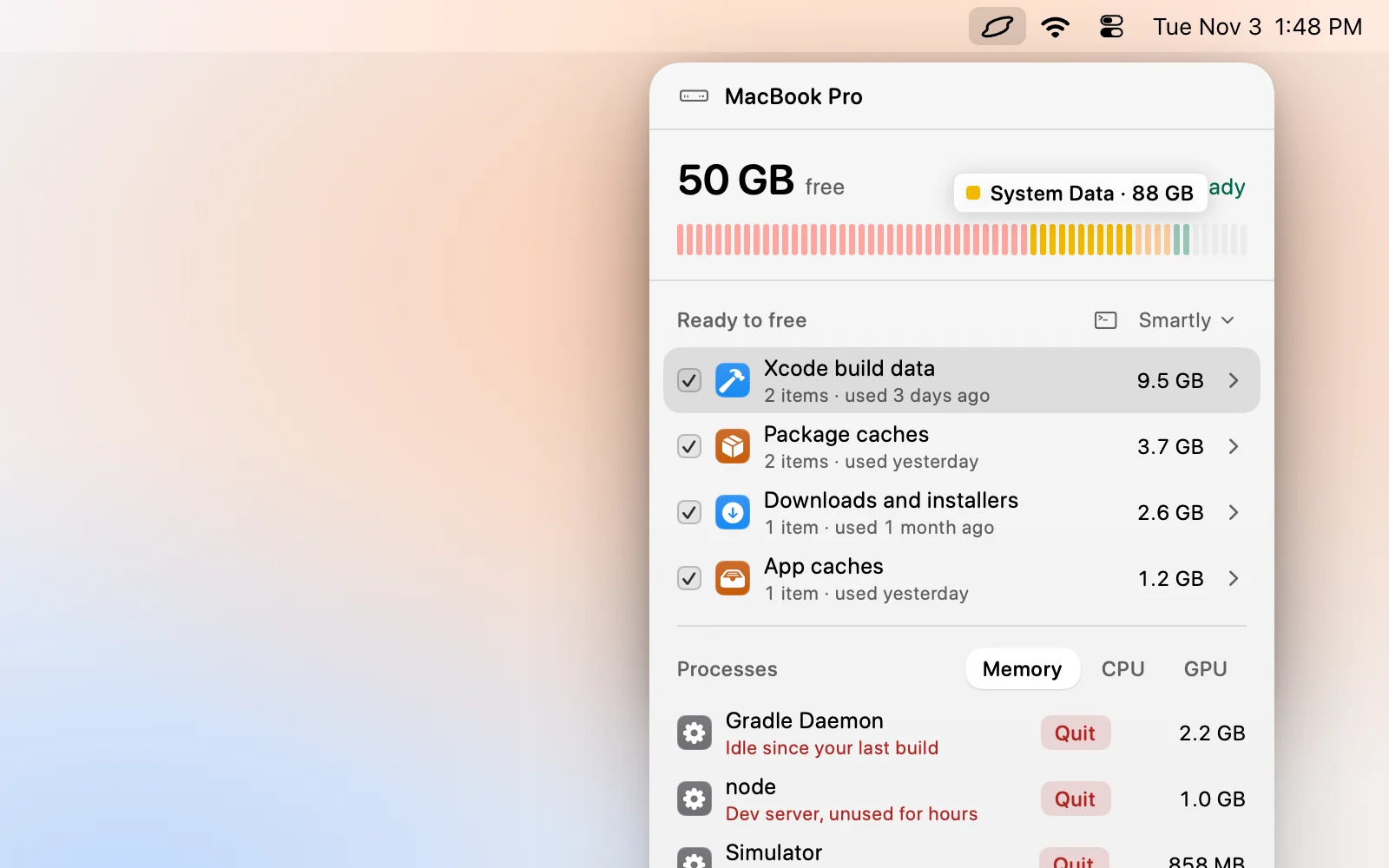
Apple’s bar stops at the label. Levo’s live index goes inside it. In the popover, the disk bar splits Caches, Developer, Mail and Messages out of the lump, so what’s left called System Data is smaller than Apple’s, because Levo has named the rest. The Ready to free list then shows what’s reclaimable by kind, with a size and a reason. For the Applications category, it lists apps you haven’t opened in months as Unused apps, and Clean up removes each one with its leftovers into the Trash.
The parts Levo can’t shrink, it doesn’t pretend to: Time Machine’s local snapshots, the swap file and macOS’s own files are left to macOS, and purgeable space counts as available, as in Finder, shown apart from free space on the disk bar. Without Full Disk Access, Levo can’t look inside other apps’ containers, Mail or Messages, so some System Data stays unnamed until you grant it.
The comparison is spelled out in Levo vs macOS Storage settings.
FAQ
What is Other Volumes in Container?
Other APFS volumes that share your disk’s container, such as an old macOS install or a volume a tool created. They use the same pool of space as your main volume.
Why is macOS category so large?
The system is a fixed size of roughly 15 to 30 GB, and the number grows a little with each major release. If it looks much larger, part of it is likely an update download or a second system volume.
Can I reduce System Data to zero?
No. Part of it is macOS’s own files, swap and snapshots. You can shrink the part made of caches, logs, developer data and leftovers.
Why doesn’t Developer appear in my Storage settings?
It shows only when Xcode or its tools are installed. Without them, developer files fall under System Data.