
Levo guides · Disk space
How much free space should a Mac have?
Keep at least 10 to 15 percent of the disk free, and never let it drop below about 20 GB on any Mac. Below that, macOS has no room for swap, updates or snapshots, and the Mac gets slow and starts throwing errors.
Percent works for big disks and absolute numbers for small ones, so here’s a table for both.
| Disk size | Comfortable | Minimum before trouble |
|---|---|---|
| 128 GB | 25 GB or more | 15 GB |
| 256 GB | 35 GB or more | 20 GB |
| 512 GB | 60 GB or more | 30 GB |
| 1 TB | 100 GB or more | 40 GB |
| 2 TB and up | 150 GB or more | 60 GB |
These are rules of thumb, not Apple figures. They add up the things that need room at the same moment, described below. A Mac that runs a lot of apps, a VM or video work needs more.
Why you need headroom
- Swap. When memory is full, macOS writes to swap files on the disk. They grow as needed and can reach tens of gigabytes under a heavy load. On an 8 or 16 GB Mac this happens a lot, and a full disk turns it into “Your system has run out of application memory”.
- Updates. A big macOS update downloads, unpacks and stages itself before swapping in. It can need many gigabytes beyond its own download size, and fails or loops when there isn’t enough. The update space guide has the details.
- Local snapshots. Time Machine and macOS updates keep APFS snapshots that hold deleted files for a while. They give space back when needed, but not instantly.
- Apps that need scratch room. Photos, video editors, Xcode builds and browsers all write temporary data.
- SSD health. A nearly full SSD has fewer free blocks to spread writes across. It slows down for the same reason a crowded room does.
What counts as free
The number in System Settings › General › Storage includes purgeable space that macOS can reclaim on demand, such as snapshots and cached files. Finder’s Get Info and Disk Utility show the same kind of number. Terminal’s df shows only the truly free blocks:
df -h /System/Volumes/DataUse the lower number when you decide whether you’re safe. Purgeable space frees itself, but only when the system is already under pressure. See purgeable space, and why free space differs between tools.
How to get more headroom
- Find what’s large: large files first, since one video or VM image beats a thousand cache files.
- Clear caches, old installers and iPhone backups.
- Move the big, rarely used things (old projects, footage, archives) to an external drive.
- If you still can’t reach the floor for your disk size, the answer is cloud storage or a bigger disk, not more clean-ups.
Don’t stop at one clean-up. A Mac at the floor goes back to the floor, because the next update or project fills what you cleared.
Signs you’re too low
- Beach balls and slow saves, particularly after waking from sleep.
- “Your disk is almost full” alerts.
- Updates that fail, or Time Machine that complains about space.
- Apps quitting with memory errors on a Mac with plenty of RAM.
How Levo does it
Levo is built around this number. You set a free-space limit, and Levo watches disk, memory, CPU and GPU against your limits from the menu bar. When the disk drops below it, you get a notification with the answer ready: what’s safe to free, with sizes and reasons, so you act before the Mac struggles. See notifications.
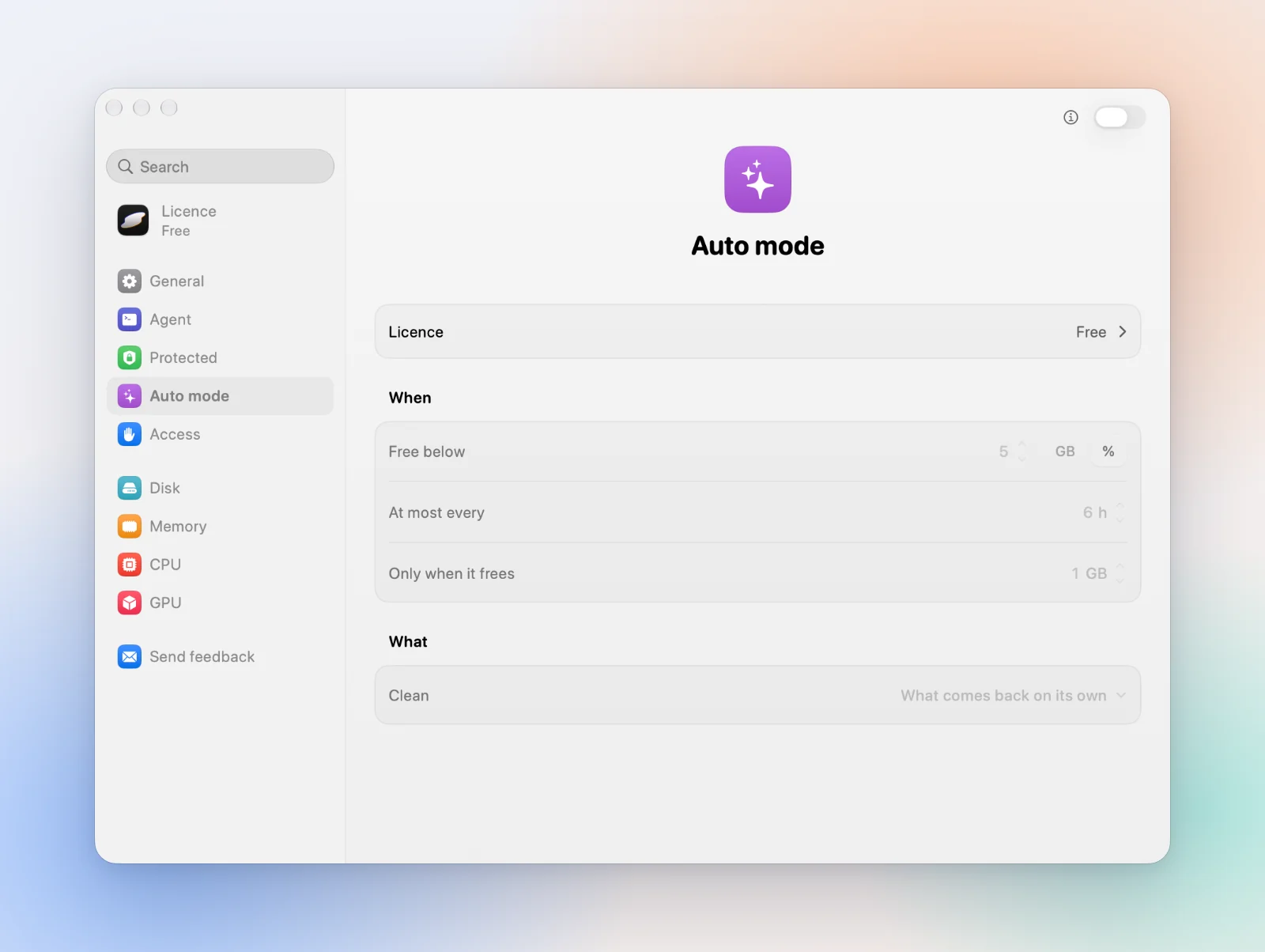
Your own limit is the point. Use the table above to pick it, and raise it if you’re about to run a big update or a project that eats scratch space. Auto mode can then clean for you when free space falls below the limit, only in the kinds you tick. It’s off by default, and Levo checks every item again right before it deletes. Time Machine’s local snapshots and the swap file are left to macOS.
FAQ
How much free space does a Mac need to run well?
At least 10 to 15 percent of the disk, and never less than about 20 GB. Small disks (128 and 256 GB) need the absolute floor more than the percentage.
Is 10 GB free enough on a Mac?
It’s too little for most uses. A macOS update, swap and snapshots can need more than that, and the Mac will slow down or fail to update.
Why does my Mac say I have more free space than df shows?
Storage settings counts purgeable space that macOS can reclaim on demand. df counts only the blocks free right now. Trust the lower number for planning.
Does a nearly full SSD wear out faster?
It can slow down, because it has fewer free blocks to spread writes across. Keeping headroom is better for performance and reliability.